
SEO
How to Rank on Google Discover: 10 Steps That Work (2026)
Learn how Google Discover picks content and the 10 steps that give your small business pages the best chance of showing up — no keyword tricks, no submission form.

 By Taylor Orlando
·November 11, 2026

A sitemap is a file that lists the important pages on your website. It tells search engines like Google which pages exist, so they can find and index them. Think of it as a map you hand to Google that says: here are my pages, please take a look.
If you run a small business website, you have probably heard the word “sitemap” but never really known what it does. This guide explains it in plain English: what a sitemap is, the types, how to check if your site has one, how to create one, and how to send it to Google.
A sitemap is a simple file on your website that lists your pages in one place. Search engines read it to find pages they might otherwise miss, especially new pages or pages buried deep in your site.
Most sitemaps use a format called XML. An XML sitemap is written for search engines, not for people. It is a plain text file, usually named sitemap.xml, that lives at the root of your website, like this: yoursite.com/sitemap.xml.
Here is what a small sitemap looks like:
<?xml version="1.0" encoding="UTF-8"?>
<urlset xmlns="http://www.sitemaps.org/schemas/sitemap/0.9">
  <url>
    <loc>https://example.com/</loc>
    <lastmod>2026-11-01</lastmod>
  </url>
  <url>
    <loc>https://example.com/about/</loc>
    <lastmod>2026-10-20</lastmod>
  </url>
</urlset>
Each entry has a page address (loc) and the date it was last changed (lastmod). That is most of what a sitemap is. Two older fields, priority and changefreq, still show up in old guides, but Google ignores them now, so you can leave them out.
A sitemap helps search engines find your pages faster and more reliably. That matters most in a few common cases:
Do small websites need one? Not always. If your site has under 500 pages and every page links neatly to the others, Google can usually find everything without a sitemap. Even so, a sitemap costs nothing and takes a few minutes to set up, so most small business owners set one up anyway. It is cheap insurance.
There is more than one kind of sitemap. Here are the ones you will run into.
This is the standard sitemap for search engines. It is a file, not a web page, and visitors never see it. When people say “sitemap” without adding anything else, they usually mean this one. Every site that cares about SEO should have an XML sitemap.
An HTML sitemap is a normal web page that lists your site’s pages with links, made for human visitors. It helps people find their way around a large site, and it gives search engines another way to discover your pages. Many sites put a link to it in the footer. It is helpful, but it does not replace an XML sitemap.
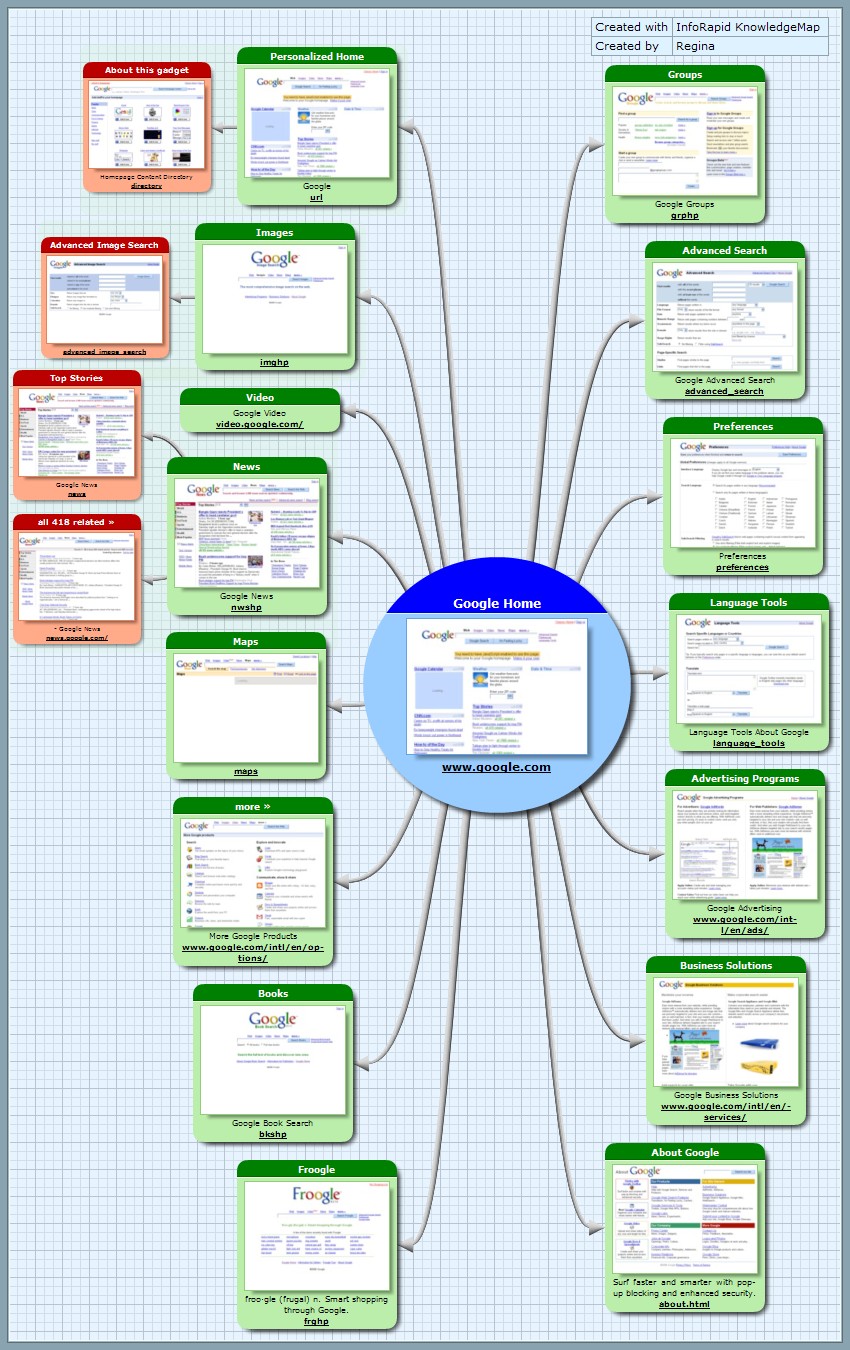
A visual sitemap is a diagram of your site’s structure, used while planning or redesigning a website. It shows how pages connect to each other, like a family tree. It is a planning tool for designers and site owners, not a file you submit to Google.
An image sitemap lists the images on your pages so Google can find and index them. This is useful if images bring you traffic, for example on a photography, product, or recipe site. Image details can also live inside your normal XML sitemap.
A video sitemap tells Google about the videos on your site: the title, a short description, the length, and a thumbnail. It helps your videos appear in video search results.
A news sitemap is for publishers. It lists articles published in the last two days so Google News can pick them up fast. Only news sites need one.
A sitemap is not pretty, and it does not need to be. It is a list, and each line follows the same pattern:
That is all Google really uses from it. If you open a sitemap in your browser, you will see a plain page of addresses, and that is normal. You do not need to design it or make it look nice.
Want to check your own site, or a competitor’s? There are five quick ways.
Type the website address into your browser and add /sitemap.xml at the end. For a WordPress site, also try /wp-sitemap.xml, and for sites using an SEO plugin, try /sitemap_index.xml. If a page of links loads, the site has a sitemap.
Open yoursite.com/robots.txt. Many sites list their sitemap address at the bottom of this file, on a line that starts with “Sitemap:”.
In Google, type site:yoursite.com filetype:xml. This can surface sitemap files Google knows about.
If you own the site, open Google Search Console, go to Sitemaps in the left menu, and you will see every sitemap you have submitted, plus whether Google could read it.
Several free tools will fetch a sitemap for you if you paste in a website address. They are handy when the manual checks come up empty.
You almost never need to write a sitemap by hand. Most websites get one automatically. Pick the method that matches your site.
WordPress has built a sitemap into every site since version 5.5. It lives at yoursite.com/wp-sitemap.xml and updates itself when you publish or edit a page. You do not need to do anything.
If you use an SEO plugin such as Rank Math or Yoast, the plugin creates a fuller sitemap for you, usually at yoursite.com/sitemap_index.xml, and it includes your posts, pages, and categories. Check the plugin’s settings to make sure the sitemap is turned on and that it includes the pages you want Google to find.
For a site with a handful of pages, a free online sitemap generator will do the job. You paste in your website address, the tool crawls your pages, and it gives you an XML file to upload to your site. Free generators usually cap the number of pages, often around 500, which is fine for most small sites.
Large or custom sites usually need a sitemap that updates itself. Your developer can set one up so that it rebuilds whenever a page is added or changed. This is the normal approach for online stores and sites with thousands of pages.
Whichever method you use, remember to update the sitemap when your site changes. WordPress and SEO plugins do this for you. A hand-made file does not update itself, so you need to rebuild it after adding or removing pages.
Creating a sitemap is only half the job. You also need to tell Google where it is. This takes about two minutes.
You can also add your sitemap address to your robots.txt file, on a line like this: Sitemap: https://yoursite.com/sitemap.xml. That way, any search engine that reads your robots.txt file will find your sitemap too.
What about Bing? Bing has its own tool, Bing Webmaster Tools. The steps are the same: open the Sitemaps section, paste in your sitemap address, and submit. If you already use Google Search Console, you can also import your site into Bing Webmaster Tools in one click, and Bing will pull your sitemap over automatically.
People often mix these two up, because they sit in the same place and both talk to search engines. But they do opposite jobs.
A sitemap does not override robots.txt. If your robots.txt file blocks a page, or the page has a “noindex” tag, Google will not index it, even if it is listed in your sitemap. The two files work as a team: the sitemap points to what matters, and robots.txt keeps search engines out of what does not.
A single sitemap file has limits set by the sitemap standard:
Most small business sites will never come close to these numbers. Large sites get around them with a sitemap index file, which is a sitemap of sitemaps. It lists several smaller sitemap files, one for posts, one for pages, one for products, and so on. That is why you often see the address sitemap_index.xml on WordPress sites.
A sitemap only helps if it is clean. These are the mistakes that cause the most trouble:
A sitemap does not directly raise your rankings. Google has said this plainly: a sitemap helps Google find your pages, but it does not make those pages rank better than a competitor’s.
What it does do is make sure your pages get found and indexed in the first place. A page Google never finds cannot rank at all. So a sitemap is a foundation, not a shortcut. Your rankings still come from the quality of your content, the links pointing to your site, and how well your pages match what people search for.
Yes. Search engines depend on them less than they used to, because crawling has improved, but Google still recommends them, and they still help new, large, and fast-changing sites get indexed. They are a basic part of SEO, not a dead practice.
Not strictly. A small site with under 500 pages and clear links between them can be found without one. But a sitemap is free, takes minutes, and removes all doubt, so most site owners set one up anyway.
No. Many sites, especially older ones and small sites built without an SEO plugin, have no sitemap at all. That is normal, and it is easy to fix by turning one on.
Yes. WordPress builds one for free, SEO plugins build one for free, and free online generators cover small sites. You only pay if you hire someone to set one up on a large custom site.
On WordPress, you already have one at /wp-sitemap.xml. On other platforms, use a free online sitemap generator, or turn on the sitemap feature in your SEO tool or website builder.
Whenever your site changes. WordPress and SEO plugins update it automatically each time you publish or edit a page. If you made your sitemap by hand, rebuild it after adding, removing, or moving pages.
You do not have to, because Google may find it on its own through your robots.txt file. But submitting it in Search Console is faster, and it shows you whether Google could read it and how many pages it found. It is worth the two minutes.
Last updated: November 2026

Taylor Orlando is a content writer at Meregate covering websites, SEO, and AI. Taylor breaks down complex topics into simple, practical guides that help small businesses build better websites, rank higher on Google, and get real value from AI tools — no jargon, no fluff.
Learn how Google Discover picks content and the 10 steps that give your small business pages the best chance of showing up — no keyword tricks, no submission form.

WordPress does not handle SEO on its own. These seven plugins do — compared on price, free limits, speed, and ease of use, with a clear pick for your kind of site.

Alt text is a short written description of an image that helps screen readers, search engines, and readers when a picture won't load.