
SEO
What Is a Sitemap? A Simple Guide for Beginners (2026)
A sitemap is a simple file that helps Google find and index your pages. This guide explains what it is, the types, and how to create and submit one.

 By Taylor Orlando
·November 11, 2026

Google Discover can send thousands of visitors to a website without anyone typing a search. It is the feed of articles and videos that shows up in the Google app and in Chrome on mobile phones, picked for each person based on what they like. If you run a small business website, you may wonder how to rank on Google Discover, and whether a small site even has a chance. The short answer is yes, but Discover works differently from normal Google Search. There is no keyword to rank for and no form to fill in. This guide explains, in plain words, how Discover picks content and the 10 steps that give your pages the best chance of showing up.
Google Discover is a personal feed inside the Google app and mobile Chrome. Instead of waiting for you to type a question, it shows you articles, videos, and other pages it thinks you will like, based on your interests and your past activity on Google. Google first launched it as the Google Feed in 2017 and renamed it Discover in 2018.
Discover is part of Google Search, not a separate product. The feed mostly shows sports, health, entertainment, and lifestyle content, but it covers many other topics too, including how-to guides and practical advice. Most people see it on their phones, when they open the Google app or a new tab in Chrome.
The key difference from normal search is simple: in search, the person asks a question and Google answers it. In Discover, Google guesses what the person wants to read before they ask. That changes everything about how you should write for it.
Google has published clear guidance on this, and it is simpler than most SEO blogs make it sound. Content is automatically eligible to appear in Discover if it is indexed by Google and meets Discover’s content policies. No special tags or structured data are required. But Google is also clear about one thing: being eligible is not a guarantee of appearing.
Here is what happens behind the scenes. Google looks at a person’s interests, built from their searches, the videos they watch, and the pages they have read. It then matches that person with pages that fit those interests. Discover uses many of the same quality systems as Google Search, so the same rule applies: content should be helpful, reliable, and written for people first.
That means there is no trick to force your way in. You cannot buy a place in Discover, and you cannot submit your site for review. You can only make your pages eligible, appealing, and trustworthy, and then publish regularly on topics where you have real knowledge.

Yes. Google does not publish any minimum traffic or size requirement for Discover. Any indexed page that follows the content policies is eligible, whether it belongs to a big news site or a small business blog.
That said, it helps to be realistic. Big news sites win most of the breaking-news slots, because Discover likes fresh content on trending topics. Small sites do better with a different kind of content: clear how-to guides, honest explainers, and useful advice on topics they know well. A plumber who writes a genuinely helpful guide to fixing a leaking tap has a better chance than a plumber who copies a generic news story.
Most pages never appear in Discover, and that is normal. The sites that do well treat it as a bonus on top of normal search traffic, not as their main plan. If you publish good content week after week, your chances grow over time.
There is no single setting that puts you in Discover. It is a mix of technical basics, good content, and honest presentation. Work through these 10 steps for every article you publish.
A page that Google has not indexed cannot appear in Discover at all. That is the first rule, and it is easy to check. Open Google Search Console, paste your page URL into the URL Inspection tool, and confirm the page is indexed. If it says the page is blocked by robots.txt, marked noindex, or not found, fix that first. New pages can take days or even weeks to get indexed, so publish early and be patient.
Discover does not rank pages for keywords the way normal search does. It matches pages to people’s interests. So stuffing keywords into your text will not help you here. What helps is content that answers a real question, solves a real problem, or explains something clearly. Before you publish, ask yourself: would a real person find this useful, or would they close the tab after ten seconds? If you would not read it yourself, rewrite it. Google’s own advice on creating helpful, people-first content is the best starting point.
Discover likes content that is timely for current interests, tells a story well, or offers unique insights. That does not mean you have to chase the news. A fresh take on a topic people care about right now works, and so does an evergreen guide that stays useful for months. What does not work is content that adds nothing new. If ten sites already say the same thing, your copy will not stand out. Add your own experience, a worked example, real numbers, or an honest opinion.
This is the single biggest lever you control. Discover is a visual feed, and Google says large images are more likely to generate visits. Google’s published image rules are exact:
max-image-preview:large setting, or by using AMPYou should also tell Google which image to use, through the og:image meta tag or schema.org markup on the page. Use a real photo that shows what the article is about, not your site logo and not an image full of text. Most SEO plugins, including Rank Math, let you control the preview setting, so check that large image previews are allowed. A small or missing image means a small card in the feed, and small cards get far fewer clicks.
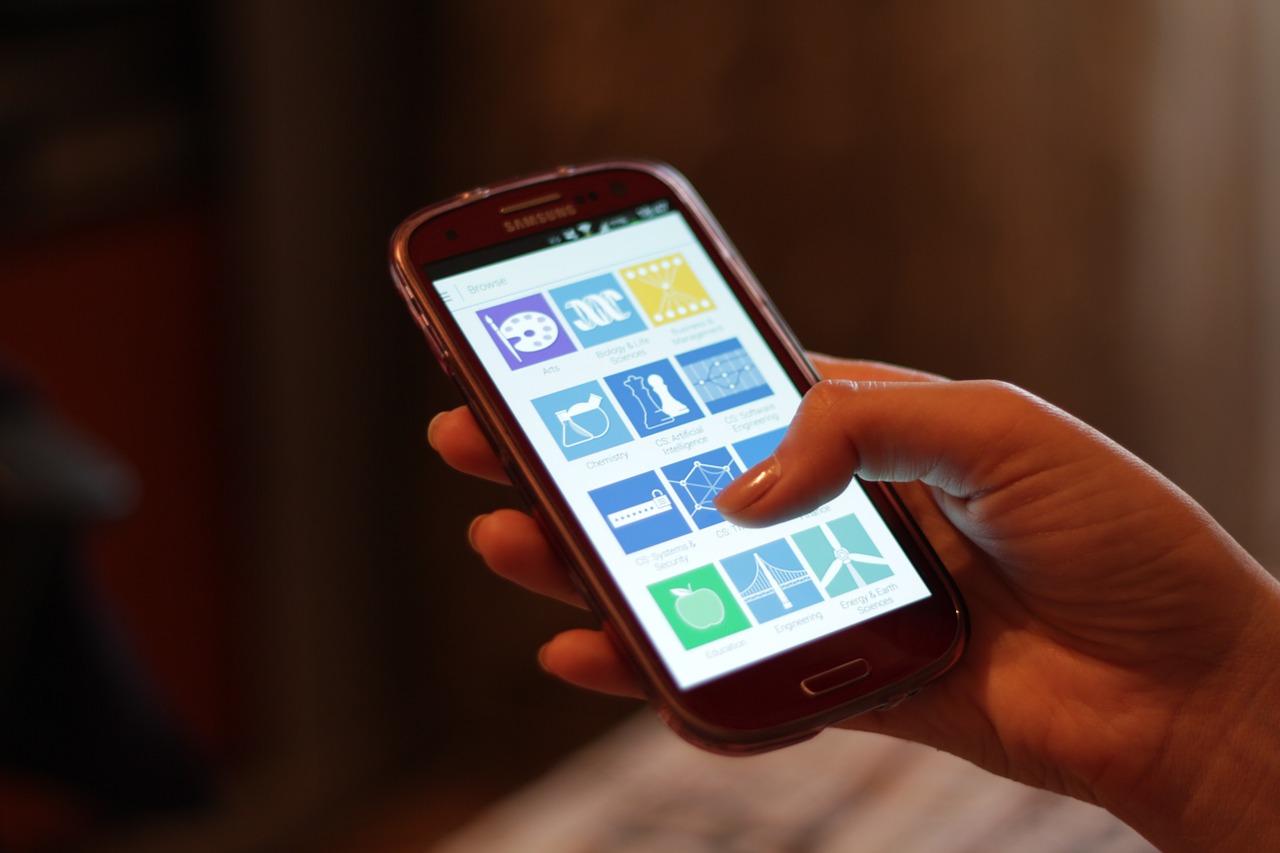
Your title is the first thing a person sees in the feed, next to your image. Google warns against clickbait: titles that mislead, exaggerate, or hide the key fact just to win a click. Write a title that captures what the article is really about. “How to Fix a Leaking Tap in 15 Minutes” is honest. “Plumbers Hate This One Trick” is not, and it can hurt your chances over time. The same rule applies to your images: they should show what the article is about, not shock people into clicking.
Discover favors content from sources people can trust. Put a real author name on every article, add a short author bio that says what the person knows, and keep an About page that explains who runs the site. If you write about health, money, or safety, this matters even more. A page with no author, no date, and no way to check who is behind it looks untrustworthy, and Google’s quality systems notice that.
Almost all Discover traffic comes from phones. If your page loads slowly, looks broken on a small screen, or jumps around while it loads, people will leave in seconds, and Google will notice. Test your pages with PageSpeed Insights and fix the biggest problems first: large images, slow hosting, and pop-ups that cover the content. A clean, fast page is not just good for Discover. It is good for every visitor.
Google trusts sites that show clear expertise in a topic. A site that publishes a useful guide every week about home repair builds trust in that topic. A site that publishes one article about home repair, one about crypto, and one about celebrity gossip builds trust in nothing. Pick one or two topics your business truly knows, and cover them well, again and again. Over time, Google starts to see your site as a reliable source for those topics, and that is exactly what Discover rewards.
Some kinds of pages rarely appear in Discover, no matter how good they are. Google says the feed is built for articles and videos, and it filters out things like job applications, petitions, forms, code repositories, and satire without context. It also filters out shocking or misleading content. Read Discover’s content policies before you publish, and keep ads and sponsored content clearly separate from your articles. If your page looks like a sales pitch dressed up as an article, it will struggle.
You cannot improve what you do not measure. Google Search Console has a Discover performance report that shows impressions, clicks, and click-through rate for your pages that appeared in Discover over the last 16 months. Open Search Console, look for the Discover report, and check which of your pages got shown and which ones people actually clicked. Then do more of what worked: the same topics, the same kind of images, the same style of titles. If a page got lots of impressions but few clicks, the title or image probably needs work. For full details, read Google’s own Discover guide.
Most sites that never appear in Discover are making one of these mistakes:
Google is open about this: traffic from Discover is less predictable than traffic from normal search. It can spike one week and drop to almost nothing the next, for reasons that have nothing to do with your site. People’s interests change, Google updates Search from time to time, and older content slowly stops being shown. Treat Discover traffic as a bonus, not as a number you can plan your business around. Keep publishing good content, keep your search traffic healthy, and let Discover add extra visits on top.
That is also why you should not rebuild your whole content plan around Discover. Write for your readers first. If a page does well in Discover, great. If it does well in normal search instead, that is just as valuable, and far more stable.
No. There is no submission form, no application, and no tag that enrolls your site. Content is automatically eligible if it is indexed by Google and meets Discover’s content policies. Your job is to make your pages eligible and worth showing, then wait.
There is no set time. Some pages appear within days of being indexed, while others take months, and many never appear at all. In general, sites that publish helpful content regularly on a clear topic start to see Discover traffic after a few months of steady publishing.
No. AMP is one way to allow large image previews, but the simpler way is the max-image-preview:large robots setting. Most WordPress SEO plugins handle this for you. You do not need to rebuild your site with AMP.
Discover is mainly a mobile experience: the Google app and Chrome on phones. Google has tested Discover on desktop in some places, but mobile is where almost all Discover traffic comes from, which is why mobile-friendly pages matter so much.
The most common reasons are changing interests, a Google Search update, or content getting old. Check the Discover performance report in Search Console to see whether impressions fell, clicks fell, or both. If impressions fell, Google is showing your pages less, which often means the topic is cooling off. If clicks fell but impressions stayed high, your titles or images may need work.
Yes. Google says older content may appear if it is helpful and relevant to a person’s interests. Updating an old guide with fresh facts and a new date can give it another chance, especially if the topic comes back into fashion.
Last updated: November 2026

Taylor Orlando is a content writer at Meregate covering websites, SEO, and AI. Taylor breaks down complex topics into simple, practical guides that help small businesses build better websites, rank higher on Google, and get real value from AI tools — no jargon, no fluff.
A sitemap is a simple file that helps Google find and index your pages. This guide explains what it is, the types, and how to create and submit one.

WordPress does not handle SEO on its own. These seven plugins do — compared on price, free limits, speed, and ease of use, with a clear pick for your kind of site.

Alt text is a short written description of an image that helps screen readers, search engines, and readers when a picture won't load.