
Digital Marketing
Content Marketing vs SEO: What Is the Difference?
A plain-English guide to content marketing vs SEO, how they differ, and how to use them together.

 By Taylor Orlando
·November 25, 2026
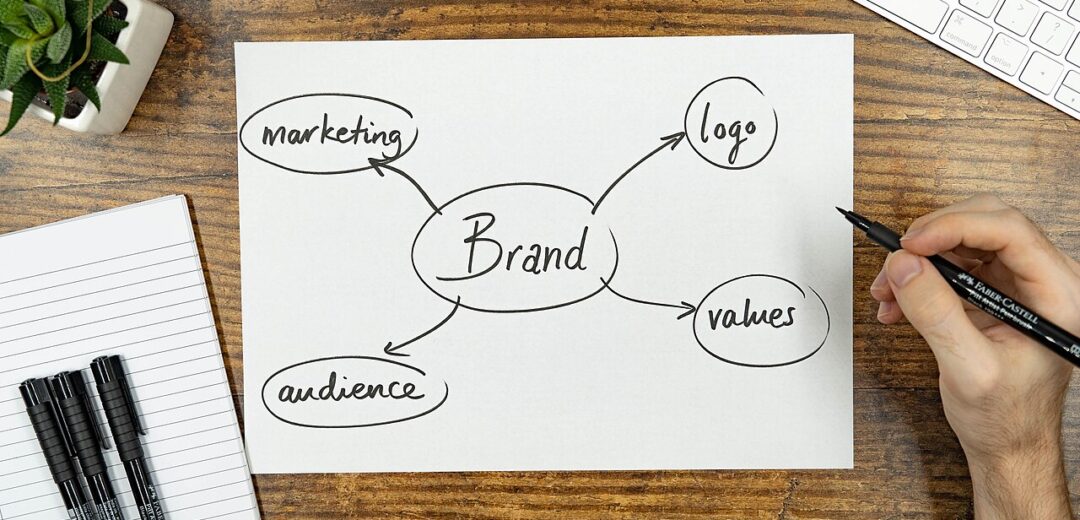
You do not need to hire a designer or pay for software to get a logo for your small business. You can create a logo for free with online tools like Canva, Adobe Express, and Hatchful, and the result can look clean and professional if you follow a few basic rules. This guide shows you the best free options, what each one really gives you for $0, and how to make a logo step by step.
One honest warning first: most tools that say “free logo maker” are only free up to a point. Designing is free, but downloading the file you actually need — a transparent PNG or a vector file — is where many of them ask you to pay. That is the detail this guide checks for every tool below, so you do not waste an hour designing a logo you cannot take home.
Before you pick a tool, it helps to know the four things that decide whether a logo maker is truly free:
Almost every free tool gives you the first two. The last two are where the paywall usually sits. A PNG with a white background works fine on a white website header, but it looks wrong on a colored background, a photo, or a dark social media profile. Keep that in mind when you choose.
| Tool | Free download | Transparent PNG | Vector (SVG) | Account needed |
|---|---|---|---|---|
| Canva | PNG, JPG, PDF | No (Pro only) | No (Pro only) | Yes, free |
| Adobe Express | PNG, JPG, PDF | Yes | No | Yes, free |
| Hatchful by Shopify | PNG | Yes | No | No |
| Namecheap Logo Maker | PNG and SVG | Yes | Yes | Yes, free |
| Ucraft | PNG (600 px) | Yes | $7 one-time | Yes, free |
| Made Good Designs / Kitbly | PNG and SVG | Yes | Yes | No |
These limits were checked against the tools’ own pages and independent comparisons in November 2026. Free plans change, so if a tool surprises you at the download step, check its pricing page before you pay for anything.
Canva has the biggest library of logo templates and the easiest editor. You pick a template, change the name, colors, and fonts, and download the result as a PNG, JPG, or PDF for free. There is no watermark as long as your design uses only free elements — watch out for elements marked with a small crown, because those are Pro and will add a watermark or block the download.
The catch: transparent backgrounds and SVG files need Canva Pro, the paid plan. If your logo will only sit on a white website header, the free PNG is fine. If you need it on photos or colored backgrounds, you will either need Pro or a free background-removal tool after downloading. Start with Canva’s free PNG logo maker and check the template you like is fully free before you spend time on it.
Adobe Express is the only big-name tool that gives you a transparent PNG for free. You type your business name and slogan, pick a style and an icon, and it shows you a set of logo ideas. You can adjust the colors and fonts, then download a PNG with a transparent background or a JPG with a colored one. The quick download is a 500 x 500 px square file; open the logo in the full editor to get larger sizes or a PDF.
The free plan also includes thousands of templates and Adobe Fonts. The paid Premium plan costs $9.99 a month and mainly adds premium templates, fonts, and stock photos. Vector (SVG) export is not part of the free plan. Try it at Adobe Express’s free website logo maker.
Hatchful is Shopify’s free logo maker, and it is the simplest option on this list. There is no account, no paywall, and no paid tier at all. You answer a few questions about your business, pick a visual style, and download your logo as a PNG. It is a good choice if you want a usable logo in ten minutes and do not want to sign up for anything. The trade-off is less control: fewer fonts and layouts than Canva or Adobe Express, and no vector file.
If you need a vector file without paying, Namecheap’s logo maker is the strongest free option. After a free account sign-in, you can download a high-resolution PNG and an SVG with no watermark. The editor is simpler than Canva’s, and the template range is smaller, but for a business that needs print-ready files — business cards, signs, packaging — a free SVG is hard to beat.
Ucraft gives you a free transparent PNG, 600 px wide, with no watermark. The editor is basic, but the download is honest: what you see is what you get. If you later want the vector version, it costs a $7 one-time payment per logo, which is far cheaper than a monthly subscription.
A newer group of tools works entirely in your browser with no account at all. Made Good Designs and Kitbly both let you type your brand name, pick a style, and download an SVG and a transparent PNG up to 4096 px, with no watermark and no paid upgrade step. They run locally in your browser, so nothing you type is uploaded. The design range is narrower than Canva’s, but for a simple wordmark or monogram they are the fastest route to a truly free logo.
Canva is the best place to start if you have never designed anything before. Here is the full process:
Save the original design in your Canva account too. You will want the editable version later when you need a new size or a version for social media.
A free tool does not have to mean a cheap-looking logo. These five rules do most of the work:
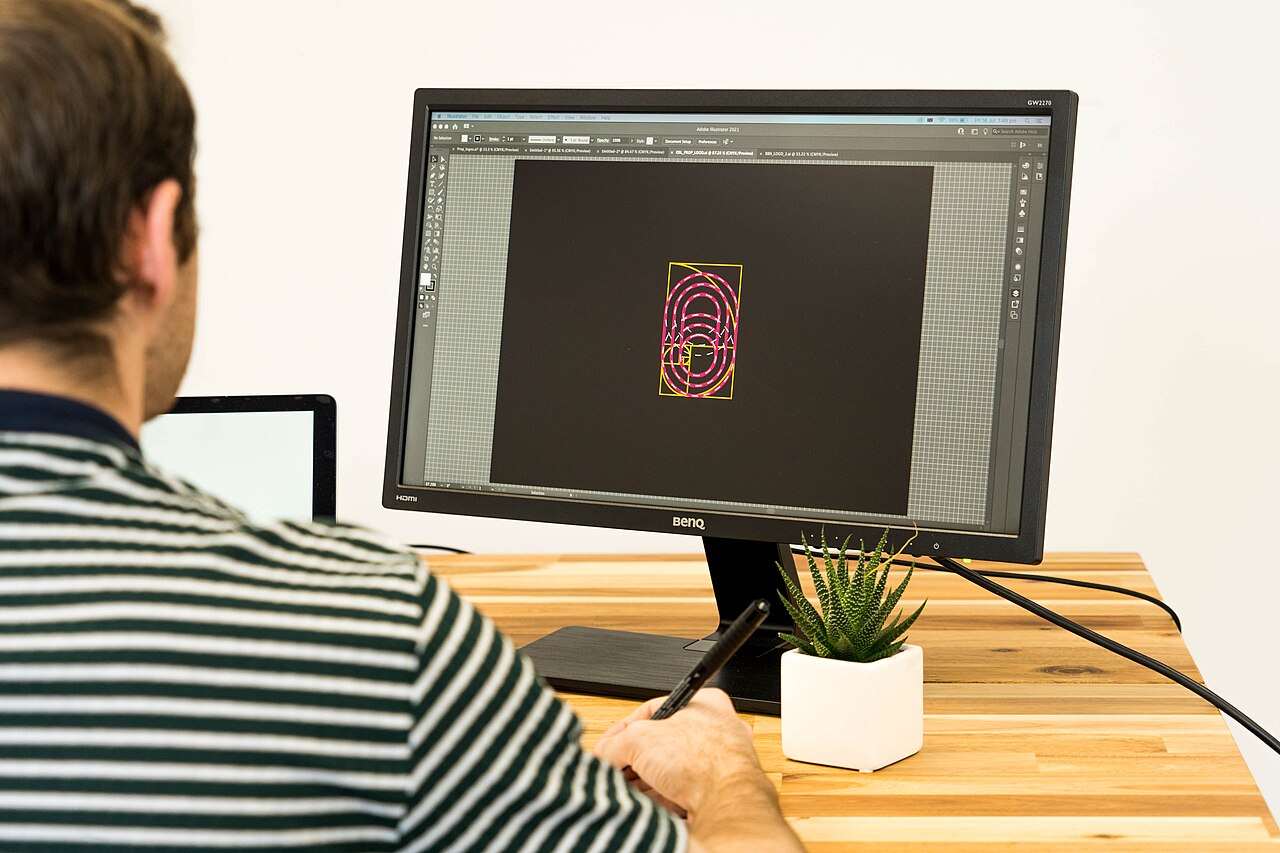
The best logos are the simplest ones. One icon, one business name, and nothing else. Every extra line, color, or word makes the logo harder to remember and harder to read at small sizes. If you can remove an element and the logo still works, remove it.
One main color, one supporting color, and black or white is enough for almost any small business. More colors look messy and cost more to print. Dark text on a light background is the safest combination, and it stays readable everywhere.
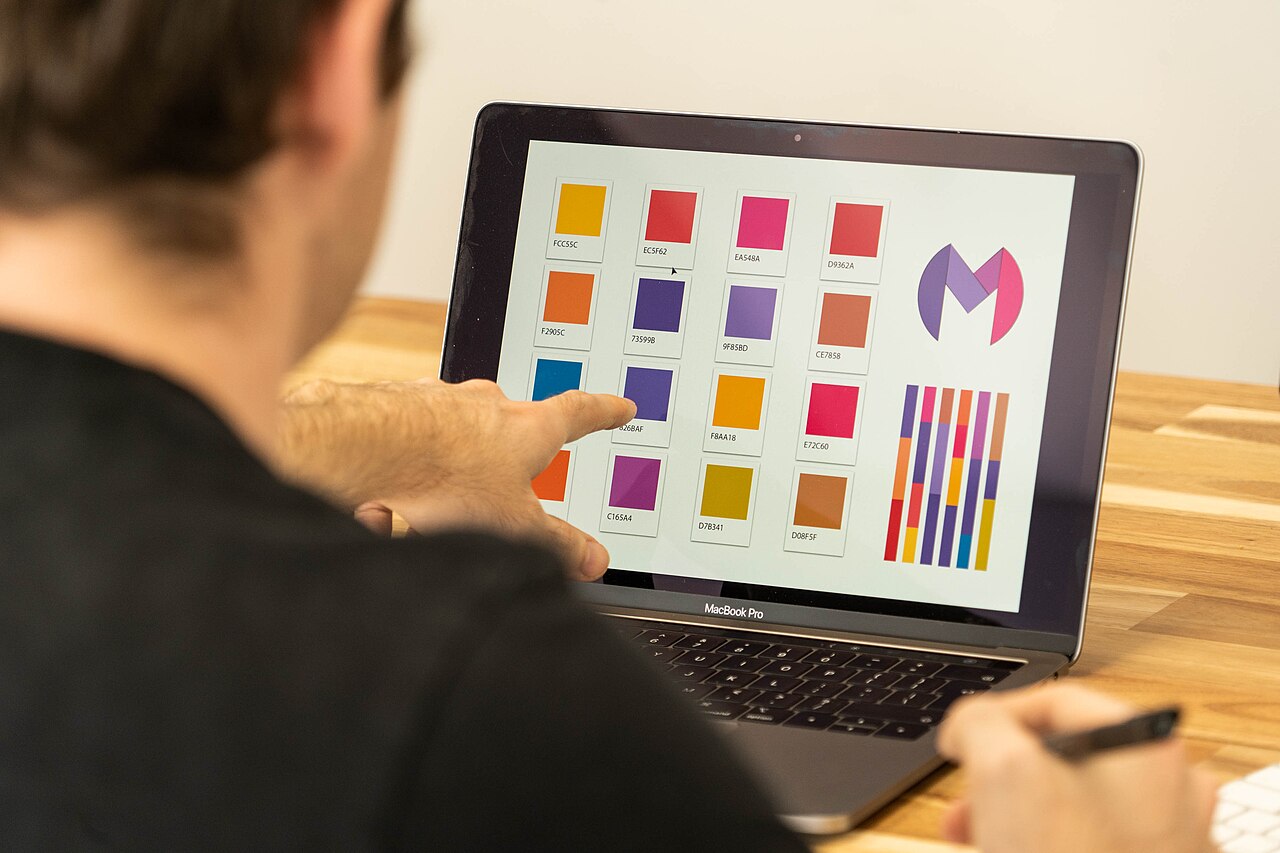
Use a single clean font for the business name, and the same font (or a simple second one) for the slogan. Avoid script fonts and decorative fonts for the main name: they are hard to read on a phone screen. Bold, plain fonts read best at small sizes.
Test your logo in plain black on white. If it still looks good, it will work on invoices, stamps, single-color printing, and embroidery. If it only works in full color, it is too dependent on color.
Your logo has to work at 16 pixels as a browser favicon and on a business card. Shrink it down and look at it from arm’s length. If the name is unreadable or the icon is a blob, simplify the design before you download it.
Download every format you can get for free, and keep them in one folder with the editable design file. You will need different versions sooner than you think: a square version for profile photos, a wide version for your website header, and a favicon version for the browser tab.
Check the name is not already taken. Search the US Patent and Trademark Office’s free trademark search for your business name and logo words. A free logo tool does not check this for you, and two businesses with the same name in the same field can cause real legal trouble. Also do a quick Google search for the name plus your city or industry.
Check the trademark rules of the tool you used. Logos built from Canva or Adobe templates use stock elements that are not exclusive to you, so you generally cannot register that logo as a trademark. If you plan to trademark your brand later, build the logo from basic shapes and fonts or your own artwork — or hire a designer at that point. For a new small business that just needs a logo for its website and social profiles, this is usually not a problem.
A free logo is enough when you are just starting out, testing an idea, or running a small local business that needs a clean mark for a website, social media, and business cards. Thousands of small businesses run on logos made in Canva and never need anything else.
Pay a designer when your logo has to be trademarked, when you need a full brand identity (packaging, signage, vehicle wraps), or when your business depends on standing out in a crowded market. A freelance designer typically charges a few hundred dollars for a simple logo, and that buys you original artwork, vector files, and exclusive rights — things no free tool can give you.
Yes, if you pick the right tool. Canva, Adobe Express, Hatchful, and Namecheap all let you design and download a logo without paying. The costs appear only if you want extras like a transparent background in Canva or a vector file from most tools — so check the download options before you start designing.
Yes. Logos made with the free plans of Canva, Adobe Express, Hatchful, and Namecheap can be used commercially for your business. The main limit is that template-based logos usually cannot be registered as a trademark, because the design elements are not exclusive to you.
It depends on the tool. Canva, Adobe Express, Namecheap, and Ucraft need a free account. Hatchful, Made Good Designs, and Kitbly need no account at all.
For the web, download the largest size the tool offers — at least 1000 px wide is a good target. Social media profile photos usually display at around 400 x 400 px, and a browser favicon is 16 x 16 or 32 x 32 px. For print, you need a vector (SVG) file or a very high-resolution PNG.
Yes, several tools now generate logo ideas from a short description of your business, including Adobe Express and Canva. The AI suggestions are a good starting point, but always edit the result: change the font, fix the spacing, and check the spelling. AI tools sometimes misspell business names, so proofread before you download.
Canva is the best starting point for most beginners because it has the most templates and the easiest editor. If you need a transparent PNG for free, use Adobe Express instead. If you need a free vector file, use Namecheap’s logo maker.
Last updated: November 2026

Taylor Orlando is a content writer at Meregate covering websites, SEO, and AI. Taylor breaks down complex topics into simple, practical guides that help small businesses build better websites, rank higher on Google, and get real value from AI tools — no jargon, no fluff.
A plain-English guide to content marketing vs SEO, how they differ, and how to use them together.
Email automation sends the right message at the right time without manual work — here is how it works and how to start.
A simple step-by-step guide to selling online for beginners - pick a product, choose where to sell, price it right, and get your first sale.