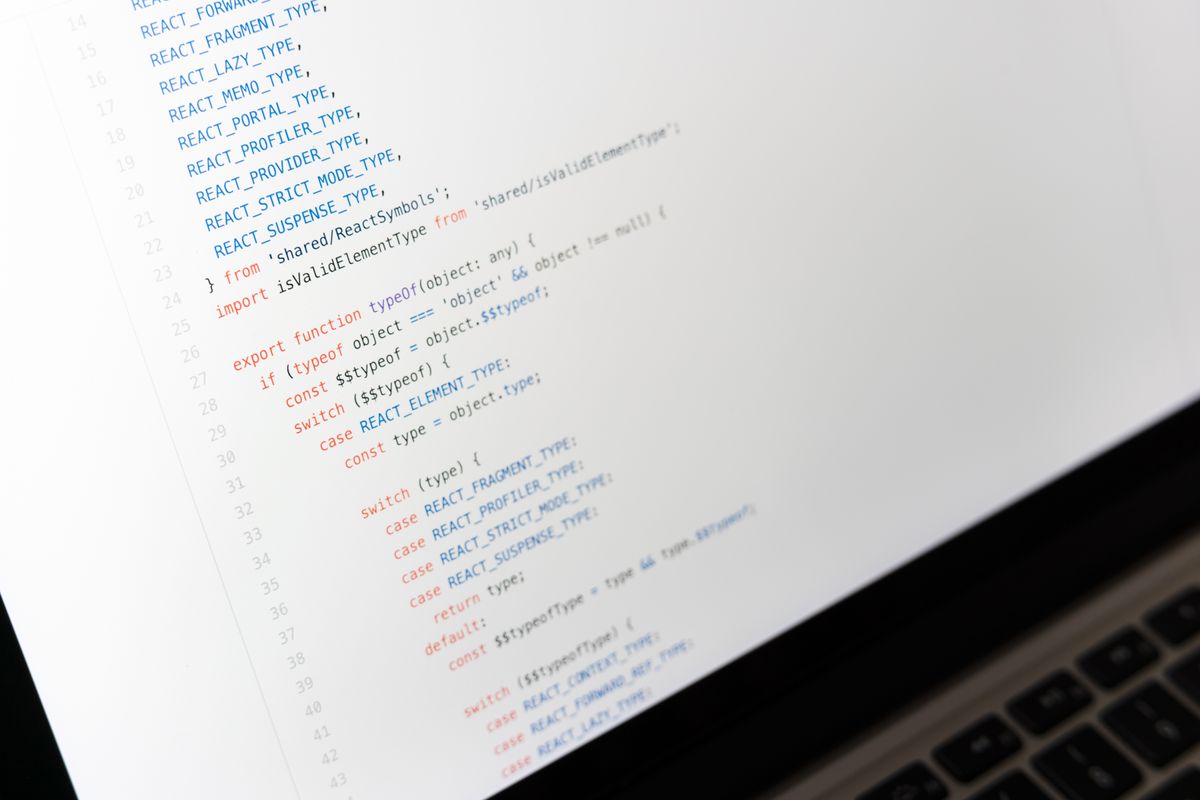
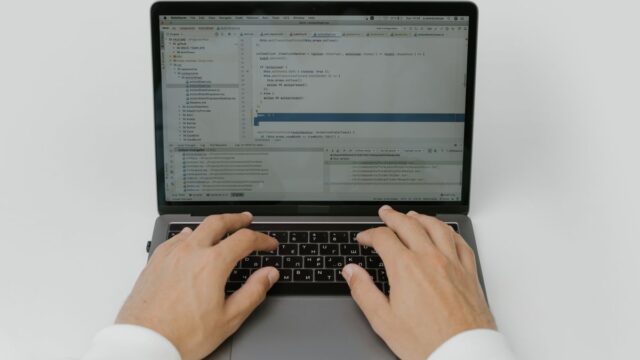
The best AI coding assistants for beginners are the ones that help you learn while you build. They suggest code as you type, explain errors in plain words, and let you ask questions without leaving your editor. You do not need the most powerful tool. You need one that is easy to set up, cheap or free, and does not get in the way of learning.
This guide covers six tools worth trying in 2026. If you want the background first, read what an AI coding assistant is.
The quick answer
If you want one pick, start with GitHub Copilot. It works inside VS Code, the editor most beginners use anyway. Install one extension, sign in, and it starts suggesting code as you type. There is a free tier with limits, and students can get it free. If you prefer long explanations, try ChatGPT or Claude; if you want zero setup, try Replit AI.
Best AI coding assistants for beginners at a glance
Tool
Best for
Free option
Setup difficulty
GitHub Copilot
Easiest start for most beginners
Yes, with limits; free for students
Easy — one VS Code extension
Cursor
Learning deeply inside an editor
Yes, Hobby tier with limits
Easy — download and open
ChatGPT / Claude chat
Explanations and debugging
Yes, free tiers
Easy — just a browser tab
Replit AI
Zero-install practice in the browser
Yes, free apps are public
Easiest — nothing to install
Windsurf (now Devin Desktop)
Trying an agent-style editor
Free tier exists
Medium — a new editor to learn
Claude Code
Learners comfortable with a terminal
No free tier
Harder — terminal setup needed
1. GitHub Copilot — the easiest start
Copilot sits inside your editor and suggests the next lines of code as you type, with a chat panel for questions about your code. Setup is simple: install the extension in VS Code, sign in with a GitHub account, and you are done. It suits anyone learning Python or JavaScript who wants help while typing. There is a free tier with limits, and students can get the full version free. Pricing changed during 2026 — Copilot moved to a credits system — so check Copilot’s own page for the current limits. The weakness: suggestions are often right, but not always, so read the code it writes.
2. Cursor — best for learning deeply
Cursor is a code editor built around AI from the start. It looks and feels like VS Code, so the switch is small. You can chat about your project and get it to explain a piece of code. It suits beginners who want to understand their code, not just finish it. There is a free Hobby tier with limits, and the Pro plan is about $20 a month — but check the vendor’s page for the current price, since it changed during 2026. The weakness: the agent features can do a lot at once. If it changes five files while you are still learning what one file does, you will not know what happened.
3. ChatGPT and Claude chat — best for explanations and debugging
You do not need a special editor to get help from AI. Paste your code into ChatGPT or Claude in your browser and ask what it does, why it breaks, or how to fix an error message. It suits beginners who get stuck on errors and want a clear answer in plain words. Both have free tiers that are enough for most beginners. The weakness is the copy-paste workflow: you paste code out, paste the answer back in, and fix small mistakes along the way. The chat tool also cannot see your whole project unless you paste it in piece by piece.
Source: Pexels
4. Replit AI — best for zero-install browser practice
Replit runs entirely in your browser. You open a project, type code, and run it without installing anything. Its AI can write code, fix errors, and explain what your program does. There is a free tier, but free apps on Replit are public — anyone can see them. Paid plans give you private projects and more AI use, so check the vendor’s page for the current limits. The weakness: the browser editor is not as strong as VS Code, and you will outgrow it once you start building bigger projects. Treat it as a practice space, not your forever home.
5. Windsurf, now Devin Desktop — free tier, but things changed in 2026
Windsurf was an AI-first editor, similar in idea to Cursor. During 2026, the product changed hands and became Devin Desktop, so older guides and videos may no longer match it. A free tier exists, with paid plans above it — but do not trust old articles about its price. Check the vendor’s page for the current offer. The change itself is the risk: guides written for Windsurf may not match Devin Desktop. If you want the smoothest first experience, Copilot or Cursor are safer picks right now.
6. Claude Code — best for learners comfortable with a terminal
Claude Code is a terminal tool. You type commands, and it reads your project, edits files, and runs tests for you. But it asks more of you up front than any other tool on this list. It suits beginners who already know their way around a terminal. It is a paid tool with no free tier, so check the vendor’s page for the current price before you commit. The weakness: setup takes more effort, and the tool can change many files at once. A beginner who is still learning how a project fits together can lose track of what changed. Learn the basics in an editor first, then try Claude Code when the terminal feels normal to you.
How to pick the right one
There is no single best tool. Pick by your situation. By budget: if you want to spend nothing, start with Copilot’s free tier, the free tier of ChatGPT or Claude, or Replit AI. Do not pay until you have hit the free limits and know you need more. By how you learn: if you learn by doing, pick Copilot or Cursor. If you learn by reading and asking questions, pick ChatGPT or Claude chat. If you learn by short practice sessions with no setup, pick Replit AI. To understand the difference between these styles, it helps to know how these tools work under the hood. By language: most of these tools handle Python and JavaScript well. For a less common language, an editor-based tool like Copilot or Cursor tends to do better than a plain chat window.
3 beginner mistakes to avoid
1. Copying code you do not understand
AI can write code that works and still leave you with no idea why it works. If you keep pasting code you cannot explain, you will get stuck the first time something breaks. Before you accept a suggestion, read it line by line. If you cannot explain a line in your own words, ask the tool to explain it.
2. Letting the agent change files you have not read
Agent modes can edit many files in one go. That is useful later, but risky while you are learning. Always check what changed before you run the code. Most editors show you the changes — read them.
3. Skipping the basics
AI tools make it easy to build things before you understand the pieces. But the basics — variables, loops, functions, how files connect — still matter. If you skip them, every bug becomes a mystery. Spend some time each week learning without the AI turned on.
Start here in 10 minutes
Install VS Code if you do not have it yet.
Install the GitHub Copilot extension and sign in (free tier is fine).
Open a small practice file — for example, a Python script that prints your name.
Type a comment that says what you want, such as “print numbers 1 to 10”, and watch the suggestion.
Accept the suggestion, run the code, and read each line until you can explain it.
Ask Copilot Chat one question about your code, such as “what does this loop do?”
Change one thing in the code yourself, without AI help, and run it again.
Can a beginner really learn to code with an AI assistant?
Yes, if you use it as a tutor, not a shortcut. It can explain errors and show you working examples. But you still need to read the code and practice without it sometimes.
Which AI coding assistant is fully free?
None of these tools is fully free without limits. Copilot, Cursor, ChatGPT, Claude, Replit AI, and Windsurf (now Devin Desktop) all have free tiers, but each one caps how much you can use. For learning, the free tiers are usually enough.
Will using an AI coding assistant stop me from learning?
It can, if you accept every suggestion without reading it. It will not, if you treat each suggestion as something to read and understand. A simple rule helps: never accept code you cannot explain in one sentence.
Do I need to know how to code before using one of these tools?
No. Copilot and Replit AI both work fine if you know almost nothing — you describe what you want, and the tool gives you a starting point. You just need patience: read the code, run it, break it, and fix it.
Taylor Orlando is a content writer at Meregate covering websites, SEO, and AI. Taylor breaks down complex topics into simple, practical guides that help small businesses build better websites, rank higher on Google, and get real value from AI tools — no jargon, no fluff.
AI coding assistants can save real time on routine work, but a 2025 study found experienced developers were actually slower with them on complex code. Here is an honest answer on when they are worth paying for.
An AI coding assistant predicts the next lines of your code based on patterns it learned from huge amounts of code. This guide explains how it works, where it gets its context, and why it sometimes gets things wrong.