
Artificial Intelligence
How to Cancel Perplexity Subscription (2026)
Stop your Perplexity Pro renewal before the next charge — every billing route covered, from the website to the App Store, Google Play, and Airtel.

 By Taylor Orlando
·November 13, 2026
Last updated: November 2026
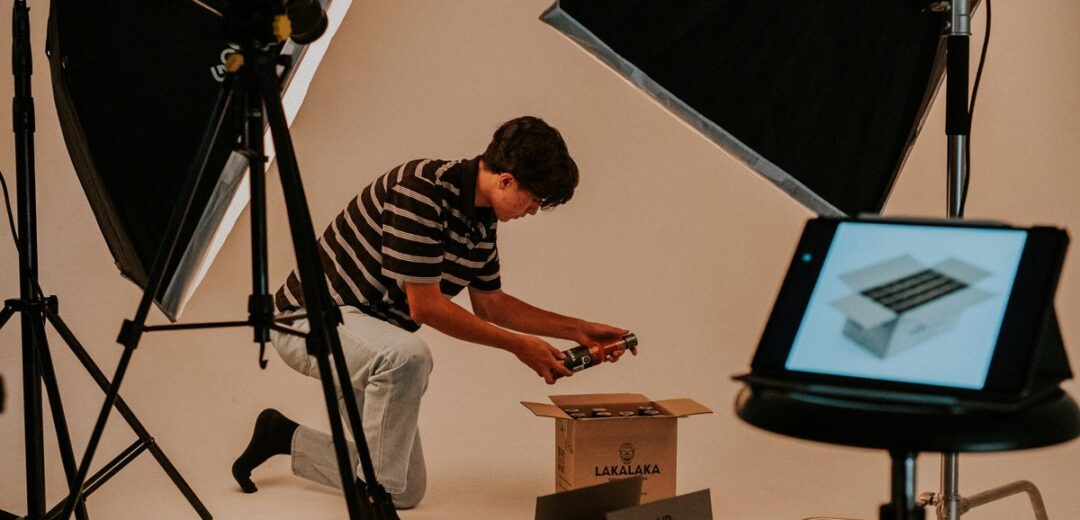
Finding the best AI image generator for product photos can save a small seller a lot of money. A studio shoot is costly, and a phone photo on a kitchen table does not sell a product well. These tools take a plain photo and turn it into a clean listing image or a lifestyle scene. This guide compares eight of them.
If you are new to this kind of tool, start with our guide to AI image generators for beginners. It covers the basics before you spend money on a paid plan.
| Tool | Free plan | Best for | Watch out for |
|---|---|---|---|
| Photoroom | Yes, with limits | Quick white-background listings from a phone | Backgrounds can look too clean and flat |
| Pebblely | Yes, with limits | Lifestyle scenes for small stores | Scene props can distract from the product |
| Claid | Yes, with limits | Bulk catalogs and marketplaces | Less control over creative scenes |
| Pixelcut | Yes, with limits | Mobile-first sellers and social posts | Text and small labels can warp |
| Flair AI | Yes, with limits | Fashion, furniture, and styled scenes | Scenes can change the product’s look |
| Fotor | Yes, with limits | All-round editing plus backgrounds | Product shape can shift in heavy edits |
| Google Gemini | Yes, with limits | Editing a real photo while keeping the product true | Results vary with the prompt |
| ChatGPT images | Yes, with limits | Creative ideas and mockups | Known to distort products, labels, and logos |
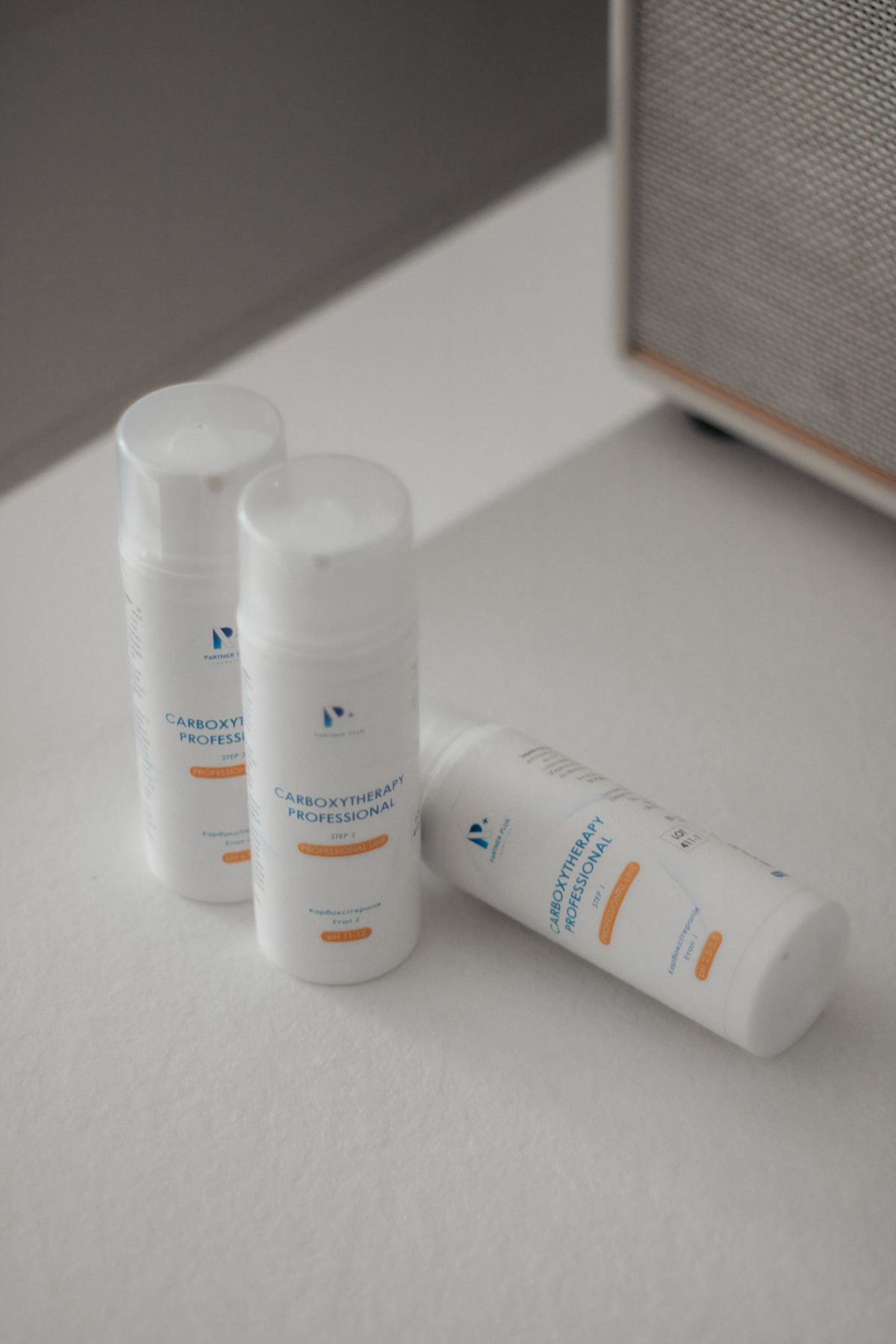
Photoroom is one of the best-known tools for product photos, and it is built for speed. You upload a photo, the background disappears in seconds, and you pick a clean white background or a simple scene. It works well on a phone.
It is best for white-background listings: Amazon wants a plain white background for the main image, and Photoroom makes that step fast. It has a free plan, and paid plans add higher-resolution downloads and batch editing. The weakness is that backgrounds can look too clean, and thin items like jewelry chains can lose detail. Visit photoroom.com to try it.
Pebblely turns a plain product photo into a lifestyle scene. You upload the product, describe the scene in plain words, and the tool places it on a table or a styled shelf. It is a good pick for small stores that want their products to look like they belong in a real home.
It is best for skincare, candles, food, and home goods. Pebblely has a free plan, and paid plans add more images and higher resolution. The watch-out is the scene itself. Props can steal attention from the product, so keep it to one or two props. Visit pebblely.com to try it.
Claid is built for sellers with a catalog, not a single product. It removes backgrounds, fixes lighting, and resizes images for different marketplaces in one pass. You can set one style and apply it to every product.
It is best for bulk catalogs: if you sell on Amazon, eBay, and your own store, Claid can output the right size and background for each one. It has a free plan, and paid plans add bulk processing and higher volumes. The trade-off is creative control: Claid is about clean, correct listing photos, not styled scenes. Visit claid.ai to try it.
Pixelcut is a mobile-first tool, and it shows. The app is quick, the background removal is fast, and it has templates sized for Shopify, Etsy, and social media. Many sellers get a listing image in under a minute.
It is best for sellers who work from a phone and add new products every week. It has a free plan, and paid plans add more backgrounds, higher resolution, and batch tools. Watch out for text and small labels: AI can warp the letters on a bottle or a box, so zoom in on every label before you publish. Visit pixelcut.ai to try it.
Flair AI focuses on styled scenes, and it does them well. You pick a scene, place your product in it, and the tool builds the lighting and shadows around it. It is popular with fashion and furniture sellers, where the setting sells the product as much as the product itself.
It is best for fashion, furniture, jewelry, and food. It has a free plan, and paid plans add more scenes and higher-resolution exports. The risk is that a styled scene can change the product: colors can shift and shapes can soften. Compare the result with the real product side by side, or you will get returns. Visit flair.ai to try it.
Fotor is an all-round photo editor with strong AI background tools. You can crop, fix light, remove a background, and add a new scene in the same place. That makes it a good pick if you want one tool for product photos and general editing.
It is best for sellers who also edit other images. It has a free plan, and paid plans add more AI features and higher-resolution downloads. The watch-out is heavy edits: when you push the AI hard, the product shape can shift, so keep edits light for the main listing image. Visit fotor.com to try it.
Google Gemini can edit images, and its Nano Banana image editing is one of the better options for keeping a product true to life. You upload a real photo and tell Gemini what to change in plain words. It edits the photo rather than drawing a new product from scratch.
That matters for accuracy: Gemini’s image editing keeps the product more consistent than most text-to-image tools, so the shape, label, and color usually stay close to the original photo. It has a free plan with limits, and paid plans add more usage. Results still vary with the prompt, so describe the background in short, clear words, and check the final image against the real product. Visit gemini.google.com to try it.
ChatGPT can make and edit images, and it is useful for ideas and mockups. You can ask it for a scene concept or a rough draft of a listing image. For brainstorming, it is fast and flexible.
For final product photos, though, be careful. ChatGPT and other GPT-based image tools are known to distort products: the shape can change, the color can drift, and label text often comes out misspelled or warped. That is fine for a mockup, but it is a problem for a listing image, where the buyer expects the photo to match what arrives in the box. Use it for ideas and drafts, not for final listings. Visit chatgpt.com to try it.
Good AI results start with a good source photo. The AI cannot fix a dark, blurry photo. Start from a clean, well-lit phone photo. Use daylight near a window. Wipe the product clean first.
Describe the background you want in plain words. “White background, soft shadow” works better than a long, fancy prompt. Keep the product description short and specific: name the product, its color, and its material. “Amber glass bottle, black cap, white label” is enough. Make one change at a time: change the background first, check it, then try a scene.
A seller with 50 or more products needs a system, not a one-by-one process. Pick one tool with batch mode and templates, such as Claid or Photoroom, and set one style for the whole catalog. Same background, same light, same crop. A consistent catalog looks more professional than 50 different styles.
Work in steps. Shoot all the products in the same place with the same light. Run them all through background removal in one batch. Then check them in small groups of ten, fix the ones with warped labels or bad edges, and leave the good ones alone.
AI product photos can look great at first glance and wrong on a closer look. The most common problems are warped text and logos, wrong colors, and hands and shadows that look wrong. A hand holding a product can have too many fingers. A shadow can fall the wrong way. An image can look too perfect to trust, and buyers notice that.

Check every image at full size before you publish it. Zoom in on the label, the logo, and the edges. Compare the color with the real product under normal light. If the shape in the photo does not match the product you ship, do not use that image as the main listing photo.
Each marketplace has its own image rules, and AI photos must follow them. Amazon wants a plain white background for the main image. No props, no text, no logos, no extra graphics on that first image. Lifestyle shots are allowed as extra images, but the main image must stay clean.
Shopify and Etsy allow lifestyle shots, and your own store can use styled scenes as the main image, because you set the rules there. Check each marketplace’s rules before uploading AI photos. When in doubt, use a clean white-background shot for the main image and save the AI scenes for the extra gallery images.
Before you use AI images to sell products, check the tool’s terms for commercial use. Most paid plans allow commercial use, but free plans may not, and some tools keep rights to images made on a free plan. Read the terms on the tool’s own site before you publish.
Logos and trademarks in a photo can still belong to someone else. If your product photo shows another brand’s logo, removing the background does not remove that problem. Do not use AI to add a logo you do not own. If you sell branded goods, use the brand’s own approved photos.
Prices change often, so check the tool’s own pricing page before you pay. The prices below were checked on November 13, 2026. Most tools on this list have a free plan or trial with limits, and paid plans add more images, higher resolution, batch tools, and commercial use rights. For a small store, a free plan may cover the first few products, but once you add products every week, a paid plan usually pays for itself in saved time. Compare plans on how many images you need each month.
| Tool | Starts at (monthly) | What you get |
|---|---|---|
| Photoroom | $12.99 a month (Pro), or $7.50 a month if you pay yearly | 8,000 AI credits and 1,000 exports a month on Pro; higher plans add more credits, video, and 4K images |
| Pebblely | $9 a month (Lite), or $7.50 a month if you pay yearly | 30 images a month on Lite; Basic ($19 a month) raises it to 200 images with bulk generation, and Pro ($39 a month) to 500 |
| Claid | Free trial, then $15 a month (Essentials), or $9 a month if you pay yearly | Free trial includes 50 credits; Essentials includes 500 credits and up to 2K resolution; Pro ($49 a month) adds 2,000 credits and 4K generation |
Also note that this guide covers product photos, a different job from logos. If you need a logo, see our guide to AI image generators for logos, which compares tools for that task.
Yes, but follow Amazon’s rules: the main image must have a plain white background, with no props, text, or extra graphics. AI tools can make that white-background image from a phone photo, and lifestyle shots are allowed as extra images. Check Amazon’s current image rules before you upload, because a listing can be flagged for a main image that breaks them.
It can. AI tools sometimes change a product’s shape, color, label text, or logo. ChatGPT and other GPT-based image tools are known to distort products more often. Gemini’s image editing tends to keep the product more consistent, because it edits your real photo. Always compare the result with the real product before you publish.
There is no single best free tool for every seller. Photoroom is a good free starting point for clean white-background listings from a phone. Pixelcut is strong if you work mostly on mobile. Gemini is a good free option if you want to edit a real photo and keep the product accurate. Try two or three free plans with the same product photo and pick the one that keeps your product true to life.

Taylor Orlando is a content writer at Meregate covering websites, SEO, and AI. Taylor breaks down complex topics into simple, practical guides that help small businesses build better websites, rank higher on Google, and get real value from AI tools — no jargon, no fluff.
Stop your Perplexity Pro renewal before the next charge — every billing route covered, from the website to the App Store, Google Play, and Airtel.

Compare the 12 best AI tools for meeting notes in 2026 — with real prices, free plans, and privacy notes — and pick the right one for your team.
Most AI image generators are bad at logos — they mangle text and give you flat raster files. Here are the 8 tools that actually work for logos, ranked by text rendering, vector output, and price.