
Computers
How to Create a Website Using HTML: A Simple Step-by-Step Guide (2026)
You can build a real website with just HTML and a little CSS. This simple guide walks you through each step, from your first file to putting the site online for free.

 By Taylor Orlando
·November 28, 2026

Learning how to add Google Maps to your website takes about five minutes, and you do not need to write any code. A map on your contact page helps visitors find your shop, office, or event in one click, and it makes a small business look more real and trustworthy. This guide shows you the free no-code method first, then the WordPress, Wix, and Squarespace steps, and finally the API route if you want a custom map.
Last updated: November 2026
Most visitors check a map before they visit a place in person. A map on your site does four useful things:
You do not need a Google Business Profile to add a map, but if you have one, use the exact same address everywhere. A mismatch between your site and your profile confuses both visitors and Google.
For the simple method, you need only two things: the address you want to show, and a web page you can edit. No Google account is needed to copy an embed code, and no API key is needed for the basic map. If you want a custom map with your own markers, colours, or search box, you will need a free Google account and a Google Cloud project, which we cover in Method 4.
One warning up front: check that Google has the right place before you copy anything. Two businesses can share a similar name, and Google sometimes picks the wrong one. If the pin sits on the wrong building, fix it in Google Maps first by suggesting an edit on the place, or search by your exact street address instead of your business name.
This is the method most small businesses should use. It takes about two minutes and works on any site that lets you paste HTML, including WordPress, Wix, Squarespace, Shopify, and plain HTML pages.
The code Google gives you is an <iframe> — a small window that shows Google Maps inside your page. Your site does not copy Google’s map data. Visitors see the live map, and they can zoom, switch to satellite view, and click through to directions.
Google notes that embedded maps do not work well below 200 by 200 pixels, so keep your map at least that large. A map around 600 pixels wide and 450 pixels tall works well on most pages.
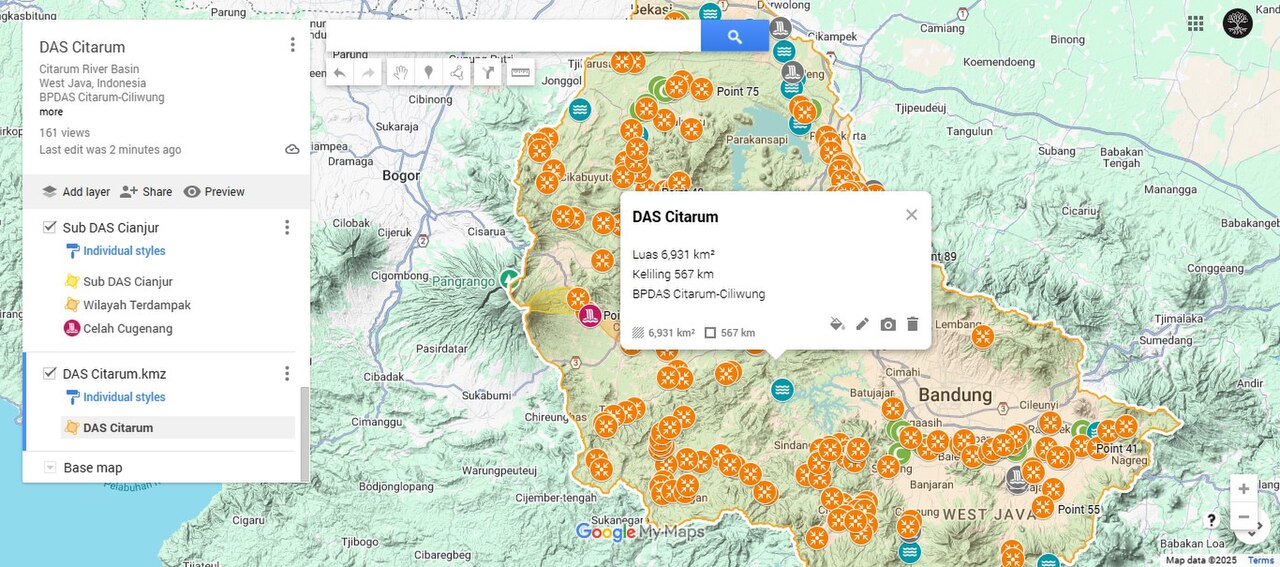
WordPress gives you two easy routes. Pick the one that matches how your site is built.
If you add maps to several pages, or you want extra features like multiple markers, a plugin saves time. Search the plugin directory for “Google Maps” and pick one with recent updates and good reviews. Most free map plugins let you add a map with a shortcode or a block, and you type in the address instead of pasting code. Skip any plugin that has not been updated in over a year.
Both builders have a map element built in, so you do not need to touch any code.
On both builders, the map block is the basic Google map. If you want a custom style or several marked locations, use the embed code from Method 1 in a code block instead.
The simple embed covers one place. If you want more — your own markers, a search box, directions between two points, Street View, or a map that matches your brand colours — you need the Google Maps Platform API. This route takes more setup, so use it only if the basic embed cannot do what you need.
Google’s own Maps Embed API guide walks through the setup step by step, and it is the page to follow rather than a random tutorial, because the steps change over time.
The Embed API supports five modes: place (one location), view (a map centred on a point), directions (a route), streetview, and search (results for a query like “coffee near me”). Each one is a single iframe with your key in the address. For example, a place map looks like this, with your own key in place of the placeholder:
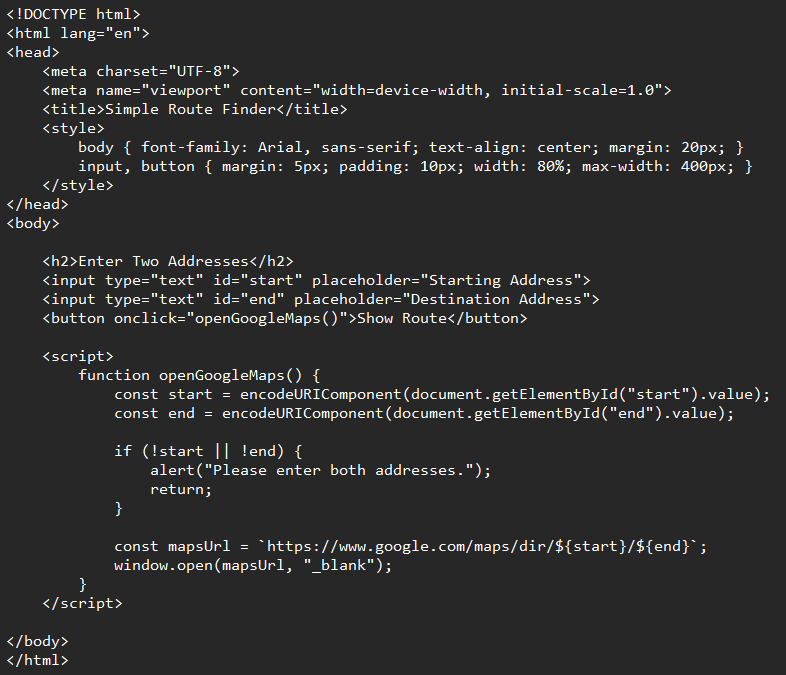
<iframe
  src="https://www.google.com/maps/embed/v1/place?key=YOUR_API_KEY&q=Space+Needle,Seattle+WA"
  width="600" height="450" style="border:0;"
  loading="lazy" allowfullscreen>
</iframe>Anyone who views your page source can see a key that sits in an iframe address. That is normal for this kind of map, but it means you should restrict the key in Google Cloud to your own website’s address and to the Maps APIs you actually use. Check the key’s usage in Cloud Console now and then. An unrestricted key can be copied and used by someone else.
For full control — custom markers, info windows, filters, and data from your own database — use the Maps JavaScript API instead. Google’s current docs recommend its declarative map web component for new projects, but the classic JavaScript setup still works. This is developer work. If you are not comfortable with JavaScript, hire a developer for this part rather than guessing.
The embed code Google gives you has a fixed width, so on a phone it can overflow the screen or look squeezed. Wrap the iframe in a container and let CSS handle the size:
<div class="map-wrap">
  <iframe src="..." width="600" height="450" style="border:0;"
    loading="lazy" allowfullscreen></iframe>
</div>

<style>
.map-wrap { width: 100%; max-width: 900px; }
.map-wrap iframe { width: 100%; aspect-ratio: 16 / 9; border: 0; }
</style>
On WordPress, you can add this CSS in the Customizer under Additional CSS. On Wix and Squarespace, the built-in map blocks already resize themselves, so you can skip this step.
A map is a heavy piece of a page. Two small habits keep it from slowing your site down:
loading="lazy" to the iframe, as in the examples above. The map then loads only when a visitor scrolls near it, so it does not slow down the first view of your page.On privacy: a Google map loads content from Google’s servers and can set cookies, which matters if your visitors are in the EU or the UK. If you show a cookie banner, make sure it covers third-party embeds like maps. Some sites show a static map image first and load the live map only after the visitor clicks it. That is a good middle ground if you want both speed and privacy.
This is usually a size problem. The map’s container has a height of zero, often because of a theme conflict. Give the iframe a fixed height, like 450 pixels, and check again. If you use the API route, a grey box can also mean the API key is wrong or the API is not turned on.
Go back to Google Maps and search by your exact street address, not your business name. Copy a fresh embed code. If Google itself has your address wrong, suggest an edit on the place in Google Maps.
This message means the API key has a problem: it is missing, restricted to the wrong website, or the billing account is not attached. Open Google Cloud Console, check the key’s restrictions and the project’s billing, and check that the Maps Embed API or JavaScript API is enabled.
Use the responsive wrapper from the section above. Also check that your theme is not forcing a fixed width on iframes.
Add loading="lazy" and move the map lower on the page. If the page still feels slow, replace the live map with a static image that links to Google Maps, and let visitors click through to the live map.
For most small businesses, Google Maps is the right choice because your customers already use it and already trust its directions. Two alternatives are worth knowing about. OpenStreetMap, with the free Leaflet library, costs nothing and needs no API key, but you host the map yourself and it takes more setup. Mapbox gives you beautiful custom map styles and a generous free tier, but it is built for developers. Unless you need a custom-styled map or you want to avoid Google, the basic Google Maps embed is the simplest answer.
No. The basic embed from the Share menu needs no key and no Google account. You only need an API key if you use the Maps Embed API or the JavaScript API for custom features.
Yes, the basic embed is free. The API route needs a Google Cloud billing account, but Google currently lists Maps Embed API requests at no charge with unlimited usage.
Yes. Copy the embed code from Google Maps and paste it into a Custom HTML block in WordPress, a code block in Squarespace, or an embed element in Wix. The builders also have built-in map blocks that need no code at all.
In Google Maps, get directions to your address first, then click Share and Embed a map. The embedded map keeps the route. With the Embed API, use the directions mode with your start point and destination.
It can, because it loads scripts from Google. Add loading=”lazy” to the iframe and place the map lower on the page, near your contact details. That keeps your first page load fast.
Yes, but not with the basic embed. Use Google My Maps to build a map with several pins, then share it, or use the Maps JavaScript API for a fully custom multi-location map.
For most websites, the free embed is all you need: find your place in Google Maps, click Share, then Embed a map, copy the HTML, and paste it into your page. Add lazy loading and a responsive wrapper so it works well on phones, and check the pin is on the right building. Only move to the API route when you need custom markers, directions, or a styled map — and when you do, restrict your API key to your own site. A correct, fast-loading map is a small detail, but it is often the last step between a visitor and a customer walking through your door.

Taylor Orlando is a content writer at Meregate covering websites, SEO, and AI. Taylor breaks down complex topics into simple, practical guides that help small businesses build better websites, rank higher on Google, and get real value from AI tools — no jargon, no fluff.
You can build a real website with just HTML and a little CSS. This simple guide walks you through each step, from your first file to putting the site online for free.

A membership website turns what you know into steady monthly income. This step-by-step guide covers niche, platform, pricing, payments, and launch — with real costs.
New to WordPress? This simple beginner's guide explains what WordPress is, how the dashboard works, and how to publish your first page — no coding needed.