Computers
How to Make a Website on Canva: A Simple Step-by-Step Guide (2026)
Learn how to make a website on Canva step by step — free or with your own domain. See the real limits, costs, and SEO settings before you publish.

 By Taylor Orlando
·November 26, 2026
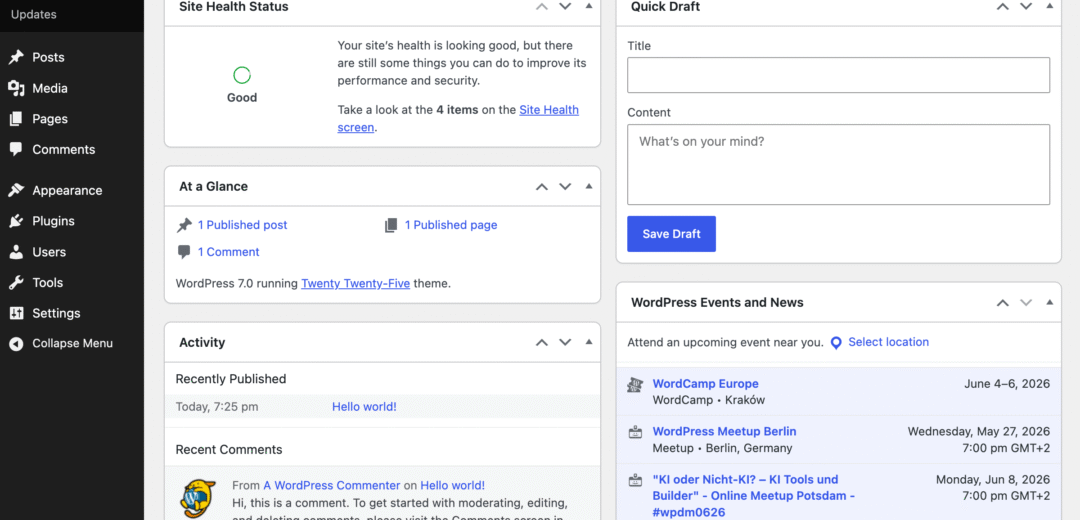
WordPress for beginners can feel confusing at first. You hear words like themes, plugins, and dashboard, and it sounds like you need to know how to code. You do not. WordPress is built so that anyone can run a website, even if you have never built one before. This guide walks you through it step by step, in plain English, from picking the right version of WordPress to publishing your first page.
Last updated: November 2026
WordPress is free software that helps you build and run a website. It is called a content management system, which is just a fancy way of saying it stores your pages, posts, and photos, and shows them to visitors in a neat design. You write your content in a simple editor, and WordPress takes care of the rest.
About 43 out of every 100 websites on the internet run on WordPress. Small blogs use it. Big news sites use it. Online stores use it. The reason is simple: it is free, it is flexible, and you can start with no coding skills at all.
When people say “WordPress,” they usually mean the free software from WordPress.org. But there are two versions, and picking the right one matters. That is the first choice you need to make.
This is the most common point of confusion for beginners, so let us clear it up first. Both are called WordPress, and both use the same editor. The difference is who hosts your site and how much control you get.
| Feature | WordPress.org (self-hosted) | WordPress.com (hosted) |
|---|---|---|
| Hosting | You buy hosting from a company you choose | WordPress.com hosts it for you |
| Cost | Software is free; you pay for hosting and a domain (about $3–$10 a month for hosting, $10–$15 a year for a domain) | Free plan exists, but it shows ads and uses a wordpress.com web address; paid plans start at a few dollars a month |
| Themes and plugins | Install any of the thousands of free and paid themes and plugins | Limited on the free and cheaper plans; full access needs a higher plan |
| Control | Full control over your site, files, and ads | WordPress.com sets many of the rules |
| Maintenance | You handle updates and backups (or a plugin does it for you) | WordPress.com handles updates, backups, and security |
For most people, WordPress.org is the better pick. It costs a little more effort to set up, but you own your site fully, you can use any theme or plugin, and you can run ads or sell things without asking anyone. WordPress.com is fine if you want a simple personal blog and do not want to touch any settings. The rest of this guide is written for WordPress.org, the self-hosted version. Most screens look the same on both.
You only need three things to start a WordPress site:
That is it. The WordPress software itself is free. A realistic first-year cost for a small site is about $50–$100 in total, and you can keep it at the low end by picking a cheap host and a free theme.
Installing WordPress sounds hard, but most hosts do it for you with one click. Log in to your hosting account, look for a button that says “WordPress” or “Auto Installer” (in cPanel it is often under “Softaculous Apps Installer”), and follow the steps. You will pick your domain, choose an admin username and a strong password, and click Install.
Two tips here. First, do not use “admin” as your username. It is the first thing attackers try. Pick something less obvious. Second, write your login details down somewhere safe. You will need them in the next step.
After a minute or two, you will see a message that WordPress is installed. Your site is now live, even if it still looks plain. That is normal. The design comes next.
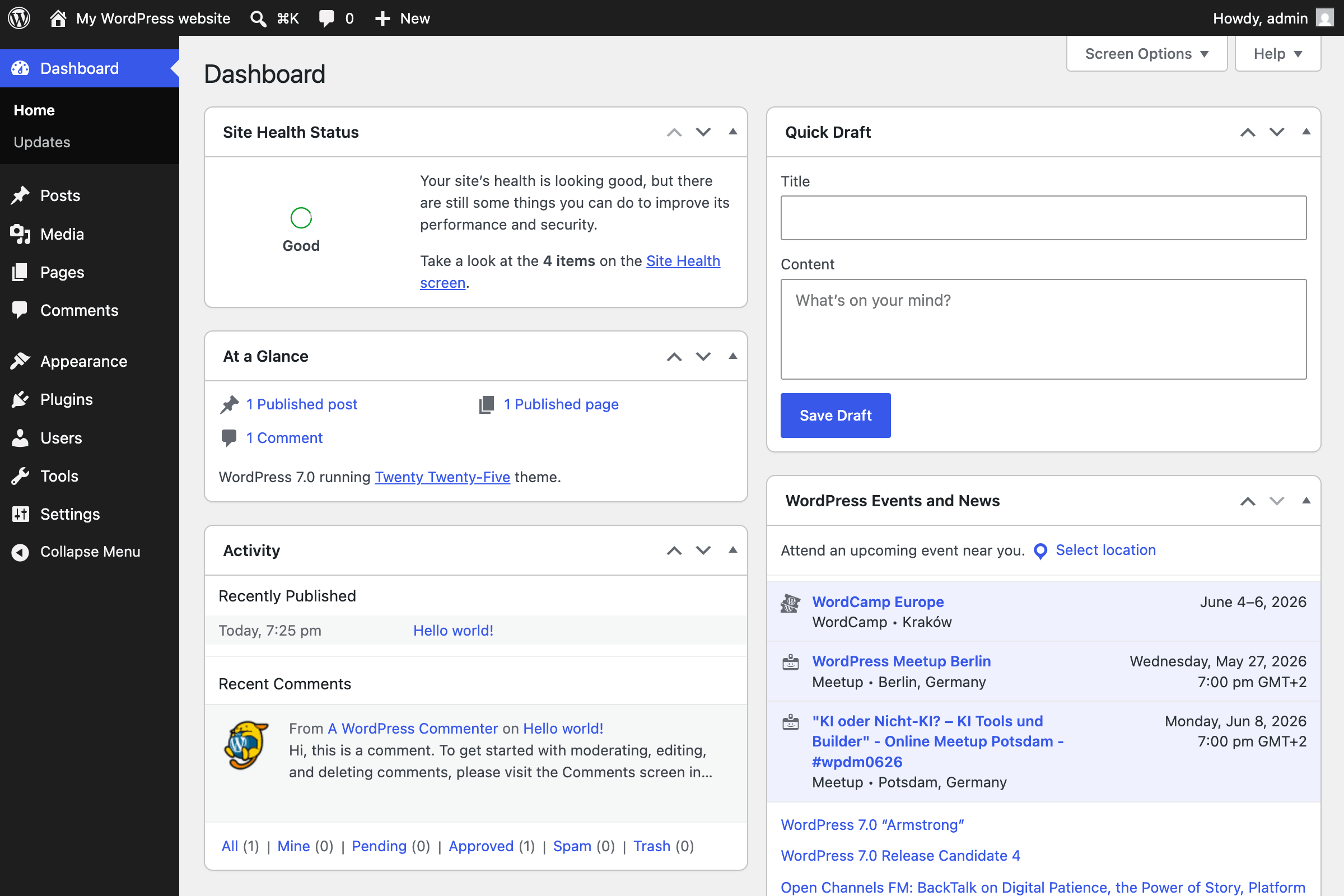
To log in, go to your domain followed by /wp-admin, for example yoursite.com/wp-admin. Type the username and password you set during installation. This opens the WordPress dashboard, which is the control center of your site.
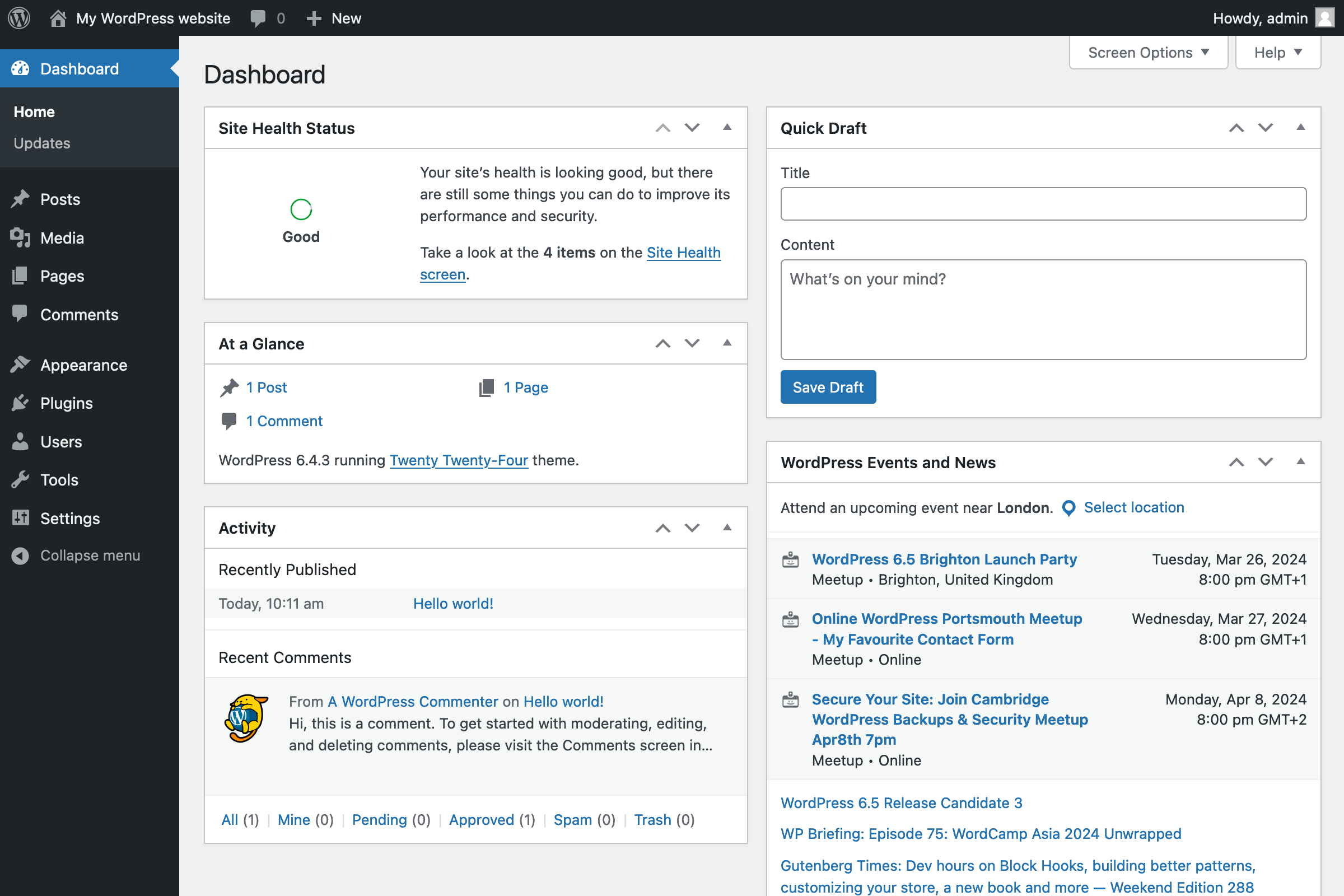
The dashboard can look busy at first, but you only need to learn the left-hand menu. Here is what each item does:
Spend ten minutes clicking through the menu. You cannot break anything by looking. That short tour will save you a lot of searching later.
Before you write anything, fix these five settings. They are quick, and changing them later is a hassle.
Go to Settings → General. Set your site title (your business or blog name) and a short tagline that says what the site is about. Set the timezone to your own, so post times are correct.
Go to Settings → Permalinks and pick Post name. This makes your page addresses look like yoursite.com/about-us instead of yoursite.com/?p=123. It is better for visitors and for Google. Do this before you publish anything, because changing it later breaks old links.
Go to Settings → Reading. Decide if your front page shows your latest blog posts or one fixed page. A blog can show latest posts. A business site usually looks better with a fixed homepage. You can change this later once your pages exist.
Go to Settings → Discussion. Turn on comment moderation, so no comment appears on your site until you approve it. This stops spam from showing up in public.
WordPress installs with a sample post called “Hello world!” and a sample page. Delete them from Posts and Pages. They make a new site look unfinished.
A theme controls how your site looks: the colors, fonts, header, and page layouts. Changing a theme does not delete your content, so you can try a few before you settle.
Go to Appearance → Themes, click Add Theme, and browse the free themes. Search by what you need, such as “business” or “blog.” Before you pick one, check three things:
Free themes are fine for a first site. Paid themes, usually $30–$60 one time, add more design options and support. Do not buy one until you know what you actually need. Install the theme, click Activate, and your site gets its new look at once.
Pages are for content that does not change often: your Home page, About page, Contact page, and service pages. Here is how to make one:
Start with the pages every site needs: Home, About, Contact, and a Privacy Policy page. You can add more later. Keep each page focused on one thing, and write like you are talking to one visitor, not a crowd.
Posts are for content you add over time: blog articles, news, and updates. The steps are almost the same as pages, with a few extras:
The difference between a post and a page is simple. A page is fixed, like a shop sign. A post is dated and listed with your other posts, like a journal entry. If you are not sure which one to use, ask yourself: will I write more of these over time? If yes, it is a post.
Plugins add features to WordPress, like apps on a phone. There are over 60,000 free plugins, and beginners often install far too many. Start with one plugin for each job below, and add more only when you have a real need.
| Job | What to look for | Free option to try |
|---|---|---|
| SEO | Helps Google understand your pages | Rank Math |
| Security | Blocks login attacks and scans for malware | Wordfence Security |
| Backups | Saves a copy of your site automatically | UpdraftPlus |
| Contact form | Lets visitors message you | WPForms Lite |
| Speed | Caches pages so they load faster | LiteSpeed Cache or WP Super Cache |
| Analytics | Shows how many people visit and what they read | Google Site Kit |
To install one, go to Plugins → Add New, search for the name, click Install Now, then Activate. Keep your plugin count low. Every plugin you add is one more thing to update and one more thing that can slow your site down. If a plugin does a job you do not need yet, skip it.
Once you have a Home page and a few posts, set the front page properly. Go to Settings → Reading, pick “A static page,” and choose your Home page as the homepage and a blank page called “Blog” as the posts page. Then go to Appearance → Menus and build your main menu: Home, About, Blog, Contact. A visitor should be able to find every important page in one click from the menu.
Do these in order, and your site will be in good shape:
None of this needs code. The whole list takes a few hours spread over a week, not a weekend of frustration.
Most WordPress problems come from a few avoidable mistakes:
Yes, the WordPress software is free and open source. You only pay for hosting and a domain name, which is what makes the site visible on the internet. You can also run a site on WordPress.com’s free plan, but it shows ads and uses a wordpress.com address.
No. You can build a full website with WordPress using only the dashboard and the block editor. Coding helps if you want a very custom design, but it is not needed to run a blog or a small business site.
You can learn the basics in a day: logging in, writing a post, changing a theme. Getting comfortable takes about two to four weeks of regular use. You do not need to learn everything at once. Learn the dashboard first, then themes, then plugins, one at a time.
WordPress.com is easier to start because it handles hosting and updates for you. WordPress.org gives you more control, more themes and plugins, and full ownership of your site. If you plan to grow the site, run a business, or earn money from it, start with WordPress.org.
Yes. Millions of people have done it. A developer is worth hiring only when you need something unusual, like a custom booking system or a complex online store. For a blog, a business site, or a simple store, the dashboard and a good theme are enough.
Go to Dashboard → Updates and click Update Now when a new version is available. Back up your site first, and update your themes and plugins on the same screen. Most small sites can use automatic updates for minor releases, which WordPress turns on by default.
WordPress for beginners comes down to a short list: pick WordPress.org, get hosting and a domain, install WordPress with your host’s one-click tool, learn the dashboard menu, fix the five basic settings, choose a theme, and publish your first pages. Everything after that — plugins, menus, and design tweaks — is a small step you take when you need it, not before. Start simple, publish something real, and improve the site a little each week.

Taylor Orlando is a content writer at Meregate covering websites, SEO, and AI. Taylor breaks down complex topics into simple, practical guides that help small businesses build better websites, rank higher on Google, and get real value from AI tools — no jargon, no fluff.
Learn how to make a website on Canva step by step — free or with your own domain. See the real limits, costs, and SEO settings before you publish.

Make a portfolio website from scratch — pick 3 to 6 strong projects, choose a builder, design clean pages, and publish. Free and paid routes compared with 2026 prices.
Start a website from scratch in 2026 — domain, hosting, builder, design, launch, full cost breakdown, timeline, and the mistakes to avoid.