
Computers
How to Design a Website Using AI: A Simple Step-by-Step Guide (2026)
Learn how to design a website using AI — pick a builder, write a good prompt, fix the first draft, and launch. Costs, prompts, and a launch checklist included.

 By Taylor Orlando
·November 6, 2026
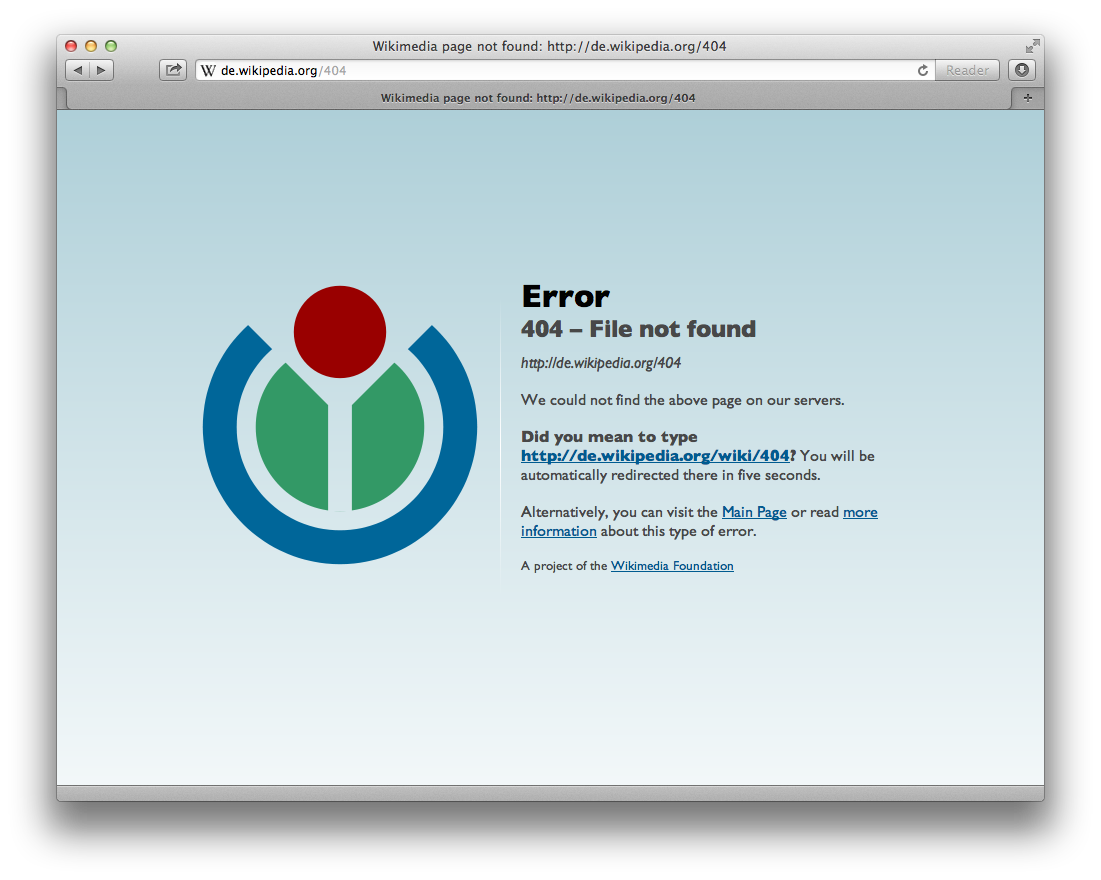
A website that won’t load is one of the most annoying problems on the internet — and one of the easiest to fix once you know where the fault sits. The fix depends on what is broken: your browser, your internet connection, or the website itself. This guide walks you through the checks in order, so you find the cause fast instead of guessing.
Last updated: November 2026
In this guide:
Before you change any settings, run these three quick checks. They take two minutes and tell you which half of this guide you need.
1. Is it just this one site? Open two or three other websites. If they all load fine, the problem is with that one site, not your internet. If nothing loads, the problem is on your side.
2. Is the site down for everyone? Search for the site name plus “down” or check a site status tool such as Down For Everyone Or Just Me. If the site is down for everyone, no fix on your computer will help — you just have to wait for the site owner to fix it.
3. Try another device or browser. Open the same site on your phone, or in a different browser. If it loads there, the fault is in your first browser, not the site or your internet.
Once you know which of the three it is — one site, your connection, or your browser — work through the fixes below in order.
A plain refresh sometimes loads a stuck page from the cache instead of the live site. Do a hard refresh: hold Ctrl and press F5 on Windows, or Cmd + Shift + R on a Mac. This forces the browser to fetch a fresh copy of the page.
A small typo in the web address is a common cause. Check the spelling, and check for a missing letter in the domain name. If you clicked a link, try typing the site’s home page address by hand instead.
Close the browser fully — all windows — and open it again. Browsers can get stuck after running for days, and a restart clears temporary glitches.
Open the site in a private window (Ctrl + Shift + N in Chrome, Ctrl + Shift + P in Firefox). Private windows skip your cache, cookies, and most extensions. If the site loads there, the problem is in your normal browser data — go to fix 5.
Old cached files can clash with a site’s new version. In Chrome, go to Settings, then Privacy and security, then Delete browsing data, and clear cached images and cookies for all time. Then try the site again. You will be signed out of sites, so keep your passwords handy.
Ad blockers, VPN extensions, and security add-ons can block a site by mistake. Turn your extensions off one by one and reload the page after each one. If the site loads after you switch one off, you have found the cause — update that extension or leave it off for that site.
A VPN routes your traffic through another server, and some sites block VPN traffic. Turn the VPN off and try the site again. If it loads, the VPN server or location was the problem — try a different server location.
If no sites load, restart your router. Unplug it, wait 30 seconds, and plug it back in. Wait two minutes for it to reconnect, then try again. This fixes more connection problems than any other single step.
Your computer keeps a list of website addresses (DNS cache). A bad entry in that list can send you to the wrong place. On Windows, open Command Prompt and type ipconfig /flushdns, then press Enter. On a Mac, open Terminal and type sudo dscacheutil -flushcache. Then try the site again.
If the site still will not load, try a different DNS server. In your network settings, change the DNS to 8.8.8.8 and 8.8.4.4 (Google’s public DNS) or 1.1.1.1 (Cloudflare). This often fixes sites that fail with a DNS error, and it is safe to switch back later.
This one surprises people. If your computer clock is wrong by a large amount, secure sites will refuse to load because their security certificates look out of date. Make sure the date, time, and time zone are set to automatic.
Connect your computer to your phone’s hotspot, or try a different Wi-Fi network. If the site loads on the other network, your home network or internet provider is blocking or failing to reach it. Call your provider and tell them the exact site and error message.
The error on the screen tells you a lot. Here are the common ones:
If a site will not load on your phone but works on your computer, try these:
On an iPhone, also try loading the site in Safari if you normally use Chrome, or the other way round. One browser app can have a bad cache while the other works fine.
If visitors tell you your site will not load, the fault is usually on the server side. Check these in order:
If you cannot find the cause, contact your host’s support with the exact error message, the time it started, and what you changed last. That is the fastest way to get a fix.
Do a hard refresh (Ctrl + F5 on Windows, Cmd + Shift + R on Mac), then try the site in a private window. If that fails, clear the cache and cookies and try again. Forcing it further usually means the problem is not in your browser.
The most common causes are a bad cached file, an extension update, a VPN problem, or a DNS fault. If it worked an hour ago and nothing on your side changed, check whether the site is down for everyone before you change settings.
A page that loads halfway and stops is often waiting on a slow script, ad, or image from another server. Try an ad blocker or a private window to see if the page finishes. If you own the site, a slow plugin or a third-party script is the usual cause.
That pattern points to DNS trouble, a VPN block, or a problem at the site itself. Try changing your DNS server to 8.8.8.8, turn the VPN off, and check the site’s status. If only one site fails on every network, the site is the problem.
Most loading problems are fixed by one of the first six steps here — a hard refresh, a private window, or clearing the cache. Work through them in order, note the exact error message if one appears, and you will usually find the cause within ten minutes.

Taylor Orlando is a content writer at Meregate covering websites, SEO, and AI. Taylor breaks down complex topics into simple, practical guides that help small businesses build better websites, rank higher on Google, and get real value from AI tools — no jargon, no fluff.
Learn how to design a website using AI — pick a builder, write a good prompt, fix the first draft, and launch. Costs, prompts, and a launch checklist included.

Wix is the best all-rounder for most small businesses. Squarespace wins on design, WordPress on ownership, and Shopify on selling. Here is how all 9 compare.
Wix wins on speed and simplicity. WordPress wins on control and long-term growth. This honest comparison covers cost, SEO, blogging, and lock-in.