
Computers
How to Design a Website Using AI: A Simple Step-by-Step Guide (2026)
Learn how to design a website using AI — pick a builder, write a good prompt, fix the first draft, and launch. Costs, prompts, and a launch checklist included.

 By Taylor Orlando
·November 11, 2026
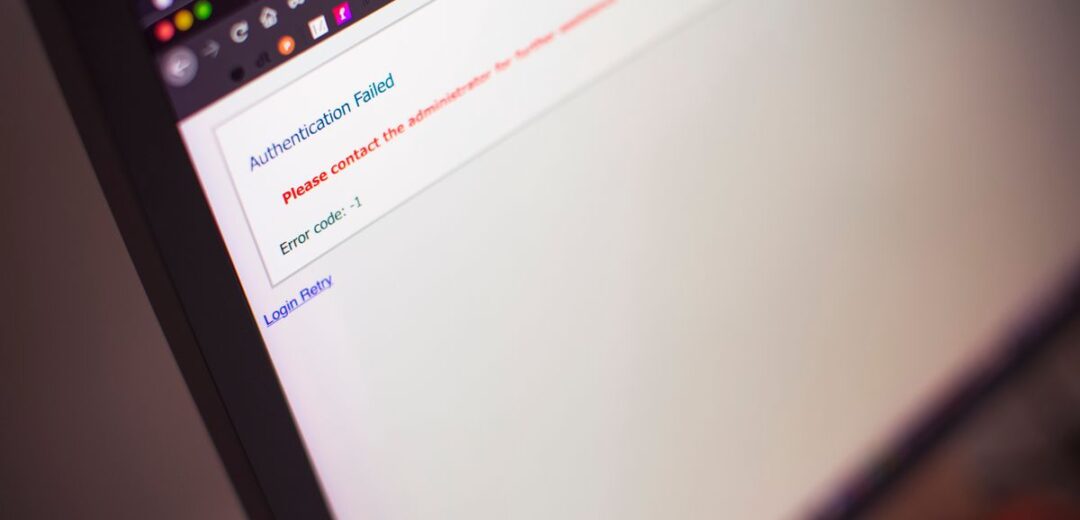
You open a website, wait a few seconds, and Chrome gives up. Instead of the page, you see a grey error screen that says ERR_CONNECTION_TIMED_OUT. If you want to know how to fix err_connection_timed_out, this guide will help. It explains what the error means, shows you how to find the cause in about 30 seconds, and walks you through the fixes that work most of the time — on Windows, Mac, Android, and iPhone.
ERR_CONNECTION_TIMED_OUT is the message Chrome shows when it tries to reach a website but gets no answer in time. Chrome waits for about 30 seconds. If nothing comes back from the server in that time, it stops trying and shows this error. Inside Chrome, it has the code -118.
Think of it like calling a phone number that keeps ringing. Nobody picks up, and nobody says the number is wrong. After a while, you hang up. That is what Chrome does. The site never sent back a page, a “not found” message, or anything at all.
If only one site fails, the fault is likely that site. If every site fails, it is likely your connection, router, or device.
A 404 error means the server answered, but the page you asked for does not exist. With a timeout, the server never answers at all. Our guide to fixing a 404 error on a website covers that case, and the steps there will not help here. ERR_CONNECTION_REFUSED is also different: the server answered, but it refused the connection. And ERR_NAME_NOT_RESOLVED means Chrome could not turn the website name into an address at all. A timeout means the site did not answer in time, and your job is to find out why it stayed silent.
Before you change any settings, run two fast tests. They take less than a minute, and they tell you where the problem sits.
Turn off Wi-Fi on your phone and open the same page using mobile data. If it loads, the website is up, and the problem is on your computer or your Wi-Fi network. If it fails on mobile data too, the website itself is most likely down.
Open the same page in Firefox or Edge. If it loads there, the problem is inside Chrome — a bad extension, a stuck cache, or a wrong setting. If it fails there too, the problem is with your network, your DNS, or the site itself. Note what each test showed, then try the fixes below for your case.
Try these in order. Most people fix the error within the first few steps.
Press F5 on Windows, or Command + R on a Mac. A short hiccup can cause a one-off timeout. If the page loads on the second try, you are done.
Open a new incognito window with Ctrl + Shift + N on Windows, or Command + Shift + N on a Mac. Incognito turns off most extensions and uses a clean cache. If the page loads there, an extension or a bad cache entry in normal Chrome is the cause.
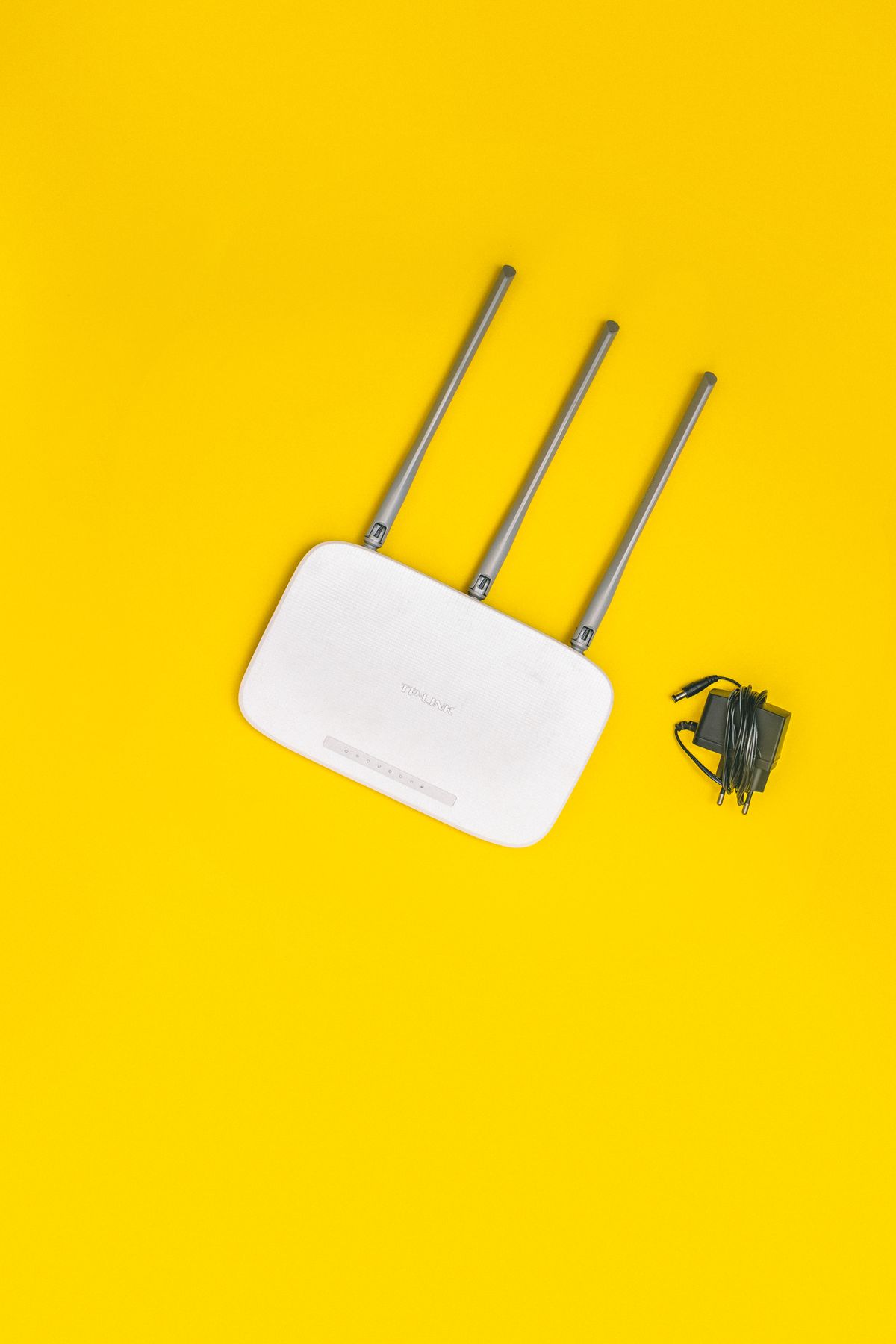
Unplug your router, wait 30 seconds, and plug it back in. Wait for the lights to settle, then try the page again. If you use a modem and a router as two separate boxes, restart both.
Your computer keeps a small list of website addresses it has looked up before. If one entry is stale or wrong, Chrome can keep trying a dead address. On Windows, open Command Prompt as an administrator and type ipconfig /flushdns, then press Enter. On a Mac, open Terminal and type sudo dscacheutil -flushcache; sudo killall -HUP mDNSResponder, press Enter, and type your Mac password when asked.
Chrome keeps its own cache of host names. Type chrome://net-internals/#dns into the address bar, press Enter, and click “Clear host cache”. Then try the page again.
A VPN extension, an ad blocker, or a security extension can slow a connection until it times out. Go to chrome://extensions and turn off your extensions, then try the page. If it loads, turn them back on one at a time until you find the one that breaks it.
A VPN or proxy sends your traffic through another server first. If that server is slow or down, your connection can time out even when the website is fine. Turn the VPN off and try the page on a direct connection. If it loads, try a different VPN server, or contact your VPN provider. In Chrome, go to Settings, then System, then “Open your computer’s proxy settings” to check the proxy too.
Your internet provider gives you a DNS server by default. Sometimes it is slow or gives wrong answers. Google’s public DNS is 8.8.8.8 and 8.8.4.4. Cloudflare’s is 1.1.1.1 and 1.0.0.1. Change the DNS setting on your computer or router, flush your DNS cache again, and try the page.
On Windows, open Command Prompt as an administrator and run netsh winsock reset, then restart your computer. Also check your hosts file, at C:\Windows\System32\drivers\etc\hosts on Windows or /etc/hosts on a Mac: if a line holds the failing website name and you did not add it, remove it or put a # at the start. A firewall can also drop packets instead of refusing them, which looks just like a timeout. As a test, turn off your third-party firewall for a minute and try the page. If it loads, add Chrome to the allowed list, then turn the firewall back on.
If the page loads fine in Firefox or Edge, the problem sits inside Chrome. Clear Chrome’s cache and cookies for the site: click the lock or tune icon in the address bar, then “Site settings”, then “Clear data”. If that does not help, reset Chrome’s settings under Settings, then “Reset settings”, then “Restore settings to their original defaults”. This turns off extensions but keeps your bookmarks, history, and saved passwords. Also make sure Chrome is up to date under Settings, then “About Chrome”. You can find more help in Google Chrome’s own help page for connection errors.
On Android or iPhone, toggle airplane mode on, wait ten seconds, and turn it off again. Then switch networks: if you are on Wi-Fi, try mobile data, or the other way round. If the page loads on one network and not the other, the problem is with the network that fails, not your phone. Next, restart your phone and clear the browser data in the Chrome app under Settings, then Privacy and security, then “Delete browsing data”. If every site fails, check another app that needs the internet. If nothing works, the problem is your mobile connection or your carrier. For a wider look at pages that fail on phones, see our guide to a website not loading on mobile.
If you own the site and your visitors see this error, the fix is on your side. Check first that your server is up, and restart the web server if it has stopped. On a cloud server, check the instance is running and has free disk space and memory. Next, check your firewall and security-group rules: the firewall must allow traffic on port 80 for HTTP and port 443 for HTTPS. Check any DDoS protection or rate limiting too, and check server load and your DNS A record, which must point to the right server IP address. A wrong A record sends visitors to a server that never answers. If the site fails from every network and device, the fault is on the server side, and your host’s support team is the right next call.
Not always. Run the phone test: if the site loads on mobile data, the site is up and the problem is on your side.
About 30 seconds. If the server sends nothing in that time, Chrome stops and shows the error.
Yes. A slow or dead VPN server can delay traffic until Chrome gives up. Turn the VPN off and try the page on a direct connection.
Sometimes. A bad cache entry can keep sending you to a dead address. Try clearing the cache and the host cache at chrome://net-internals/#dns, but if the cause is your router or DNS, it will not help on its own.
No. A 404 means the server answered and said the page does not exist. A timeout means the server never answered at all.
If the page still will not load, go back to the two tests at the start. They tell you where the fault sits, so fix that side first. In most cases, a reload, a router restart, or a DNS flush is all it takes. For more basic checks, see our guide to fixing a website that won’t load.

Taylor Orlando is a content writer at Meregate covering websites, SEO, and AI. Taylor breaks down complex topics into simple, practical guides that help small businesses build better websites, rank higher on Google, and get real value from AI tools — no jargon, no fluff.
Learn how to design a website using AI — pick a builder, write a good prompt, fix the first draft, and launch. Costs, prompts, and a launch checklist included.
One site won't load while the rest of the internet works? These 12 fixes cover visitors and site owners, with the error messages explained.

Wix is the best all-rounder for most small businesses. Squarespace wins on design, WordPress on ownership, and Shopify on selling. Here is how all 9 compare.