
SEO
How to Do SEO Competitor Analysis: 9 Simple Steps (2026)
Find out who really outranks you on Google, what they do better, and where the gaps are — with free tools and a simple 9-step plan.

 By Taylor Orlando
·November 18, 2026

A slow website loses visitors before they ever read a word. This guide shows you how to improve website speed with 13 simple steps that work for small business sites, blogs, and online stores. You do not need to know how to code. Most steps use free tools, and the first few take less than 30 minutes. Work through them in order, test your speed before and after, and keep the steps that help the most.
People do not wait for slow pages. Google found that 53% of mobile visits are abandoned when a page takes longer than 3 seconds to load. Its research also found that the chance of a visitor leaving rises by 32% when load time grows from 1 second to 3 seconds, and by 90% when it reaches 5 seconds. That is a big loss for a small business that worked hard to get the click in the first place.
Speed also affects where you show up in Google. Since 2021, Google has used a set of speed scores called Core Web Vitals as a ranking signal. The three scores are Largest Contentful Paint (how fast the main content appears, good is under 2.5 seconds), Interaction to Next Paint (how fast the page reacts when someone taps or clicks, good is under 200 milliseconds), and Cumulative Layout Shift (how much the page jumps around while it loads, good is under 0.1). You do not need to remember the names. You need to know that Google measures real speed, and faster pages rank better and sell more. In a study by Deloitte and Google, a 0.1-second speed gain lifted retail conversions by 8.4% and travel conversions by 10.1%.
The good news is that most slow sites are slow for the same few reasons: images that are too big, too many plugins or scripts, no caching, and cheap hosting. Fix those, and most sites get much faster.
Never guess what is slow. Test it first, so you fix the real problem instead of the wrong one. Use a free tool:
Write down three numbers before you change anything: your mobile score, your desktop score, and your Largest Contentful Paint time. Test the same page again after each batch of fixes. If a fix does not move the numbers, undo it and try the next one.
Test on mobile first. Most of your visitors are on phones, and Google ranks your site mostly by how it works on mobile. A site that scores 90 on desktop can score 50 on mobile. The mobile score is the one that matters.
PageSpeed Insights gives you a list called “opportunities.” Read it before you change anything. It tells you where your time is going. The fix depends on what it says:
This one check saves hours. People who skip it often spend a weekend on the wrong fix.
These are in rough order of impact for most small sites. Do the first five before anything else. They are free, they are quick, and they usually bring the biggest gain.
Images are the most common reason a page is slow. A photo straight from a camera can be 5 MB. A web page should almost never load a 5 MB image. Resize each image to the size it actually shows at. If a picture shows at 800 pixels wide on your page, do not upload a 4,000-pixel file. Then compress it. Free tools like Squoosh and TinyPNG shrink a picture by 50% to 80% with no visible loss in quality. Do this for every image on your main pages first, then work through the rest.
JPEG and PNG are old formats. WebP files are much smaller at the same quality, and most browsers now support them. AVIF is even smaller, but support is newer. Many WordPress image plugins and most site builders can convert your images to WebP for you. If yours cannot, convert the file in Squoosh before you upload it. This one change often cuts image weight in half.
Lazy loading means a picture only loads when the visitor scrolls near it. Pictures far down the page do not slow down the first view. Most WordPress sites and modern site builders do this by default now. Check that yours does. One warning: do not lazy load the main image at the top of the page. That is the image Google measures for Largest Contentful Paint, and delaying it makes your score worse, not better.
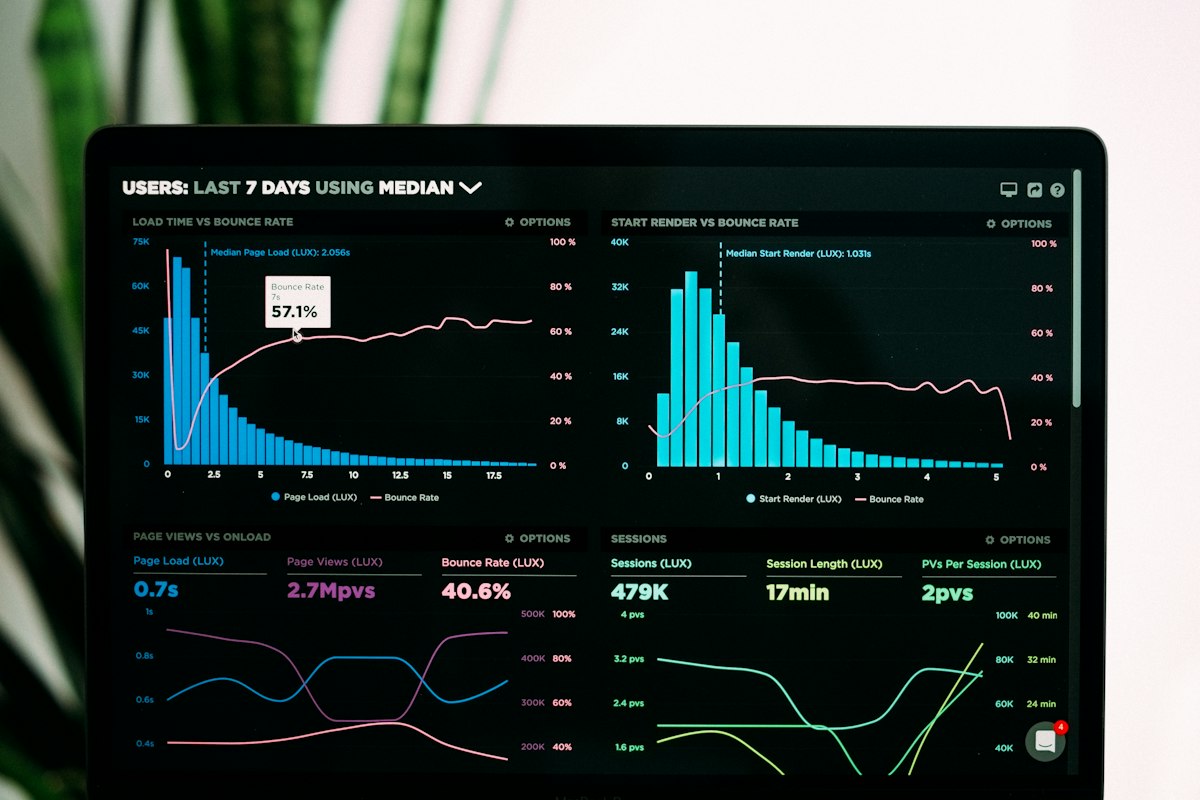
Caching means a visitor’s browser saves parts of your site — like your logo, styles, and scripts — so it does not have to download them again on the next visit. For people who return, this can make pages feel instant. On WordPress, a caching plugin turns this on in one click. On other platforms, check your settings or ask your host. Most good hosts turn caching on for you.
A CDN keeps copies of your site on servers around the world, so a visitor in another country loads your page from a nearby server instead of one far away. It also handles images and files for you. Cloudflare has a free plan that covers most small sites, and many hosts include a CDN for free. If your visitors are mostly in one country, a CDN helps less, but it still takes load off your server.
Minify means removing extra spaces, line breaks, and comments from your code files so they are smaller and download faster. It changes nothing you can see. Caching plugins usually have a minify switch. Turn it on, then test your site. If something looks broken, turn off minify for that one file type and try again.
Some scripts block the page from showing until they finish. Chat widgets, social buttons, analytics, and ad scripts are the usual suspects. Move them to load after the main content, or set them to load only when needed. In WordPress, caching plugins have a “delay JavaScript” option. Keep the scripts that make the page work, and delay the rest. If a script is not helping you sell or serve visitors, remove it.
Every plugin adds code to every page, even pages that never use it. Open your plugin list and delete anything you installed, tried once, and forgot. A slider you never use, a social feed that stopped working, three contact form plugins when you need one — all of them cost speed. On a WordPress site, aim for the smallest set that still does the job. The same goes for third-party scripts: each one is a separate download that can slow the page.
A redirect sends a visitor from one address to another, and each hop adds waiting time. Chains of redirects — one address pointing to another, then another — are the worst. Check your site for redirect chains with a free redirect checker or in Search Console, and point old addresses straight to the final page. Keep redirects only where the old address is still linked from somewhere else.
Every font file is a download. Some sites load five or six fonts, each in several weights, before any text shows. Use one or two fonts, and only the weights you need. System fonts — the fonts already on a visitor’s phone or computer — load instantly and cost nothing. If you use Google Fonts, host the files on your own site instead of loading them from Google each time. That removes one more slow request.
Mobile is not a smaller desktop. Test your site on a real phone, on mobile data, not just on office Wi-Fi. Common mobile problems are a hero image that is too big for a phone screen, a video that autoplays, buttons that are hard to tap, and a pop-up that covers the screen before the page loads. Fix the mobile view first, because that is where most visitors — and Google — will judge you.
If PageSpeed Insights says your server takes a long time to answer, no plugin will fix it. Cheap shared hosting puts hundreds of sites on one server, and they all slow each other down. Ask your host what your server response time is, and what plan would improve it. Moving to better shared hosting, or to managed WordPress hosting, is often the single biggest speed gain for a small site. It costs more per month, but it is cheaper than losing visitors.
WordPress sites collect clutter: old post drafts, spam comments, expired transients, and a database that has never been cleaned. A plugin like WP-Optimize can clean the database safely — back up first. Also check your theme. Heavy page-builder themes with dozens of built-in features are often slower than a light theme. If your theme loads features you never use, switch to a lighter one or turn those features off.
If your site runs on WordPress, here is the fastest path. It covers the biggest wins in one short session:
Do not install five speed plugins at once. They fight each other, and you will not know which one helped. One caching plugin and one image plugin is enough for most sites.

These are the errors that show up again and again:
Speed drifts. Every new plugin, image, and script adds weight, so a fast site slowly gets slower. Set a simple routine: test your homepage and your top three pages once a month in PageSpeed Insights, and fix anything that dropped. Before you add a new plugin or widget, ask whether it is worth the speed it costs. Keep a short list of your scores so you can see the trend. If a page drops below 70 on mobile, treat it as a job for that week, not next quarter.
Test first with PageSpeed Insights, then fix the biggest item it lists. For most sites that means shrinking images, turning on caching, removing unused plugins and scripts, and using a CDN. Those four steps cover most of the gain.
The most common causes are images that are too big, too many plugins or scripts, no caching, and slow hosting. Run PageSpeed Insights and read the opportunities list — it names the exact cause for your site.
Make the page smaller and make it do less work before it shows. Compress images, use WebP, turn on caching, delay scripts that can wait, cut redirects, and host it on a server that answers fast. Test after each change so you know what worked.
Google’s good thresholds are a Largest Contentful Paint under 2.5 seconds, an Interaction to Next Paint under 200 milliseconds, and a Cumulative Layout Shift under 0.1. In plain terms, the main content should appear in under 2.5 seconds on a phone, and the page should not jump around while it loads.
Not for the basics. Images, caching, plugins, and hosting are all things a site owner can handle with free tools and one or two plugins. Hire a developer only if PageSpeed Insights still shows code problems after you have done the simple steps, or if your theme or custom code is the bottleneck.
Last updated: November 2026

Taylor Orlando is a content writer at Meregate covering websites, SEO, and AI. Taylor breaks down complex topics into simple, practical guides that help small businesses build better websites, rank higher on Google, and get real value from AI tools — no jargon, no fluff.
Find out who really outranks you on Google, what they do better, and where the gaps are — with free tools and a simple 9-step plan.

A free, step-by-step 12-week plan to learn SEO from zero — what to study first, the free tools to use, and a practice project that teaches you faster than any course.
Google Search Console is a free service from Google that shows how your site appears in search results — which queries bring it up, which pages are indexed, and what problems Google found.