Home › Computers › How to Start a Website: A Simple Step-by-Step Guide (2026)
How to Start a Website: A Simple Step-by-Step Guide (2026)
By Taylor Orlando·November 24, 2026
Learning how to start a website is easier than most people think. You do not need to know how to code, and you do not need a big budget. With a domain name, a place to host your site, and a tool to build it, most people can get a simple website live in a day or two. This guide walks you through each step in plain English, with real costs, a timeline, and the mistakes to avoid.
Before you start: what kind of website do you need?
Websites are not all the same, and the right way to build yours depends on what it has to do. A blog needs different tools than an online store. Pick your type first, and the rest of the choices get much easier.
Website type
What it needs
Best route for a beginner
Personal blog
Easy writing, good reading layout
WordPress or WordPress.com
Small business site
Services, contact form, map, reviews
Wix or Squarespace
Online store
Products, cart, payments, shipping
Shopify or Wix
Portfolio
Photo or work galleries
Squarespace or Carrd
Booking site
Calendar, appointments, deposits
Wix or Squarespace
Simple one-page site
One page, a few links
Carrd or Google Sites (free)
If you are not sure, a small business site on a website builder is the safest starting point. You can always move to something bigger later.
Step 1: Decide what your website is for
Before you buy anything, write down one sentence that says what the site should do. For example: “My website should help local customers find my bakery, see the menu, and place an order.” That one sentence will guide every choice after it — the domain name, the design, and the pages you need.
Also decide who the site is for. A site for local customers needs your address, hours, and phone number on the home page. A site for readers around the world needs good articles and a way to subscribe. When you know the visitor, you know what to put on the page.
Keep the goal small at first. Your first version only needs to do one job well. You can add a blog, a store, or booking later, once the basic site is live and working.
Step 2: Pick a domain name
Your domain name is your website’s address on the internet, like yourbusiness.com. It is the first thing people see, and it is hard to change later, so take a few minutes to pick a good one.
A good domain name is:
Short and easy to spell. If you have to spell it out on the phone, it is too hard.
Easy to say out loud. Say it once. If a friend can type it from hearing it, it works.
Close to your business or blog name. People should be able to guess it.
A .com if you can get it. It is still the ending most people trust and remember. If .com is taken, .net, .co, or a country ending like .co.uk are fine.
Avoid numbers, hyphens, and clever spellings. “best-plumber-4u.com” is hard to remember and looks cheap. “smithplumbing.com” is simple and clear.
A .com domain usually costs about $10 to $15 a year. Many hosting plans and website builders include a free domain for the first year, so check that before you pay for one on its own. Buy your domain from a known registrar such as Namecheap, Google Domains, or the same company that hosts your site, so everything stays in one place.
Step 3: Choose hosting
Hosting is the service that stores your website’s files and shows them to visitors. Without hosting, your site has nowhere to live. You have two main choices:
1. All-in-one website builder. The builder includes hosting, security, and updates in one monthly price. You never touch a server. This is the easiest route for most beginners. Wix, Squarespace, and Shopify work this way.
2. Separate hosting + WordPress. You rent hosting from a company such as Bluehost, Hostinger, or SiteGround, then install WordPress on it. This costs less per month and gives you more control, but you handle updates and backups yourself (or pay for a plan that does it for you).
Hosting type
Typical cost
Best for
Shared hosting (WordPress)
$3–$10 a month (first term)
Blogs and small sites on a budget
Website builder (Wix, Squarespace)
$17–$19 a month (billed yearly)
Beginners who want everything included
Online store (Shopify)
From about $29 a month
Stores that sell products
Free hosting (Google Sites, GitHub Pages)
$0
Testing an idea or a simple page
Watch out for renewal prices. Many hosts advertise a low first-year price that jumps up when you renew. Before you buy, check what the second year costs. That is the real price of your site.
Step 4: Pick how to build it
You have three ways to build a website in 2026, and none of them needs coding skills.
Website builders are the easiest. You pick a template, drag blocks into place, and type your text. Wix and Squarespace are the best-known. They suit small business sites, portfolios, and simple stores. The trade-off is less freedom: you work inside their system, and moving your site somewhere else later is hard.
WordPress is the most flexible. The software itself is free, and thousands of themes and plugins cover almost any feature — booking, shops, memberships, forums. It powers more than 40% of all websites. The trade-off is more work: you pick the hosting, install updates, and fix things when they break. It is the best choice if you plan to grow a blog or a content-heavy site.
AI website builders are the newest option. You describe your business in a few sentences, and the tool builds a first draft of the site — text, images, and layout included. Wix ADI, GoDaddy Airo, and Hostinger’s AI builder work this way, and ChatGPT Sites can build and publish simple interactive pages from a prompt. AI builders are fast, but the result is generic. Treat the draft as a starting point, then rewrite the text in your own words and fix the layout before you launch.
Option
Ease of use
Cost
Best for
Website builder (Wix, Squarespace)
Very easy
From about $17/month
Small business, portfolio
WordPress (self-hosted)
Medium
From about $3–$10/month + domain
Blogs, growing sites
WordPress.com
Easy
Free; paid from $4/month
Blogs without server work
AI builder
Very easy
Included in builder plans
Fast first draft
Build from scratch (HTML/CSS)
Hard
Free, but slow
Learning to code
Prices change often, so check the vendor’s own pricing page before you buy. The figures above were checked in November 2026.
Step 5: Plan your pages
Before you open the builder, sketch your site on paper. A simple plan saves hours of moving blocks around later. Most small websites need only five or six pages:
Home — what you do, who it is for, and what to do next.
About — who you are and why people should trust you.
Services or Products — what you offer, with prices where possible.
Blog or News — optional, but useful for Google traffic over time.
Contact — a form, phone, email, address, and hours.
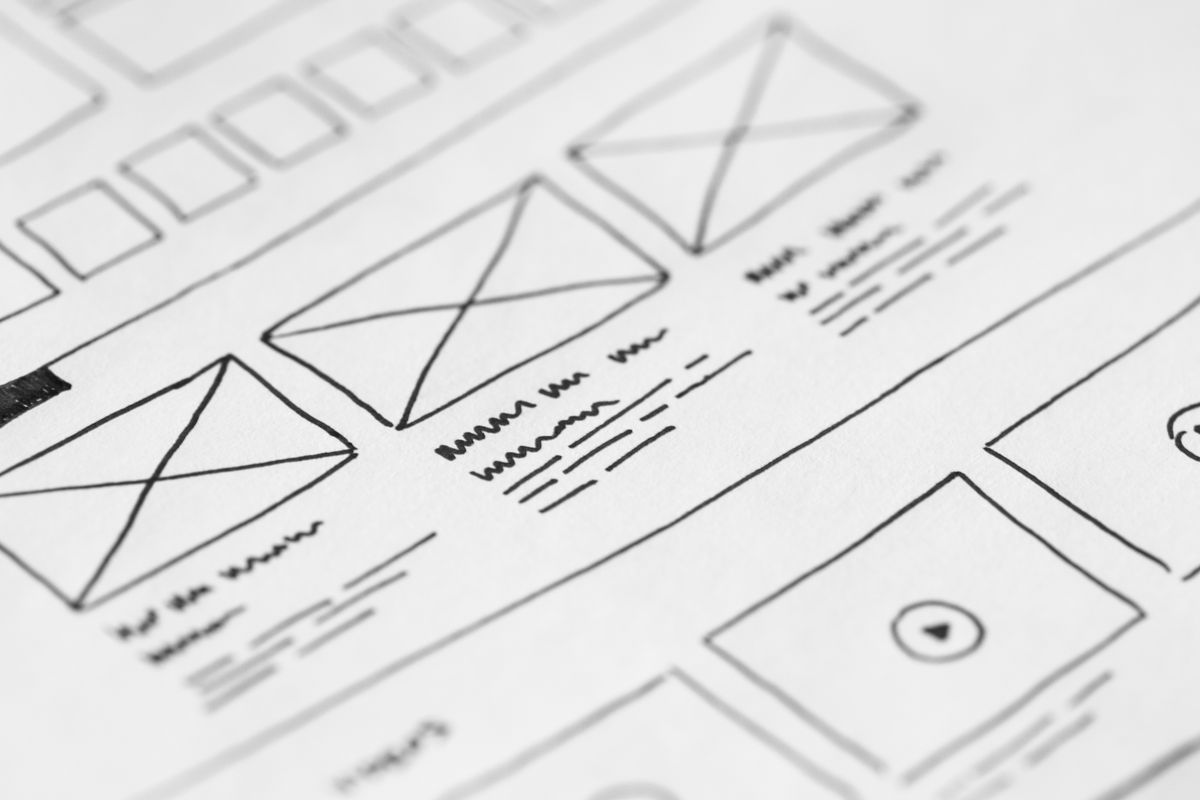
Draw a box for each page and note what goes on it. This rough sketch is called a wireframe, and it is how designers plan a site before they build it. It does not need to look good — it just needs to show the order of things on the page.
Source: Pexels
For each page, decide the one action you want visitors to take — call, book, buy, or sign up. Put that action near the top of the page where people see it first.
Step 6: Design and build your pages
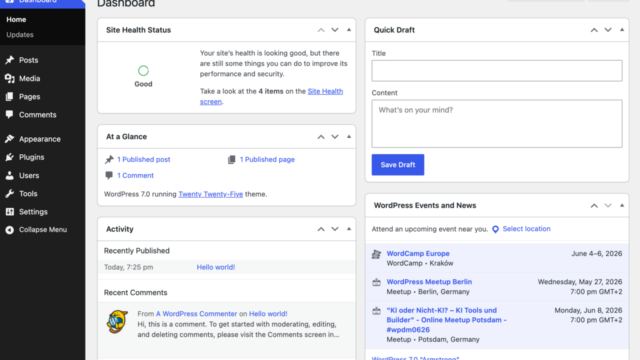
Now open your builder or WordPress and pick a template close to what you planned. A template is a ready-made design. Change the colors, fonts, and images to match your business, but do not fight the template — pick one that already looks the way you want.
A few design rules that keep a site looking professional:
One clear headline per page. Say what the page is about in plain words.
Lots of white space. Do not fill every corner. Space makes text easier to read.
Two fonts at most. One for headings, one for body text.
Real photos where you can. Photos of your work, your team, or your products beat stock photos every time.
Mobile first. More than half of your visitors will use a phone. Check every page on a phone screen before you launch.
Source: Pexels
Build your pages in this order: Home, About, Services, Contact. Add the blog last, once the main pages are done. If you get stuck on the wording, write it the way you would say it to a customer in person. Simple words beat clever words.
Step 7: Write your content
Content is what makes a website useful — and it is what Google ranks. Each page needs real text, not just a headline and a photo. As a rule, a main page should have at least 300 words, and a blog post should have 800 or more.
Write for the visitor, not for Google. Answer the questions a real customer would ask: What do you do? How much does it cost? How do I start? Where are you? People who find those answers stay longer, and Google notices.
A few content tips:
Use the words your customers use. If they search for “plumber near me”, say “plumber” on your page, not “water systems engineer”.
Break text into short paragraphs and use headings so people can scan.
Add one clear call to action on each page: “Call us”, “Book a visit”, “Get a quote”.
Do not copy text from other websites. Write your own, even if it is short.
Step 8: Set up the basics
Before launch, set up four things that every website needs. They are all free, and they take less than an hour together.
SSL certificate. This is the padlock in the browser bar, and it turns your address into https. Most hosts and builders include it free. If your site shows “Not secure”, fix this before you launch — visitors leave sites without the padlock.
Google Search Console. This free tool from Google tells you when your site appears in search results and flags problems. Add your site, verify it, and submit your sitemap. You can do it from Google Search Console.
Google Analytics. This shows you how many people visit, which pages they read, and where they come from. Install it on day one so you have data from the start.
Backups and updates. If you use WordPress, turn on automatic updates for plugins and set up a backup — most hosts offer one-click backups. Builders handle this for you.
Also add the legal pages a business site needs: a privacy policy and, if you collect emails or use cookies, a cookie notice. Free privacy policy generators can give you a starting draft, but check that it fits your country and your business.
Step 9: Test and launch
Do not launch on a guess. Go through this checklist first:
Every link works, and there are no dead links or placeholder text like “Lorem ipsum”.
Every page looks right on a phone, a tablet, and a computer.
Images load fast and none are broken.
The contact form sends you a test message.
Your phone number, email, and address are correct on every page.
The title and description of each page make sense in Google search results.
SSL is on, and the site loads as https.
Ask a friend to use the site and watch where they get stuck. Fresh eyes catch problems you have stopped seeing. Fix what they find, then click publish. A website is never finished — it is just ready enough to launch. You can improve it after it is live.
How much does it cost to start a website?
This is the question most guides skip. Here is an honest first-year breakdown for a small website in 2026.
What you pay for
Cheapest route
Typical route
Domain name
$0 (free first year with many plans)
$10–$15 a year
Hosting or builder plan
$0 (free plan, with ads and a subdomain)
$48–$228 a year
Theme or template
$0 (free themes)
$0–$60 one-time
Email (you@yourdomain.com)
$0 (use a free address)
$6 a month per inbox
SSL certificate
$0 (included almost everywhere)
$0
Total, first year
$0
About $60–$300
Total, each year after
$0–$15
About $110–$350
The typical route in plain numbers: a domain at $12 a year, plus WordPress hosting at about $4 a month ($48 a year), is about $60 for the first year. A Wix Light plan at $17 a month billed yearly is about $204 a year, domain included for the first year. A Squarespace Basic plan at $19 a month billed yearly is about $228 a year.
Year two usually costs more than year one, because hosting discounts end and the free domain runs out. Budget the renewal price, not the intro price. Hiring someone to build the site is a separate cost: a simple business site from a freelancer often runs $500 to $2,000, and an agency charges more.
How long does it take?
A simple website does not take months. Here is a realistic timeline if you work on it a few hours a day:
Step
Time
Decide the goal and pick a domain
1–2 hours
Choose hosting and a builder
1 hour
Plan pages and write the text
Half a day
Build the pages in the builder
Half a day to one day
Set up SEO, Analytics, and SSL
1–2 hours
Test and launch
1–2 hours
Total
About 2–3 days
Most people can launch a simple site in a weekend. A store with many products takes longer — about one to two weeks. Getting traffic from Google takes much longer: new sites often need 3 to 6 months before search traffic builds up. That is normal. The site is still useful from day one for people you send to it — customers, social media followers, and business cards.
Free vs paid: which should you pick?
You can start a website for free, but free has limits. Here is the honest comparison.
Free
Paid
Address
yoursite.wixsite.com or yoursite.wordpress.com
yoursite.com
Ads
The platform shows its own ads on your site
No ads
Branding
Platform logo on your pages
Your brand only
Features
Basic pages only
Store, bookings, forms, SEO tools
Trust
Looks temporary to visitors
Looks like a real business
Cost
$0
About $4–$19 a month
Free is fine for testing an idea, a school project, or a hobby page. For a business, pay for a custom domain at least — it costs about $12 a year and it is the single biggest trust signal on your site. You can start free and upgrade later, but expect to rebuild parts of the site when you move to a paid plan.
7 mistakes to avoid
Most new websites fail in the same few ways. Avoid these and you are ahead of most beginners.
1. No clear goal. A site that tries to do everything does nothing well. Pick one job for the site and build around it.
2. Picking a bad domain name. Long, hard-to-spell names with numbers and hyphens get forgotten and mistyped.
3. Skipping mobile. If your site is hard to use on a phone, you lose more than half your visitors.
4. Too much text on the home page. Visitors decide in a few seconds whether to stay. Say what you do in one clear sentence, then let them click deeper.
5. No contact details. A business site without a phone number, email, or form loses customers who were ready to reach out.
6. Launching and forgetting it. A website is not a poster. It needs fresh content, updates, and checks, or it slowly falls behind.
7. Copying someone else’s text or images. It hurts your Google ranking, and it can cause legal trouble. Write your own words and use photos you have the right to use.
What to do after you launch
Launching is the start, not the end. Here is a simple plan for the first 30 days.
Week 1: Tell people the site exists. Share it on your social media, add it to your email signature, and put it on your business cards. Ask friends to visit and report anything broken.
Week 2: Check Google Search Console to see if Google has found your pages. Fix any errors it reports. Add your site to Google Business Profile if you serve local customers.
Week 3: Publish your first blog post or news update. It gives Google something new to find and gives visitors a reason to come back.
Week 4: Look at Analytics. Which pages do people read? Where do they leave? Fix the weakest page first, then keep improving one thing each week.
After that, keep a simple routine: add new content at least once a month, update prices and hours when they change, update WordPress and plugins, and check your backups. A site that gets regular care keeps ranking and keeps bringing in visitors.
FAQ
Is owning a website free?
You can build a website for free on a platform subdomain, like yoursite.wixsite.com, but you do not truly own it. A custom domain and full control usually cost money — about $10 to $15 a year for the domain, plus hosting or a builder plan.
Can I create a website for free?
Yes. Google Sites, WordPress.com, Wix, and Carrd all have free plans. You get a subdomain address and the platform’s branding on your pages. For a business, a paid plan with your own domain looks more professional and costs as little as $4 a month.
Do I need an LLC to start a website?
No. You can start a personal blog, portfolio, or test site as an individual. You only need a business setup when you start earning money through it, and even then the rules depend on your country and state. Check local rules before you sell anything.
Does a website make money?
It can, but not quickly. Websites earn through ads, affiliate links, selling products or services, and courses. Income ranges from a few dollars a month to thousands, and it depends on traffic, niche, and what you sell. Expect months of work before real income appears.
Can ChatGPT actually create a website?
ChatGPT can write the code and the text for a website, and its Sites feature (on paid plans) can build and publish simple interactive pages from a prompt. It is useful for a first draft, but you should still review the design, fix the wording, and check that everything works before you launch.
How long does it take to start a website?
A simple site takes about 2 to 3 days of part-time work, or one focused weekend. A store with many products takes one to two weeks. Getting steady traffic from Google usually takes 3 to 6 months.
Can I start a website without knowing how to code?
Yes. Website builders and WordPress let you build a full site with drag-and-drop tools and templates. No coding is needed for a blog, a business site, or a small store.
Taylor Orlando is a content writer at Meregate covering websites, SEO, and AI. Taylor breaks down complex topics into simple, practical guides that help small businesses build better websites, rank higher on Google, and get real value from AI tools — no jargon, no fluff.
Make a portfolio website from scratch — pick 3 to 6 strong projects, choose a builder, design clean pages, and publish. Free and paid routes compared with 2026 prices.
Learn how to install WordPress in about 5 minutes — with a one-click installer, a manual cPanel install, or on your own computer. Simple steps, no coding needed.