
Ai
How to Use AI for Business Marketing: A Small-Business Guide (2026)
How to use AI for business marketing on a small budget: 7 tool workflows, real costs, a free $0 stack, a 30-day pilot plan, and ROI math.

 By Taylor Orlando
·November 22, 2026
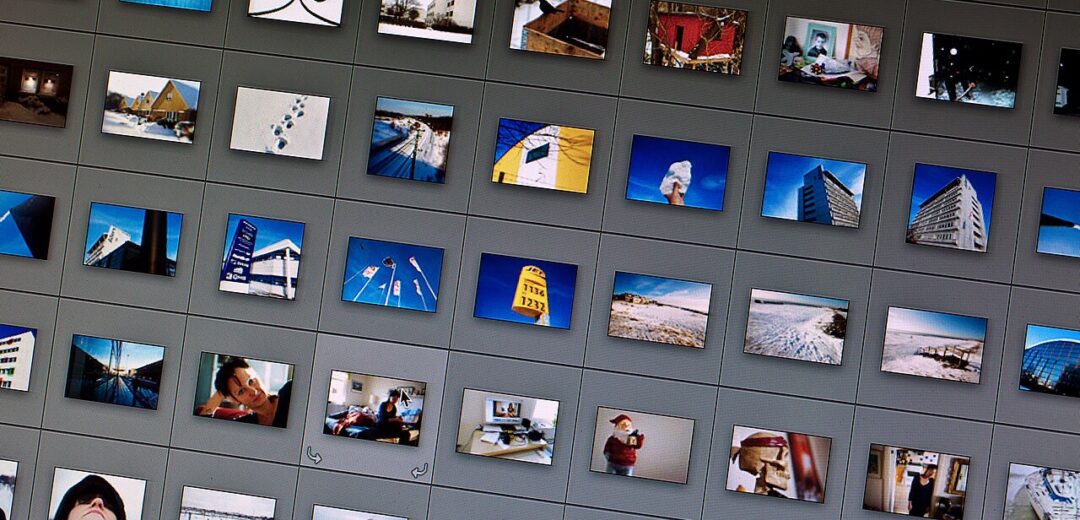
Learning how to use AI to edit photos is easier than most people think. You do not need Photoshop skills, and you do not need to pay anything to start. You upload a photo, type what you want in plain words, and the AI does the work — remove a stranger from the background, fix a blurry shot, swap a grey sky for a sunset, or clean up a product photo for your shop. This guide shows you how, step by step, with free tools, prompts you can copy, and an honest look at what “free” really means.
Last updated: November 2026
AI photo editors are good at specific jobs. Here is what they handle well, and where they still struggle.
What works well:
What still goes wrong:
The rule of thumb: use AI for small, clear jobs. One change at a time beats five changes in one prompt.
There is no single best AI photo editor. The right one depends on what you want to do and where your photo lives. Start here:
| Your job | Best free starting point | Why |
|---|---|---|
| Quick fix on your phone (remove a person, unblur) | Google Photos | Already on most Android phones and free on iPhone; Magic Eraser and Photo Unblur take seconds |
| Edit by typing (“remove the bin, add sunset light”) | Gemini app (Nano Banana) | Type what you want in plain words; free tier allows up to 20 images a day |
| Product photos and social posts | Canva | Background remover, Magic Eraser, and templates in one place |
| Pro-quality edits with full control | Adobe Firefly | Generative Fill, Relight, and Replace Background; free account to start |
| Fun edits and effects | Picsart | 25+ AI tools, background changer, upscale, and filters |
| On a Samsung Galaxy phone | Galaxy Gallery (Photo Assist) | Built in; Generative Edit, Best Face, and Sketch to Image |
If you only pick one tool today, pick the one that matches where your photos already are. Phone photos? Start with Google Photos. Working on a computer? Start with Canva or Firefly.
This is the fastest way to fix a real photo. No new app, no sign-up, no prompt writing. It works on Android and iPhone through the Google Photos app.
Newer versions of Google Photos let you describe the edit instead of hunting for the right button. Tap Edit, then Help me edit (or Reimagine), and type something like “make the sky bluer” or “remove the people in the background.” The feature is available to eligible users aged 18 and over in the US. If you do not see it yet, update the app — Google rolls it out in waves.
Tip: Google Photos keeps your original. After any AI edit, you can go back and tap Revert to get the untouched photo. That safety net makes it the best place to learn.
When you want a change that no button covers, describe it. The Gemini app (Google’s AI, powered by its Nano Banana image model) edits the photo you upload based on your words.
A real example: take a photo of your dog in a messy living room. Upload it and type: “Remove the laundry pile on the couch behind the dog and replace it with a plain beige cushion. Keep the dog exactly the same.” One clear change, one sentence about what to keep. That is the whole method.
The same idea works in ChatGPT: upload a photo, describe the edit, and it returns an edited version. ChatGPT’s free tier is tighter — about 2 to 3 image edits a day — so save it for edits that matter.
For product photos, posters, and social posts, a computer gives you more control.
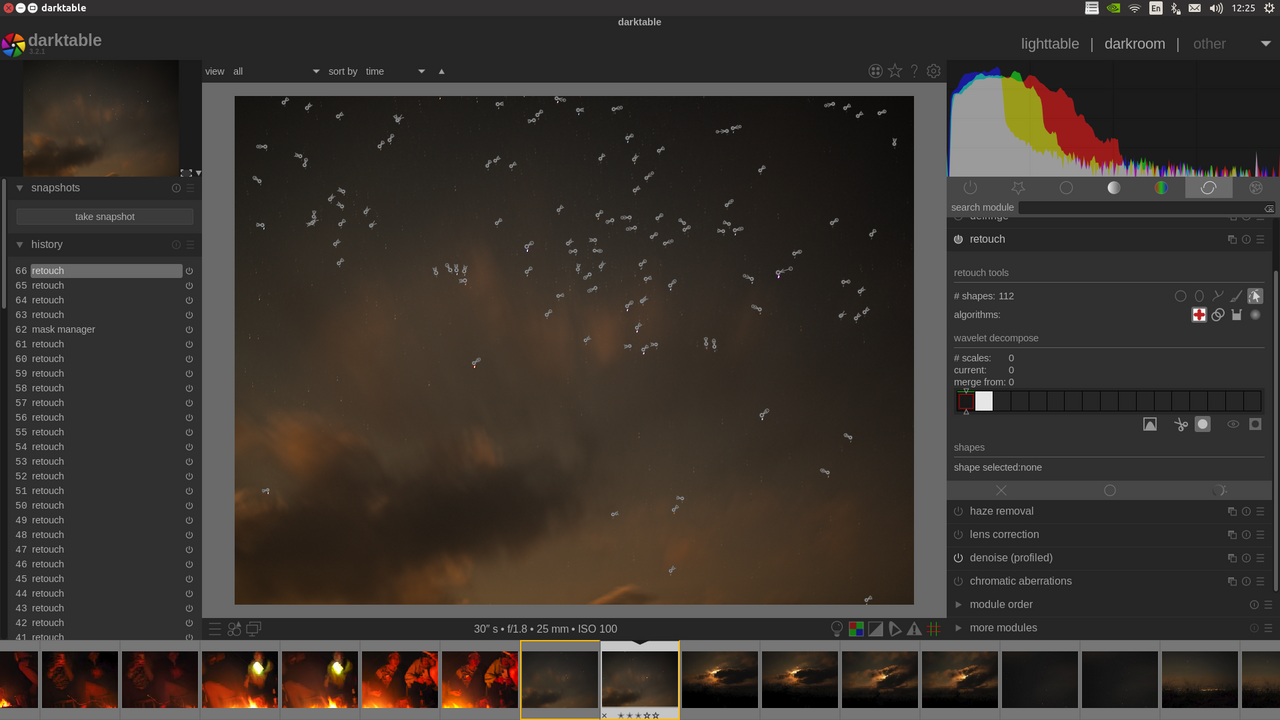
Firefly is the only tool on this list that answers privacy questions in its own FAQ — including whether it trains on your photos and whether it stores them. If that matters to you, read those answers before you upload client or family photos.
Good prompts are short, specific, and say what must not change. Vague prompts (“make it better”) give random results. Use these as starting points:
| Task | Prompt to copy |
|---|---|
| Remove an object | “Remove the [object] from the [place]. Fill in the background naturally. Keep everything else exactly the same.” |
| Change a background | “Replace the background with a clean white studio background. Keep the [person/product] and its lighting exactly the same.” |
| Fix lighting | “Brighten this photo slightly and add warm, natural sunlight from the left. Do not change any faces.” |
| Restore an old photo | “Sharpen this old photo, fix the faded colors, and remove scratches. Keep the faces and original look.” |
| Product photo | “Put this product on a plain light-grey background with a soft shadow underneath. Keep the product exactly the same.” |
| Portrait touch-up | “Gently smooth the skin and brighten the eyes a little. Keep the face shape, freckles, and hair exactly the same — natural look, not airbrushed.” |
Three prompt rules that save time:
Almost every AI photo editor says “free.” The limits hide in the small print. Here is what the main tools actually give you without paying, as of November 2026. Limits change often, so check the tool’s own page before you plan a big job around a number.
| Tool | Free tier | The catch |
|---|---|---|
| Google Photos | Magic Eraser, Photo Unblur, and basic AI edits free in the app | Some newer features roll out slowly; 18+ and US only for “Help me edit” |
| Gemini app | Up to 20 image edits a day with Nano Banana 2 | Daily cap resets each day; higher caps need a paid Google AI plan (Pro: up to 100 a day) |
| ChatGPT | About 2 to 3 image edits a day | Tiny quota; Plus ($20/month) raises it to about 50 a day |
| Canva | Basic AI editor free for every individual | Some tools (Magic Grab, premium effects) need Pro |
| Adobe Firefly | Free account with monthly generative credits | Credit amounts change; heavy use needs a paid plan |
| Picsart | Basic AI tools free | Pro ($15/month, or $10.50/month billed yearly) gives 500 credits a month; best models sit behind Pro |
| Samsung Gallery | Basic Galaxy AI features free on supported phones | Some enhanced features may cost extra; AI edits can carry a watermark and resize to 12MP |
How to stay free: do quick fixes in Google Photos (no daily cap on basic tools), save your Gemini edits for the ones that need typed prompts, and keep ChatGPT’s 2 to 3 daily edits for the single most important photo of the day. If you edit photos every day for work, a paid plan is cheaper than juggling five free tiers.
Yes, for everyday photos — with a few common-sense rules. When you upload a photo to an online AI editor, a copy goes to that company’s servers. What happens next depends on the company: some delete uploads quickly, some keep them to improve their models, and the rules are often buried in a privacy policy. Adobe is the most open about this; most others say little on the tool page itself.
Right now it is a mix: Google Photos and Gemini for quick phone edits, ChatGPT for prompt-based edits, and Canva or Picsart for social posts. There is no single app everyone uses — it depends on the job.
Mostly yes, with limits. Google Photos’ basic AI tools are free, Gemini allows up to 20 image edits a day free, and Canva’s basic editor is free. ChatGPT only allows about 2 to 3 image edits a day free. Paid plans remove the caps and unlock better models.
Yes. Upload a photo to ChatGPT, describe the change in words, and it returns an edited version. Free accounts get about 2 to 3 image edits a day, so use it for edits that matter.
For phone photos, Google Photos is the best free starting point — Magic Eraser and Photo Unblur need no sign-up and no prompt writing. For typed edits, the Gemini app is the best free option, with up to 20 images a day.
Open Google Photos, pick a photo, tap Edit, and use Magic Eraser or Photo Unblur. For bigger changes, upload the photo to the Gemini app and type what you want. Both are free and take less than a minute.
The Gemini app is free to use, and its Nano Banana 2 image editing allows up to 20 images a day on the free tier. Higher limits (50, 100, or 1,000 a day) need a paid Google AI plan.
Upload the photo to an AI editor — Google Photos, Gemini, ChatGPT, Canva, or Firefly — then either tap the tool you need (erase, unblur, background) or type the change you want. Save a copy, check the result at full size, and fix one thing at a time.
Use this shape: “Remove [thing] from [place]. Keep everything else exactly the same.” For portraits, add “keep the face shape and hair exactly the same — natural look, not airbrushed.” One change per prompt works best.
Start with the tool you already have. If your photos live on your phone, open Google Photos and try Magic Eraser on one photo today — it takes 30 seconds and you will learn more from that one edit than from reading ten tool lists. When you need a change no button covers, type it into Gemini. And when a photo matters — a product listing, a client headshot, a family memory — slow down: work on a copy, check the result at full size, and say so if the image was AI-edited. The AI does the heavy lifting, but your eyes still make the final call.

Taylor Orlando is a content writer at Meregate covering websites, SEO, and AI. Taylor breaks down complex topics into simple, practical guides that help small businesses build better websites, rank higher on Google, and get real value from AI tools — no jargon, no fluff.
How to use AI for business marketing on a small budget: 7 tool workflows, real costs, a free $0 stack, a 30-day pilot plan, and ROI math.
Looking for the best AI tools for translation? We compare 12 tools — DeepL, ChatGPT, Google Translate and more — with free limits, prices and honest picks by use case.

Learn how to use AI agents step by step — pick the right tool, set it up safely, and save hours a week. Free and paid options, real examples, mistakes to avoid.