Ai
Best AI Tools for Podcasters: 10 Tools That Save Hours (2026)
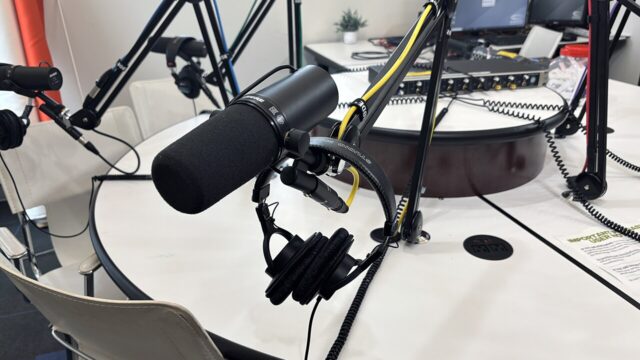
Podcast production used to take 6 hours an episode. These AI tools cut it to about 2 — here are the 10 worth paying for, organized by the job they do.

 By Taylor Orlando
·November 2, 2026

Perplexity AI is an answer engine. You ask it a question in plain words, and it searches the web, reads what it finds, and gives you a short answer with numbered sources you can click and check. This guide shows you how to use Perplexity AI step by step, even if you have never opened it before.
Last updated: November 2026
Google gives you a list of links. A chatbot like ChatGPT gives you an answer from what it already knows. Perplexity sits in between. It searches the live web each time you ask, then writes an answer based on what it just found, with a source number next to each claim.
That makes it a good fit for questions where facts and dates matter, such as “What changed in the new tax rules?” or “Which laptop has the best battery life under $800?” It is a weaker fit for long creative writing, coding help, or private brainstorming. For those jobs, a general chatbot is usually the better tool.
One habit matters more than any other with Perplexity: check the source before you trust the answer. The tool can still get a detail wrong, or read a page that is out of date. Section 4 below gives you a quick check that takes less than a minute.
That is the whole setup. Everything below is about getting better answers from the same box.
Short keywords give you short, vague answers. Full questions give Perplexity something to work with. Compare these two:
A strong question states four things: what you want, who it is for, what limits apply, and what shape you want the answer in. For example: “List three options, with price, battery life, and weight, and link to the source for each price.”
After the first answer, use follow-ups to narrow it down:
If the thread starts to drift, or you change topics, start a new thread. A long thread that mixes three topics gives worse answers than three short, focused ones.
Perplexity cites sources, but a citation is not proof. Use this four-step check on any answer that matters, such as health, money, or school work:
When you quote or reuse an answer, cite the original page, not Perplexity. Perplexity is a search tool, not the source itself.
By default, Perplexity searches the whole web. Focus modes narrow the search to one kind of source. The exact list you see can vary with your plan and app version, but the common ones are:
Pick a Focus mode before you type, from the selector near the search box. If your first answer is full of blog posts when you wanted research papers, switch to Academic and ask again. That one change often fixes a weak answer.

Perplexity has three levels of search. Most beginners only need the first one most days.
| Mode | Best for | What to expect |
|---|---|---|
| Search | Quick facts and simple questions | Fast answer from a small set of sources |
| Pro Search | Questions with several parts, such as a product comparison | Slower, deeper answer that checks more sources and asks clarifying questions |
| Deep Research | A full report on a complex topic | Takes a few minutes and returns a structured report with sections and sources |
Rule of thumb: start with Search. If the answer feels thin, or the question has three or more parts, switch to Pro Search. Save Deep Research for reports you would otherwise spend an hour putting together by hand, such as “Compare the top five project management tools for a team of ten, with pricing, limits, and reviews.” Draft that prompt in a normal search first, then paste the improved version into Deep Research, so you do not waste a limited Deep Research run on a vague question.
A thread is one conversation. A Space is a workspace for a whole project. Use a Space when you will ask many questions about the same topic, such as a class, a job search, or a trip.
Use a thread for a one-off question, a Space for a project, and a Page when you want to turn a finished thread into a clean document you can share. That split keeps your work easy to find later.
The core search box works the same everywhere, but the details differ:
If you only pick one, pick the web version. It is the easiest place to check sources, manage threads, and set up Spaces.

Prices and limits change, so check the official pricing page before you pay. As of November 2, 2026, Perplexity’s pricing page lists these individual plans at annual-billing rates:
| Plan | Price shown | Good for |
|---|---|---|
| Free | $0 | Simple questions, limited daily usage, basic models, citations in every answer |
| Pro | $17 per month, billed annually | Model choice, Deep Research, more usage limits, memory, and 4,000 bonus credits |
| Max | $167 per month, billed annually | Highest usage limits, frontier models, expert-level research, and 10,000 monthly credits |
Two notes before you decide. First, older guides list Pro at $20 per month or $200 per year, so do not rely on a single blog post for the current price. Second, Perplexity no longer publishes an exact daily number for every limit on that pricing view, so if Deep Research volume is the reason you want Pro, confirm the current allowance on the pricing page first.
For most beginners, the free plan is enough for a few weeks. Pay for Pro when you hit the free limits often, need to pick a model, or need Deep Research more than once in a while. Students and teachers should also check the education plan, which is cheaper than Pro for verified accounts.
Here is a simple workflow that works for a school paper, a work report, or a big purchase:
For school work, follow your teacher’s rules on AI use, and cite the original sources you opened, not the Perplexity answer. An answer that sounds confident is still not a citation.
Perplexity can speed up a job search, but it works best as a research helper, not as a writer of your resume:
Do not paste your full resume, address, phone number, or anything from a current employer into a search tool. Keep personal details out, and tailor the final resume yourself.
Anything you type or upload can be stored, used to improve the service, or shown to people you share a thread or Space with. Keep these out of Perplexity:
Check your account settings for history and data controls, and delete threads you no longer need. If a question needs private details to make sense, reword it in general terms instead.
| Task | Best tool | Why |
|---|---|---|
| A question that needs fresh facts and sources | Perplexity | Live web search with citations in the answer |
| Writing, brainstorming, or coding help | ChatGPT or Claude | Built for long-form work, not just search |
| Browsing many sites yourself | You control which pages to open and compare | |
| A quick fact you already know how to check | Any of the three | Speed matters more than depth here |
Most people end up using two of the three. Perplexity for research questions, and a chatbot or Google for everything else.
Yes, there is a free plan with standard search and citations. It has limited daily usage and basic models. Paid plans raise those limits and add model choice and Deep Research.
No. ChatGPT is a general chatbot that answers from its training and, in some versions, web search. Perplexity is built around live web search, and every answer comes with sources you can open and check.
Research, fact-checking, product comparisons, news follow-ups, study help, and job-search research. It is less suited to creative writing, long coding sessions, or private brainstorming.
Open perplexity.ai and ask a question without an account, or create a free account to save your threads and use Spaces. Stick to standard Search for most questions, and save Pro Search and Deep Research for questions that truly need them.
Because the answer comes with sources. If you need to show where a fact came from, or check whether a claim is current, Perplexity saves you the step of hunting through links yourself.
Some publishers have complained about how AI search tools use and summarize their content, and about whether readers still visit the original pages. That debate is still going on. For you as a user, the practical point is the same: visit the original source when a claim matters, and do not treat a summary as a substitute for the publisher’s own page.
Open perplexity.ai, ask one full question, click one source, and ask one follow-up. Then try a Focus mode, save the thread, and start a Space for the next project you care about. If you do that much, you already use Perplexity better than most beginners, because you check sources instead of just reading answers. For setup details, see Perplexity’s own getting-started guide and its practical tips in the help center.

Taylor Orlando is a content writer at Meregate covering websites, SEO, and AI. Taylor breaks down complex topics into simple, practical guides that help small businesses build better websites, rank higher on Google, and get real value from AI tools — no jargon, no fluff.
Podcast production used to take 6 hours an episode. These AI tools cut it to about 2 — here are the 10 worth paying for, organized by the job they do.
The Gemini app crashing on open or in the middle of a chat is usually a bad update, corrupt cache, or low memory. These fixes work through the causes in order.

12 AI photo editing tools compared — free options, honest prices, and which editor fits your photos, from phone fixes to pro libraries.