SEO
Ubersuggest vs Moz: Which SEO Tool Wins in 2026?
Ubersuggest and Moz both cover keyword research, site audits and backlinks, but they serve different buyers. We compare their prices, data and limits so you can pick the right one.

 By Taylor Orlando
·November 16, 2026

DNS is the system that turns a domain name you type into the IP address of the server that holds the website. When you type meregate.com into your browser, you never have to know the numbers behind it. DNS looks them up for you, in a few milliseconds, every single time.
DNS stands for Domain Name System. It is one of the oldest parts of the internet, and it is still doing the same job it was built for in the 1980s: matching names people can remember to numbers computers can use. Without it, you would have to type something like 93.184.216.34 to visit a website. Nobody would do that for long.
Last updated: November 2026
Think of DNS as the internet’s address book. You look up a name, and you get an address back. The name is the domain, like google.com. The address is an IP address, a string of numbers that points to one specific server on the network.
Computers do not talk to each other with names. They talk with IP addresses. Your browser needs the IP address before it can ask a server for a page. DNS is the step in between: it answers the question “where does this name live?”
A few facts help the picture make sense:
If you are still fuzzy on the name part itself, our guide to what a domain name is covers how domains are put together, from the top-level domain on the right to the subdomain on the left. DNS is the system that makes that name work.
Every device on the internet has an IP address. The older version, IPv4, looks like 192.168.1.1 — four groups of numbers. The newer version, IPv6, looks like 2400:cb00:2048:1::c629:d7a2 — much longer, because the internet simply ran out of IPv4 addresses.
People are bad at remembering strings of numbers. They are good at remembering names. DNS bridges that gap, and it adds a second benefit that matters just as much: names stay stable while addresses change. When a website moves to a new host, its IP address changes. The domain name does not. The site owner updates one DNS record, and the same name keeps working. That separation of name and location is the whole point of the system. It is also why a domain and hosting are two different things that happen to work together — if you want the full picture, read the difference between a domain and hosting.
Here is what happens in the fraction of a second between typing a web address and seeing the page load. Nothing is cached in this example, so every step runs.
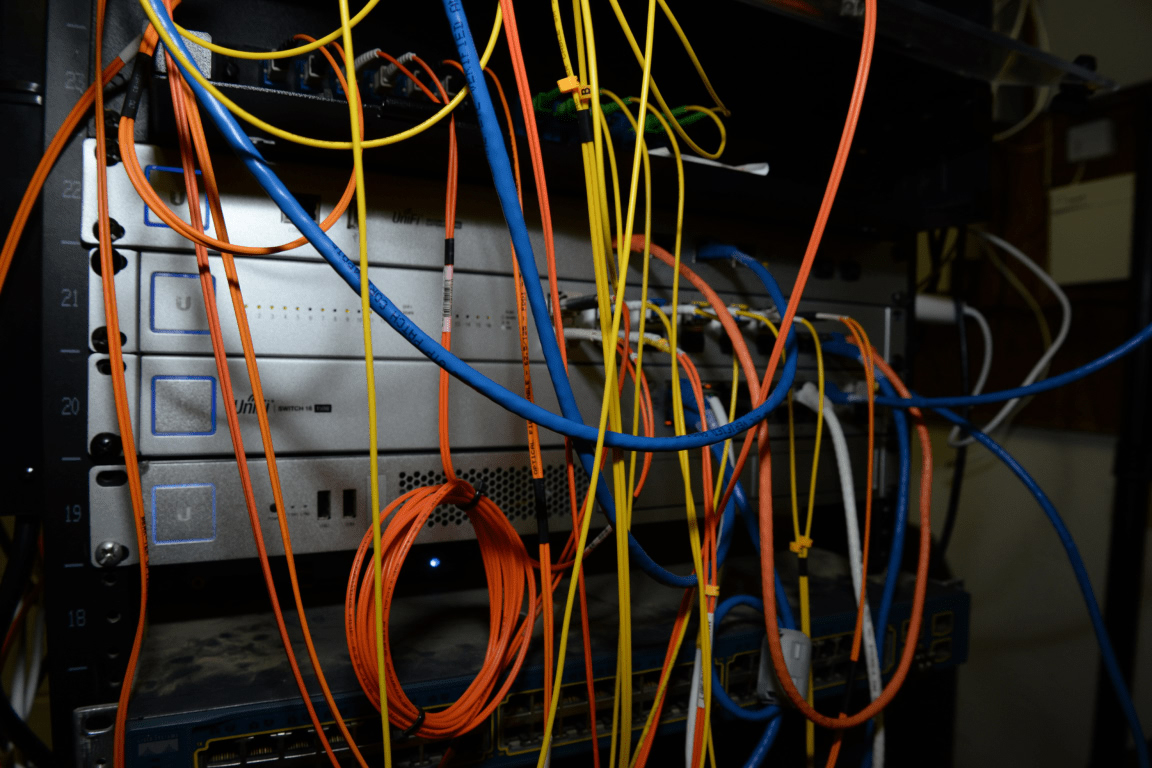
Before asking anyone else, your browser looks in its own short-term memory. If you visited the site recently and the cached answer has not expired, it uses that IP address right away. If not, your operating system checks its own cache the same way. No network request is needed while a fresh answer is sitting locally.
If nothing is cached locally, your device sends the question to a recursive resolver. This is usually run by your internet provider, your company network, or a public DNS service. The resolver does the hard work of finding the answer on your behalf.
The resolver starts at the top of the hierarchy with a root server. There are 13 root server identities, labeled A through M, run by 12 independent operators. Thanks to a technique called anycast, those 13 identities are served by more than 2,000 server instances around the world (root-servers.org, as of October 2026). The root server does not know the IP address you need. It only knows which servers handle the top-level domain, so it points the resolver toward the .com servers.
The TLD nameserver manages one top-level domain, such as .com, .org, or .net. It knows which authoritative nameservers are responsible for every domain under that ending. For example.com, it hands back the address of example.com’s nameserver.
The authoritative nameserver is the last stop. It holds the actual DNS records for the domain, and it gives the final answer: the IP address. These servers are usually run by your domain registrar, your web host, or a DNS provider.
The resolver passes the IP address back to your browser, and it keeps a copy for as long as the record’s TTL allows. The next visitor to the same site gets the answer straight from the cache, without repeating the whole chain.
Now that it has the IP address, your browser sends a request to the server at that address, and the server sends back the page. That last part is not DNS anymore — DNS has already finished its job.
Four types of servers take part in loading a webpage. Each one has a single job.
The key difference to remember: a recursive resolver asks questions for you, and an authoritative nameserver gives the final answer for its own domain. Cloudflare’s guide to how DNS works walks through the same four servers with diagrams if you want a second view of the chain.
A domain’s DNS settings live in a list called a zone file. Each entry is a DNS record, and each record has a name (such as www), a type, a value, and a TTL. The type tells the world what the record is for. Here are the ones you will actually meet.

Points a domain to an IPv4 address. This is the most common record, and the one that makes your website load — for example, example.com points to 93.184.216.34.
The same job as an A record, but for an IPv6 address. As more networks move to IPv6, this one is becoming standard alongside the A record.
Points one name to another name, instead of to an IP address. It is an alias: www.example.com can be a CNAME that points to example.com, so both names always lead to the same place. One rule to know: a CNAME cannot sit at the root of a domain next to other records.
Tells other mail servers where to deliver email for your domain. Without an MX record, email to your domain has nowhere to go. A domain can have more than one MX record, each with a priority number, so mail has a backup server if the first one is down.
Stores plain text attached to a domain. It is mostly used to prove you own a domain and to set up email security, such as SPF and DKIM records that help stop spam and spoofed mail.
Lists which nameservers are authoritative for a domain. This is the record that tells the rest of the internet where to ask about your domain in the first place. Change your nameservers at your registrar, and you are changing NS records.
A few others turn up less often: the SOA record marks the start of a zone file and holds admin details, the PTR record maps an IP address back to a domain name for mail server checks, and the SRV record points to a specific service, such as a chat or voice server, on a particular port.
Every DNS record carries a TTL, or time to live, measured in seconds. The TTL tells resolvers how long they may keep a cached copy before they must check again. A TTL of 3600 means one hour; 86400 means 24 hours.
This is why a DNS change does not show up everywhere at once. When you point your domain to a new host, resolvers around the world keep serving the old cached answer until its TTL runs out. That waiting period is called DNS propagation. Typical times: A and AAAA records take a few minutes to a few hours, CNAME records a few minutes to 24 hours, MX records up to 48 hours, and nameserver changes 24 to 48 hours, sometimes up to 72 — the slowest change, because it affects everything under the domain.
One practical tip: before a big change, like moving to a new host, lower your TTL to 300 seconds (5 minutes) a day or two in advance. Then, when you make the switch, the old answer expires quickly and the new one spreads fast.
You do not have to use your internet provider’s resolver. Anyone can switch to a public DNS service, and many people do it for speed or privacy. Two of the best known are Google Public DNS (8.8.8.8 and 8.8.4.4) and Cloudflare (1.1.1.1 and 1.0.0.1).
Switching is a setting on your device or router, not a purchase. It changes nothing about your domain or your website — it only changes which resolver answers your own lookups.
Classic DNS was built in a more trusting era. By default, DNS queries travel in plain text, and a plain answer can be faked. That gap has led to real attacks: DNS spoofing, where a fake answer sends you to a look-alike site, and DNS hijacking, where a domain’s records are changed without the owner’s knowledge.
Three protections are now common: DNSSEC adds digital signatures to records so a resolver can check the answer is genuine; DNS over TLS (DoT) encrypts the query on port 853; and DNS over HTTPS (DoH) encrypts it inside normal HTTPS traffic on port 443.
For a website owner, the habit that matters most is simpler than any of these: lock down your domain registrar account with a strong password and two-factor authentication. Most DNS hijacks start with a stolen registrar login, not a protocol flaw.
Three terms get mixed up constantly, so here is the short version:
You can buy all three from one company, or from three different companies. Either way, DNS is the glue in the middle: it connects the name you own to the server you rent. Change hosts, and you change one DNS record. Even small details of a site depend on this chain working — a favicon, the little icon in your browser tab, is just a file on your server, but the browser only finds it after DNS points it at the right server. Our pillar guide in this cluster, what a favicon is, covers that piece of the puzzle.
DNS was not always there. In the early days of the internet, every computer kept a single text file called HOSTS.TXT that listed every machine on the network by name and number — a file that had to be updated by hand and sent to every machine. In 1983, computer scientist Paul Mockapetris designed the Domain Name System to replace it, and the design was written up in RFC 1034 and RFC 1035, published in November 1987. Those two documents still define DNS today — more than 40 years on the same basic design, extended over time with IPv6 support, DNSSEC, and encrypted queries. The history of the Domain Name System on Wikipedia covers this story in full.
DNS stands for Domain Name System. It is the system that translates human-readable domain names, like example.com, into the IP addresses computers use to connect to each other.
It depends on the TTL of the records you changed. Most record changes show up within a few hours. Nameserver changes can take 24 to 48 hours, and in some cases up to 72 hours, before every resolver has the new answer.
No. A domain name is the address itself, like example.com. DNS is the system that translates that address into an IP address. You register the domain name; DNS is the infrastructure that makes it work.
If the authoritative nameservers for a domain stop answering, nobody can look up that domain, and the site and email attached to it become unreachable — even though the server itself is fine. That is why large sites run their DNS on more than one provider.
DNS is simple at its core: names in, numbers out. You type a name, a chain of servers finds the matching IP address, and your browser connects. The details — the four server types, the record types, TTL and caching — only matter when you run a website, move a host, or fix a problem. Then they matter a lot.
If you own a website, the practical takeaway is small: know where your DNS lives, know your A and MX records, and lower your TTL before any big move. The rest of DNS will keep doing its quiet job in the background, as it has since 1983.

Taylor Orlando is a content writer at Meregate covering websites, SEO, and AI. Taylor breaks down complex topics into simple, practical guides that help small businesses build better websites, rank higher on Google, and get real value from AI tools — no jargon, no fluff.
Ubersuggest and Moz both cover keyword research, site audits and backlinks, but they serve different buyers. We compare their prices, data and limits so you can pick the right one.
Lazy loading tells the browser to hold back off-screen images until a visitor scrolls near them. It cuts initial page weight, saves mobile data, and helps your Core Web Vitals — but only if you never lazy-load the image at the top of the page.

Google gets most of the attention, but Bing brings real traffic too — and far less competition. This guide shows small businesses how to rank on Bing, step by step.