
SEO
Semrush vs Ahrefs: Which SEO Tool Is Better in 2026?
Semrush and Ahrefs are the two most popular SEO tools, but they are not the same. This comparison breaks down where each one wins so you can pick the right one for your work.

 By Taylor Orlando
·October 20, 2026
· Updated October 21, 2026
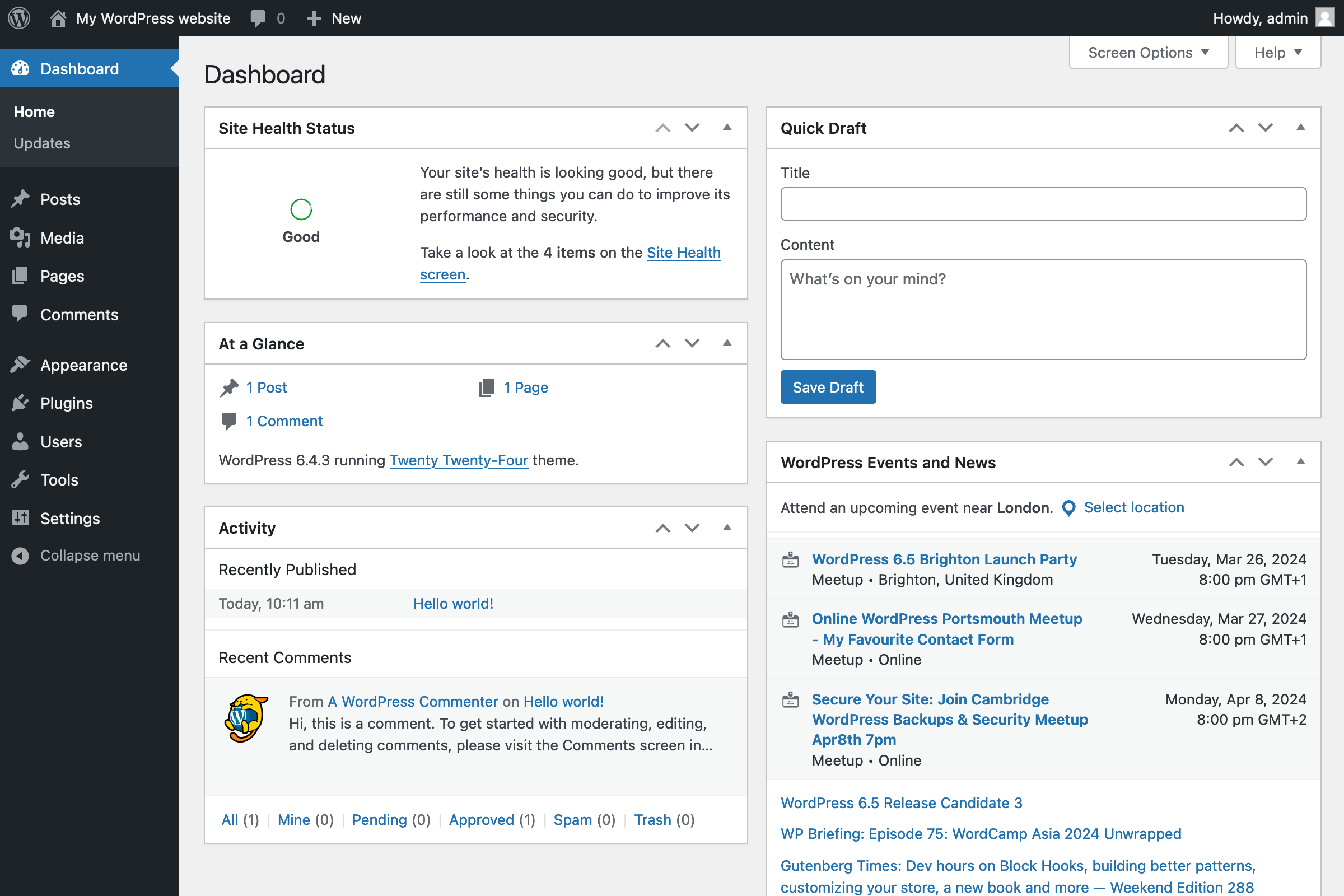
WordPress runs more than 40% of all websites on the internet, and it gives you a solid head start with WordPress SEO. But a fresh WordPress install is not fully ready for search engines out of the box. A few settings are wrong by default, some important steps are easy to miss, and small mistakes can keep your pages from ranking.
The good news: you do not need to be a developer or hire an agency to fix this. This guide walks you through WordPress SEO step by step, in plain English. Follow the steps in order and your site will be set up the right way — from the basic settings most people skip to the content habits that bring in traffic over time.
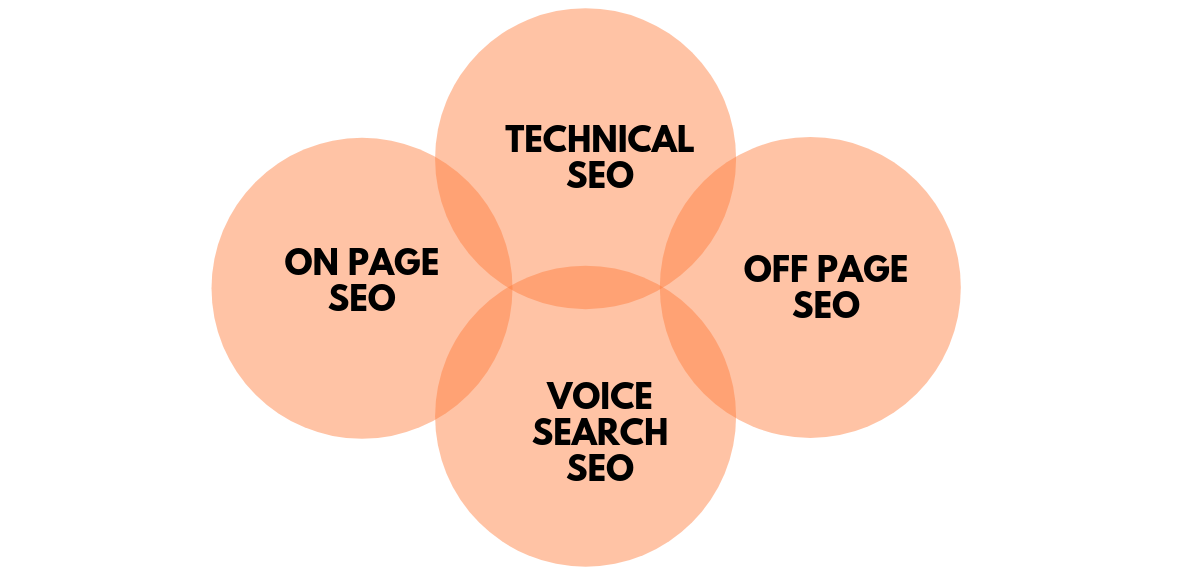
WordPress SEO is the practice of setting up and running your WordPress site so search engines can find, understand, and rank your pages. It covers three things:
WordPress handles some of the technical side for you, but not all of it. The rest is up to you — and that is what this guide covers.
WordPress is a great platform, but a default install has a few problems:
yoursite.com/?p=123) instead of readable words.None of these are hard to fix. Let us go through them one at a time.
First, check one critical setting. In your WordPress dashboard, go to Settings > Reading. Look for the checkbox that says “Discourage search engines from indexing this site.”
Make sure it is unchecked. If it is checked, Google will ignore your entire site and nothing else in this guide will matter. People often turn this on while building a site and forget to turn it off at launch. Check it now — it takes ten seconds.
Permalinks are the permanent URLs of your pages and posts. The default WordPress setting uses numbers, which tell neither readers nor Google anything about the page.
Go to Settings > Permalinks and select “Post name.” This changes your URLs from yoursite.com/?p=123 to yoursite.com/wordpress-seo-guide/ — short, readable, and keyword-friendly.
Do this as early as possible. Changing URL structure later means setting up redirects for every old link, which is a headache you can avoid.
WordPress does not come with SEO controls built in, so install one SEO plugin — not two. Popular free options include Rank Math and Yoast SEO. Either one works; what matters is that you pick one and learn it.
Running two SEO plugins at once causes real problems, like duplicate meta tags and conflicting sitemaps. Delete or deactivate the one you do not use.
After installing, the plugin’s setup wizard will walk you through the basics:
That is enough to start. You can fine-tune the advanced settings later.
Google Search Console is a free tool from Google that shows how your site performs in search: which queries bring visitors, which pages get clicks, and whether Google has any trouble reading your site. Every WordPress site owner should have it.
Sign up with your Google account, add your site, and verify ownership — your SEO plugin can do the verification for you with a small code snippet, no manual file uploads needed. Then submit your sitemap (usually at yoursite.com/sitemap.xml) under the Sitemaps section.
Give it a few days. Search Console will start showing real data about how Google sees your site.
Your theme controls how your site looks and a lot of how fast it loads. A heavy theme with animations and page-builder bloat will slow every page down, and slow pages rank worse.
Choose a lightweight, mobile-responsive theme from a trusted source. Most of your visitors will arrive on a phone, and Google mainly looks at the mobile version of your site when deciding rankings. Test any theme on your phone before you commit to it.
Site speed is a confirmed ranking factor, and it directly affects whether visitors stay or leave. Google measures this with Core Web Vitals — in plain terms: how fast the main content appears, how quickly the page responds when someone taps something, and whether the layout jumps around while loading.
Three things make the biggest difference on WordPress:
Test your speed with Google’s free PageSpeed Insights tool. It scores your pages and tells you exactly what to fix.
Keyword research means finding the words and phrases your audience actually types into Google, so you can create pages that match. You do not need paid tools to start. (For a deeper look at picking the right terms, see our article on choosing keywords for websites.)
Free ways to find keyword ideas:
Golden rule: target one main keyword per page or post. If two pages chase the same keyword, they compete with each other instead of ranking. Map it out simply — one keyword, one page.
For every post or page you publish, cover these on-page basics:
Internal links are links from one page on your site to another. They help Google discover your pages and understand how they relate — and they keep readers on your site longer.
Whenever you publish something new, link to 2–4 older related posts where it fits naturally. And when you publish in the future, come back and link older posts forward to the new one. Make the linked text descriptive (“our guide to keyword research”) rather than “click here.” A site with strong internal linking often outranks a similar site without it.
Images deserve their own step because they are the single biggest cause of slow WordPress pages — and a missed SEO opportunity.
wordpress-seo-dashboard.png beats IMG_4829.png.Schema markup is a small amount of behind-the-scenes code that tells Google exactly what your page is — an article, a recipe, a product, a FAQ. It can earn you rich results in search, like star ratings or FAQ dropdowns, which get more clicks.
The good news: your SEO plugin adds basic schema (like Article markup) automatically. In Rank Math or Yoast, check the schema settings for each post and make sure the right type is selected. If you add a FAQ section to a post, turn on FAQ schema for it — it is a couple of clicks in the plugin.
Google does not rank hacked or broken sites well, and visitors do not trust them either. Three habits keep you safe:
Also, delete plugins and themes you no longer use. Every unused plugin is one more thing that can break or get exploited.
These are the errors we see most often on WordPress sites:
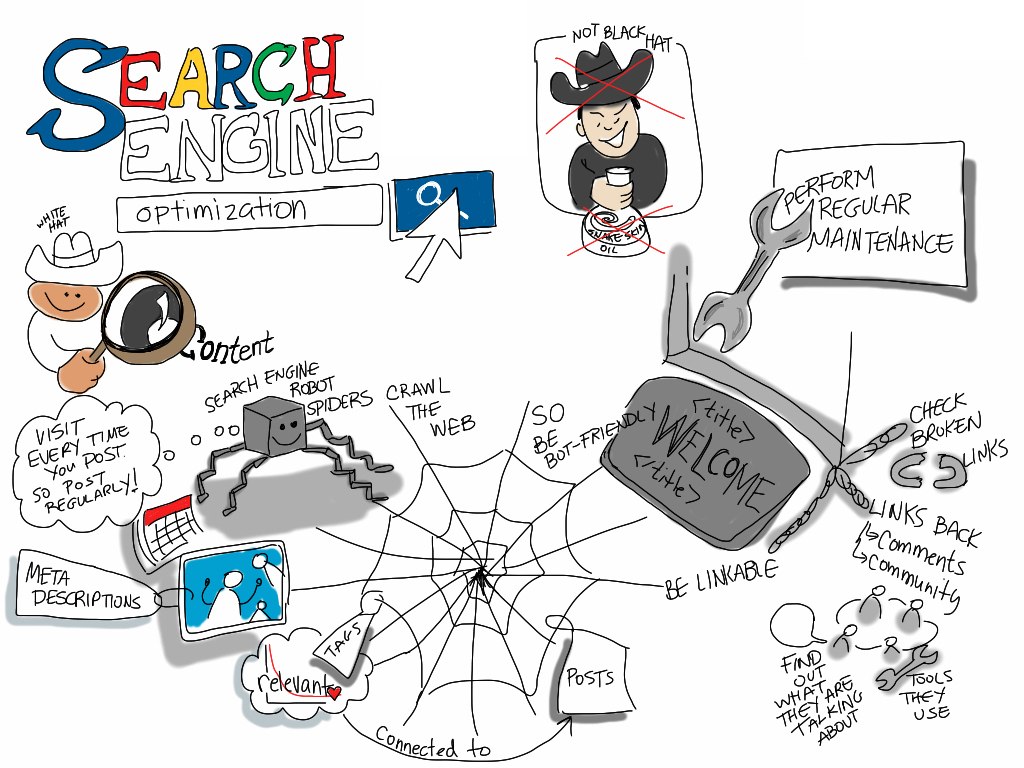
Search is changing. Google’s AI Overviews and tools like ChatGPT and Perplexity now answer questions directly — and they cite the pages they pull answers from. The same WordPress SEO basics help here, plus a few extras:
SEO takes time — usually a few months before new pages gain traction. Do not guess; measure.
Check these monthly. If a page gets impressions but few clicks, rewrite its title and meta description. If it gets clicks but visitors leave fast, improve the content itself.
SEO is not a one-time project. Run through this regularly:
Monthly:
Quarterly:
Yes. WordPress is one of the most SEO-friendly platforms available — it produces clean code, supports SEO plugins, and makes technical fixes easy. But it is not automatic: you still need the right settings, good content, and ongoing maintenance, as this guide shows.
Rank Math and Yoast SEO are the two most popular free options, and both do the job well. Rank Math offers more features in its free version; Yoast has been around longer. Pick one — running both causes conflicts — and stick with it.
The essentials are free: the right settings, a free SEO plugin, Google Search Console, and PageSpeed Insights all cost nothing. You may eventually pay for better hosting, a premium theme, or keyword tools, but you can get far without spending a cent.
The most common causes: the “Discourage search engines” setting is still checked (Settings > Reading), the site is brand new and not yet indexed, the sitemap was never submitted in Search Console, or pages are accidentally blocked in robots.txt. Work through Steps 1–4 of this guide first.
Expect 3–6 months before new content gains steady traction, though technical fixes (like unblocking indexing or speeding up pages) can show results faster. SEO compounds — consistent publishing and maintenance beat one-time bursts.
No. Everything in this guide — settings, plugins, sitemaps, schema — can be done through the WordPress dashboard with clicks, not code. Basic HTML knowledge helps for small tweaks, but it is not required.
WordPress SEO comes down to getting the foundations right and then doing the simple things consistently: clear settings, fast pages, one keyword per page, helpful content, and smart internal links. You do not need expensive tools or advanced skills — you need the checklist in this guide and the habit of working through it. If you are optimizing an existing business site more broadly, our website optimization guide pairs well with this one.
Start with Steps 1–4 today. They take under an hour and fix the issues that hold most WordPress sites back. Then work through the rest at your own pace, and check Search Console monthly to watch your traffic grow.
Last updated: October 2026
Related: our guide on how to increase website traffic covers 12 free and paid ways to bring more visitors to your site.

Taylor Orlando is a content writer at Meregate covering websites, SEO, and AI. Taylor breaks down complex topics into simple, practical guides that help small businesses build better websites, rank higher on Google, and get real value from AI tools — no jargon, no fluff.
Semrush and Ahrefs are the two most popular SEO tools, but they are not the same. This comparison breaks down where each one wins so you can pick the right one for your work.

If your website is not showing on Google, the cause is usually simple: it is not indexed yet, something is blocking Google, or it ranks too low to see. This guide walks through each check in order.

Good image file names help Google understand your images and help people find them. Here are the naming rules, a simple formula, and good vs bad examples for every image type.