Ai
Best AI Tools for Podcasters: 10 Tools That Save Hours (2026)
Podcast production used to take 6 hours an episode. These AI tools cut it to about 2 — here are the 10 worth paying for, organized by the job they do.

 By Taylor Orlando
·November 2, 2026
AI tools for photo editing can fix a dark photo, remove a stranger from the background, or turn a dull phone shot into something worth posting — in minutes, not hours. But with so many editors now calling themselves “AI-powered,” it is hard to know which one fits your photos, your device, and your budget. This guide compares 12 tools side by side, with honest prices and limits, so you can pick one and get started today.
Last updated: November 2026
If you do not want to read all 12 reviews, start here. Pick the row that matches your main job.
| Your main job | Best pick | Price (Nov 2026) |
|---|---|---|
| Full control over every edit | Adobe Photoshop | From about $22.99/month |
| Editing hundreds of photos at once | Adobe Lightroom | From about $9.99/month |
| Quick fixes on your phone, free | Google Photos | Free |
| Social posts and designs | Canva | Free plan; paid from about $15/month |
| One-click creative edits, no subscription | Luminar Neo | One-time purchase from about $129 |
| Rescuing blurry or noisy shots | Topaz Photo | Paid; check current pricing |
| Free Photoshop-style editing in a browser | Photopea | Free with ads |
| Fun mobile edits and filters | Picsart | Free plan; paid from about $10.50/month |
| Fixing old or blurry portraits | Remini | Free with ads; paid plans available |
| Portrait retouching in bulk | Evoto | Credit packs or subscription |
| Pro results without a subscription | ON1 Photo RAW | One-time purchase from about $99.99 |
| Free browser editing with AI tools | Pixlr | Free with ads; paid plans available |
Prices change often, so treat the numbers above as a starting point and check the tool’s own pricing page before you pay. The free tools in this list are genuinely useful, not just demos — but each one has a limit, and those limits are noted below.
Most people pick the wrong editor because they start with a famous name instead of their own photos. Ask these three questions first.
1. Where do your photos live? If you shoot on your phone and post from your phone, a mobile-first tool like Google Photos or Picsart will save you more time than a desktop program you rarely open. If you shoot with a camera and keep thousands of RAW files, you need a library tool like Lightroom or ON1 Photo RAW.
2. How many photos do you edit at a time? One photo a week calls for a simple tool. A wedding shoot with 800 photos calls for batch editing, presets, and AI culling — that is where Lightroom and Evoto earn their price.
3. What is the one edit you do most? Removing objects, fixing faces, swapping skies, and cleaning up noise are different jobs, and different tools lead at each one. The reviews below name each tool’s strongest job so you can match it to yours.
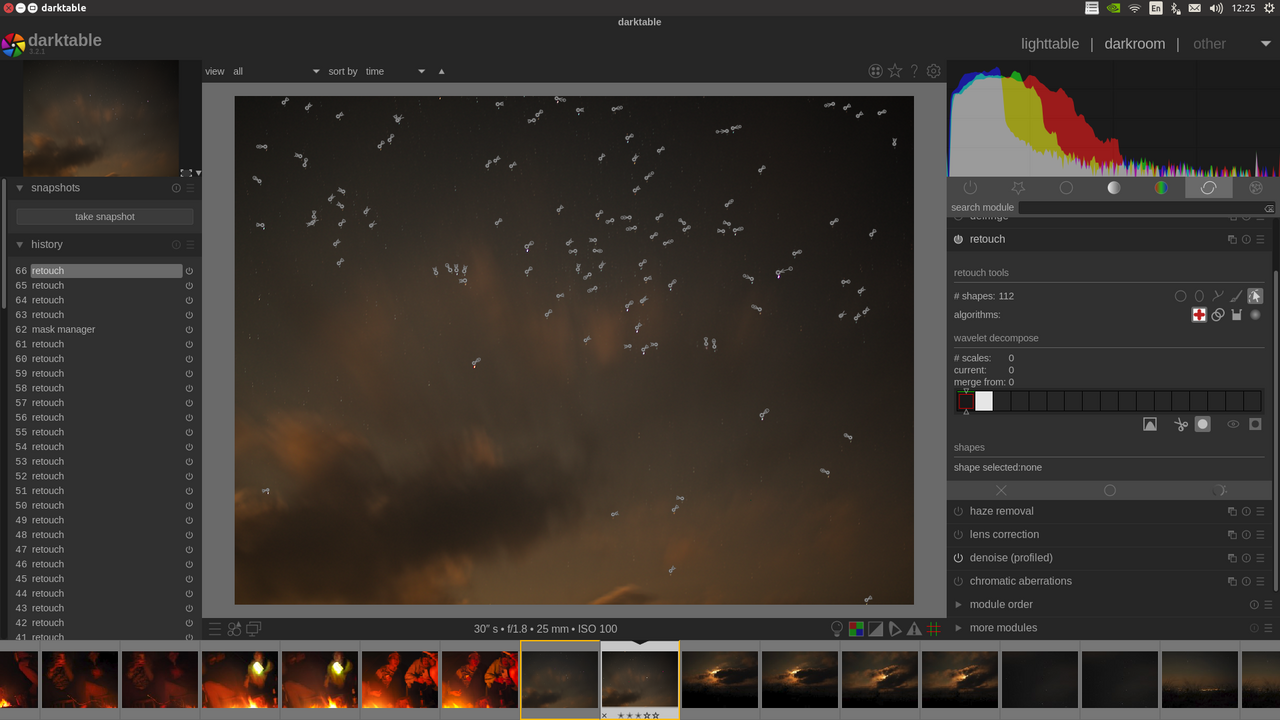
Photoshop is still the standard when you want control over every pixel. Its AI tools — Generative Fill, Generative Expand, and the Remove tool — let you add, extend, or erase parts of a photo by typing a short description or brushing over an area. It also runs Adobe’s Firefly model alongside other AI models inside the same program.
Best for: photographers and designers who need layers, precise selections, and print-ready files. Watch out for: the subscription cost (from about $22.99/month) and the learning curve. If you only fix phone photos, this is more tool than you need. You can read more on Adobe’s own site.
Lightroom is where photographers live day to day. You import, organize, edit, and export thousands of photos with a consistent look. Its AI tools handle the daily grind: Denoise cleans up grainy high-ISO shots, AI masking selects skies, subjects, and backgrounds in one click, and Generative Remove wipes out distractions.
Best for: anyone with a big library, especially RAW shooters. The Photography plan starts at about $9.99/month and includes Photoshop on some plans, so check what is bundled before you buy both separately.
Most readers already have this one on their phone, which is part of the appeal. Magic Editor lets you move or resize a subject and change a sky with a few taps. Magic Eraser removes distractions, Photo Unblur sharpens blurry shots, and a newer ask-to-edit option applies changes from a typed description.
Best for: everyday phone photos, quick fixes, and anyone who wants to pay nothing. Watch out for: it is not a full editor — you cannot do layered, print-grade work here. See Google Photos for what your device supports, since some features need a newer phone or a paid storage plan.
Canva treats photo editing as one step in making a post. Its background remover, Magic Edit (swap an element by typing a prompt), Magic Eraser, and image upscaler all sit inside the design tool where the image will be laid out anyway.
Best for: small business owners, social media managers, and anyone who edits photos to post them the same day. Watch out for: the free plan covers basic edits well, but some AI features need the paid plan, and it is not built for RAW photo libraries.
Luminar Neo is built for fast, striking edits. Sky AI swaps a dull sky for a dramatic one with realistic blending, Relight AI changes the apparent light direction after the shot, and the portrait tools handle skin, eyes, and backgrounds in a few clicks. You can buy it once (from about $129) instead of paying every month.
Best for: creators who want bold results fast without learning a complex program. Watch out for: it is a single-photo editor at heart, not a library manager for thousands of files.
Topaz Photo does one job better than almost anyone: fixing photos that came out wrong. Its AI denoising, sharpening, and upscaling can save a grainy indoor shot or a slightly soft portrait that other editors cannot rescue. Working photographers often pair it with Lightroom — Lightroom for the library, Topaz for the problem files.
Best for: noisy, blurry, or low-resolution photos you cannot reshoot. Watch out for: pricing has changed over time between subscription and one-time options, so check the current price before you commit.
Photopea is the surprise of this list. It runs entirely in your browser, mirrors Photoshop’s interface, opens layered PSD files, and includes background removal and text-prompt replace tools — all free with ads. There is a small paid plan to remove the ads, but every feature is included free.
Best for: anyone who wants Photoshop-style editing without installing anything or paying anything. Watch out for: it needs an internet connection, and very large files can feel slow in a browser tab.
Picsart started as a mobile photo editor and has grown into a full creative platform with image, video, and audio generation. It is strong on filters, stickers, collages, and quick creative effects that look good on social feeds.
Best for: phone-first creators who want playful edits fast. Watch out for: the free plan is solid, but the best AI features sit behind the paid plan (from about $10.50/month), and it is not a tool for careful, print-grade retouching.
Remini is the fastest fix for old, blurry, or low-quality portraits. Point it at a faded family photo or a soft selfie and it sharpens faces in seconds. It is the tool people reach for when the photo matters but the quality does not.
Best for: restoring old family photos and fixing blurry portraits. Watch out for: the free tier is supported by ads and has daily limits, and results on non-face photos are less impressive.
Evoto is built for portrait photographers who retouch dozens of faces per shoot. Its AI handles skin, blemish removal, and background cleanup across a whole batch with a consistent look, which is a huge time saver for studio and event work.
Best for: portrait, wedding, and headshot photographers. Watch out for: it is a specialist tool — you still need a main editor for everything that is not a portrait, and pricing runs on credits or subscription.
ON1 Photo RAW gives photographers pro-level results without a monthly bill. It combines a photo library, RAW editing, and AI tools like NoNoise AI, Sky Swap AI, Portrait AI, and Resize AI in one program, with a one-time purchase from about $99.99.
Best for: photographers who dislike subscriptions and want one program for organizing and editing. Watch out for: major new versions are paid upgrades, so factor that into the long-term cost.
Pixlr runs in your browser like Photopea but with a simpler, friendlier interface. It covers background removal, AI-generated fills, filters, and quick touch-ups, free with ads, with paid plans for heavier use.
Best for: beginners who want a free editor that feels less intimidating than Photopea. Watch out for: it is lighter on advanced controls, so power users will outgrow it faster.
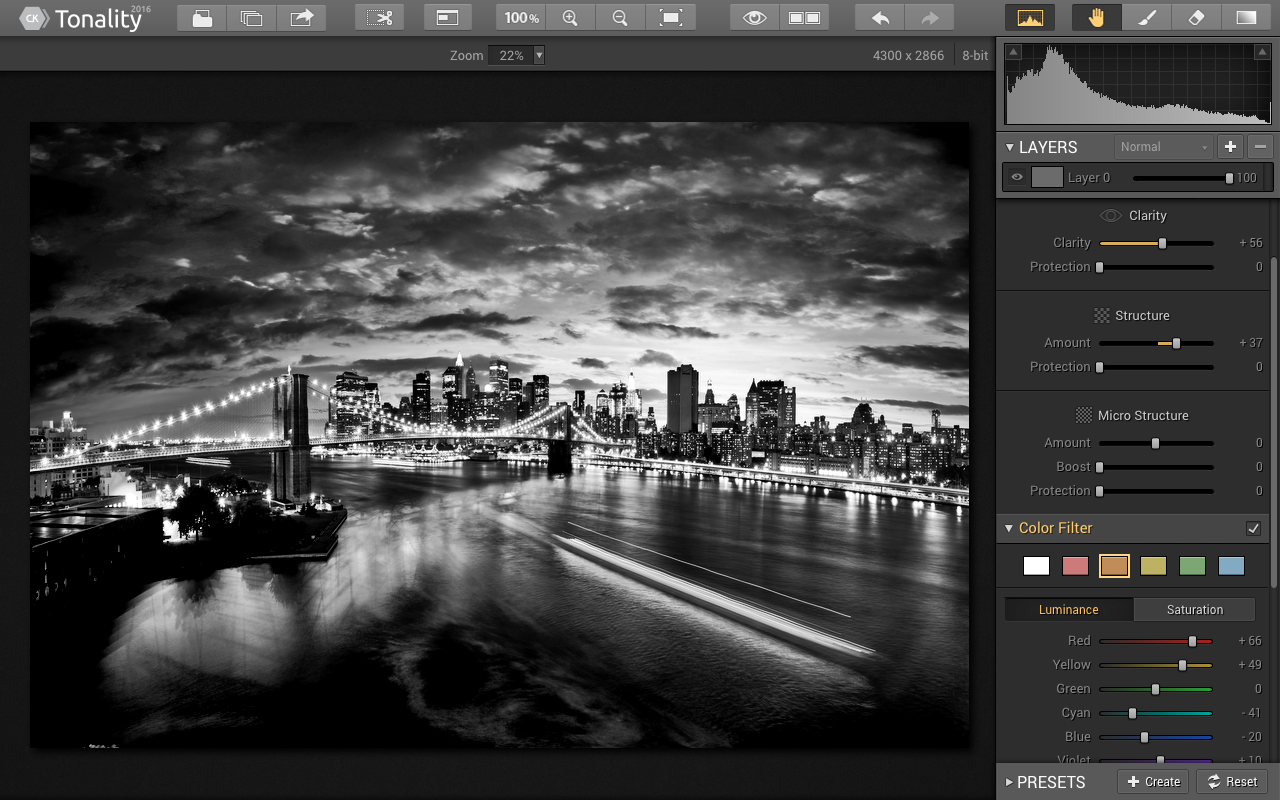
AI edits are honest about one thing most ads skip: an enhanced photo is a new image, not proof of what was really there. When an AI sharpens a blurry face or upscales a small photo, it guesses the missing detail based on patterns it has seen before. The result can look great, but it is not a recovery of the original — it is a smart guess.
That matters in three cases. First, do not use AI-enhanced photos as evidence of anything (damage, documents, or identity). Second, check faces closely: AI can change small features, teeth, or text in the background without you noticing. Third, keep your original file. Every tool in this list edits non-destructively or lets you export a copy — use that, so you can always go back.
Some AI tools process your photos on your own device, while others send them to cloud servers. That distinction matters if you edit client photos, kids’ photos, or anything private.
Adobe Photoshop is the most capable all-round AI photo editor, thanks to Generative Fill, the Remove tool, and full layer control. But “best overall” is not “best for you” — if you only fix phone photos, Google Photos is free and faster for that job.
Yes. Google Photos is free for everyday fixes, and Photopea is free with ads for Photoshop-style editing in a browser. Both have limits — Google Photos lacks advanced controls, and Photopea needs an internet connection — but neither charges for its core features.
It can improve one, up to a point. Tools like Topaz Photo and Remini sharpen soft shots and clean up noise well. But if the detail was never captured — a face turned fully away, or text too small to read — the AI guesses, and the guess may be wrong. Treat big improvements with a healthy doubt.
For social posts, family photos, and small business graphics, a free tool is usually enough. You need Photoshop (or a similar pro editor) when you work with layers, print files, complex composites, or client work that demands precise control.
No. AI speeds up the technical parts — cleanup, masking, batch edits — but choosing the shot, the light, and the story still needs a human. Most working photographers now use AI as an assistant, not a replacement.
For everyday photos, yes, with normal care. For private or client photos, prefer on-device tools or check the provider’s privacy page first — look for whether uploads are used to train AI and whether you can opt out.
If you only pick one tool from this list, pick by your device. On your phone, start with Google Photos — it is free, already installed for most people, and handles the edits you do most. On a computer with no budget, start with Photopea. If you shoot often and want one program to grow with, try Lightroom’s trial or Luminar Neo’s one-time purchase. Whichever you choose, keep your originals, check AI results at full zoom, and let the tool do the boring work so you can spend your time on the photo itself.

Taylor Orlando is a content writer at Meregate covering websites, SEO, and AI. Taylor breaks down complex topics into simple, practical guides that help small businesses build better websites, rank higher on Google, and get real value from AI tools — no jargon, no fluff.
Podcast production used to take 6 hours an episode. These AI tools cut it to about 2 — here are the 10 worth paying for, organized by the job they do.
The Gemini app crashing on open or in the middle of a chat is usually a bad update, corrupt cache, or low memory. These fixes work through the causes in order.

Learn how to use Perplexity AI: ask better questions, check sources, use Focus, Spaces and Deep Research, and decide if the free plan is enough for you.