
Tech
Wix vs Shopify: Which Is Better in 2026?
Wix is a website builder that added selling; Shopify is a selling platform first. That one difference explains almost every trade-off in this comparison.

 By Taylor Orlando
·November 11, 2026
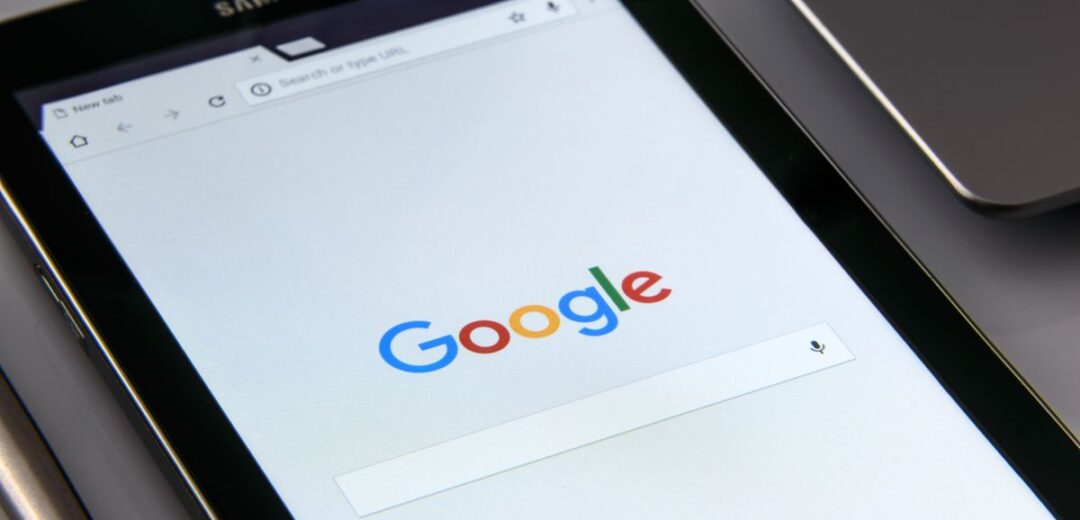
So, what is a favicon? It is the small square icon your browser shows next to a page title — in the tab, in bookmarks, in history, and next to your site name in Google search results. It is short for “favorite icon.” You do not read every tab title to find the one you want. You look at the little icons. That is the favicon at work.
A favicon is a small image file that stands for your website. Browsers use it as a visual shortcut for your site, the same way a logo stands for a business. It shows next to saved bookmarks, and it can show next to your page in Google search results.
Most favicons are a simplified version of a site’s logo. Some sites use just one or two letters, like the first letter of the brand name. The key point is that it has to be simple. A favicon is tiny on screen, so a busy design turns into a blur. Google uses a colorful “G,” YouTube a red play button, and Wikipedia a small “W.”
Favicons show up in more places than most people notice:
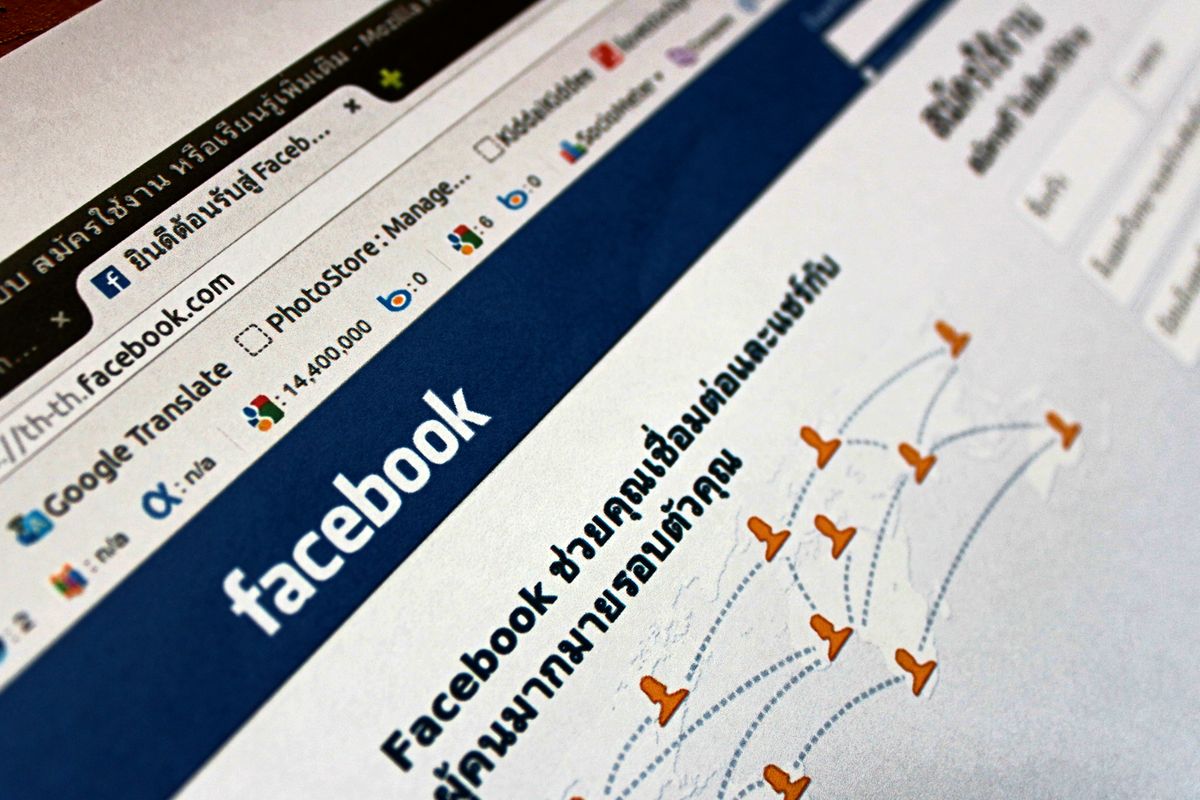
The favicon first appeared in Internet Explorer 5, back in March 1999. Microsoft added a feature that let a website show a small icon next to its name in the favorites list. The file was called favicon.ico and sat in the root folder of the website.
Other browsers soon picked it up, and it moved into the tab bar, the address bar, and the history page. The format changed too. The original ICO format is still around because it works in almost every browser. But today you can also use PNG and SVG files, which are easier to make and look sharper on modern screens. SVG scales cleanly to any size and can even support dark mode.
Favicons are small, but you should start with a big file. The source image should be at least 512 by 512 pixels and square. Browsers and tools can make the smaller sizes from it.
| Use | Size | Notes |
|---|---|---|
| Browser tab | 16 x 16 or 32 x 32 px | The size most people see. |
| Bookmarks and history | 16 x 16 or 32 x 32 px | Same small size as tabs. |
| Google search results | Bigger than 48 x 48 px | Google prefers multiples of 48 px. |
| Source file | 512 x 512 px | Start here, then shrink it. |
| App / touch icon | 180 x 180 or 192 x 192 px | A separate icon, not the favicon. |
Each format has its own strengths. ICO is the oldest format. It can hold more than one size in a single file, and it works in nearly every browser. PNG is easy to make, supports a clear background, and looks sharp at small sizes — most modern sites use a PNG favicon. SVG is a vector format, so it stays sharp at any size and can support dark mode, but older browsers may not read it, so it is often paired with a PNG or ICO file.
Google shows one favicon per hostname, and it takes that icon from your home page. So set the favicon on your home page, not only on a single post. You can read the full guidance in Google’s favicon guidance for search.
People often mix up favicons and app icons. They look alike, but they do different jobs. A favicon lives in the browser. It shows in tabs, bookmarks, history, and search results. It is small — 16 or 32 pixels in most cases.
An app icon, also called a touch icon, lives on a phone or tablet home screen. When someone taps “Add to Home Screen,” your site gets a home-screen icon, much like an app. These icons are much bigger: 180 by 180 pixels for Apple devices, and 192 by 192 or 512 by 512 pixels for Android.
A favicon will not make your site rank higher on Google. Google does not use favicon presence as a ranking signal. But it still matters, for three reasons:
You do not need to be a designer. Start with your logo or the first letter of your brand name, and keep the design plain.
Step 1: Pick a simple design. Use a simplified logo, a single symbol, or one or two letters. Drop small text and fine detail — none of it will show at 16 pixels.
Step 2: Make a square image. Create a square file at least 512 by 512 pixels, with enough contrast so the mark stays readable when small.
Step 3: Test it at small size. Shrink the image to 16 by 16 pixels. Can you still tell what it is? If not, simplify it more.
Step 4: Save the right files. Save a PNG first, plus an ICO version for the widest support. Free tools that can help: Favicon.io, Canva, and RealFaviconGenerator, which gives you a full set of favicon and app-icon files from one upload.
In WordPress, a favicon is called a site icon, and you do not need a plugin or any code to add one.
Step 1: Go to your WordPress dashboard, then open Appearance > Customize. Step 2: Click Site Identity. Step 3: Under “Site Icon,” click Select Image and upload a square image at least 512 by 512 pixels. Step 4: Crop the image if asked, then click Publish.
That is all it takes. WordPress makes the smaller sizes it needs. If you do not see the new icon right away, clear your browser cache or open the site in a private window.
Favicon is short for “favorite icon.” It got the name from the favorites list in Internet Explorer 5, where it first showed up.
Your source file should be at least 512 by 512 pixels and square. Browsers show it at 16 by 16 or 32 by 32 pixels in tabs. Google prefers one bigger than 48 by 48 pixels for search results.
PNG is a good default — it is easy to make and looks sharp. ICO gives the widest support across old and new browsers. SVG scales cleanly and supports dark mode, but older browsers may not read it. You can read more in the MDN favicon glossary.
Not directly — Google does not use favicon presence as a ranking signal. But it makes your listing easier to spot in search results, helps people find your tab again, and makes your site look more trusted.
In WordPress it is called a site icon. Go to Appearance > Customize > Site Identity, click Select Image under “Site Icon,” upload a square image at least 512 by 512 pixels, and click Publish.
A favicon is a small file with a big job. It helps people find your site, trust your site, and remember your site. If your site still shows the default icon, take a few minutes today to fix it.

Taylor Orlando is a content writer at Meregate covering websites, SEO, and AI. Taylor breaks down complex topics into simple, practical guides that help small businesses build better websites, rank higher on Google, and get real value from AI tools — no jargon, no fluff.
Wix is a website builder that added selling; Shopify is a selling platform first. That one difference explains almost every trade-off in this comparison.

Is WordPress good for blogging in 2026? Yes, with caveats. See where it wins, where it falls short, and who should pick something else.

Digital art has evolved rapidly over the last decade. From realistic illustrations to abstract experiments, artists now have unlimited tools to express ideas visually. One emerging…