
SEO
Semrush vs Moz: Which SEO Tool Is Better in 2026?
Semrush is the bigger all-in-one suite; Moz Pro is cheaper to start. Here is how their prices, limits and tools compare — and which one fits your budget.

 By Taylor Orlando
·November 15, 2026
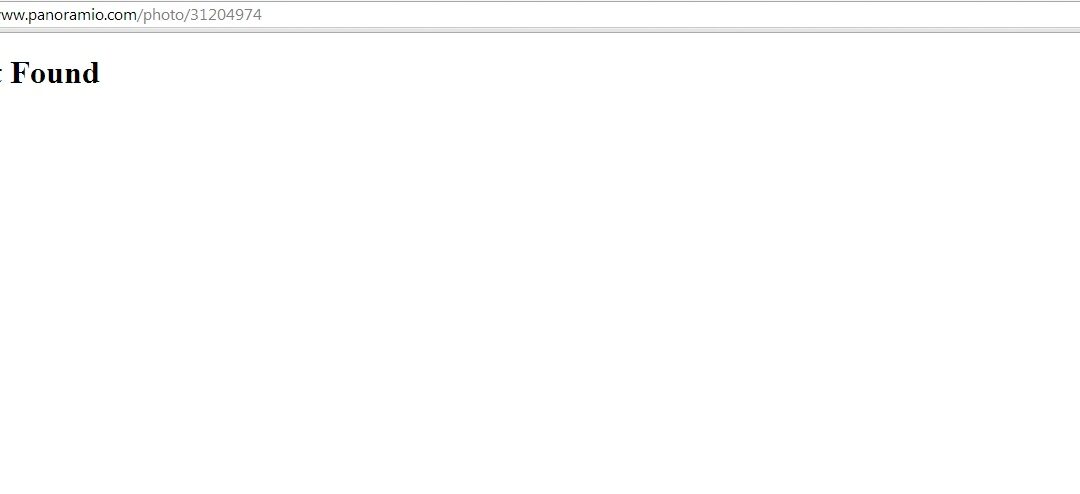
Learning how to fix broken links is one of the simplest ways to keep your website healthy. A broken link sends a visitor to a page that no longer exists, and that visitor usually leaves. The good news is that finding and fixing broken links is free, takes no coding, and a small site can be checked in under an hour.
In this guide, you will learn what broken links are, how to find every one on your site with free tools, and how to fix each one the right way. You will also get a short monthly routine so they never pile up again.
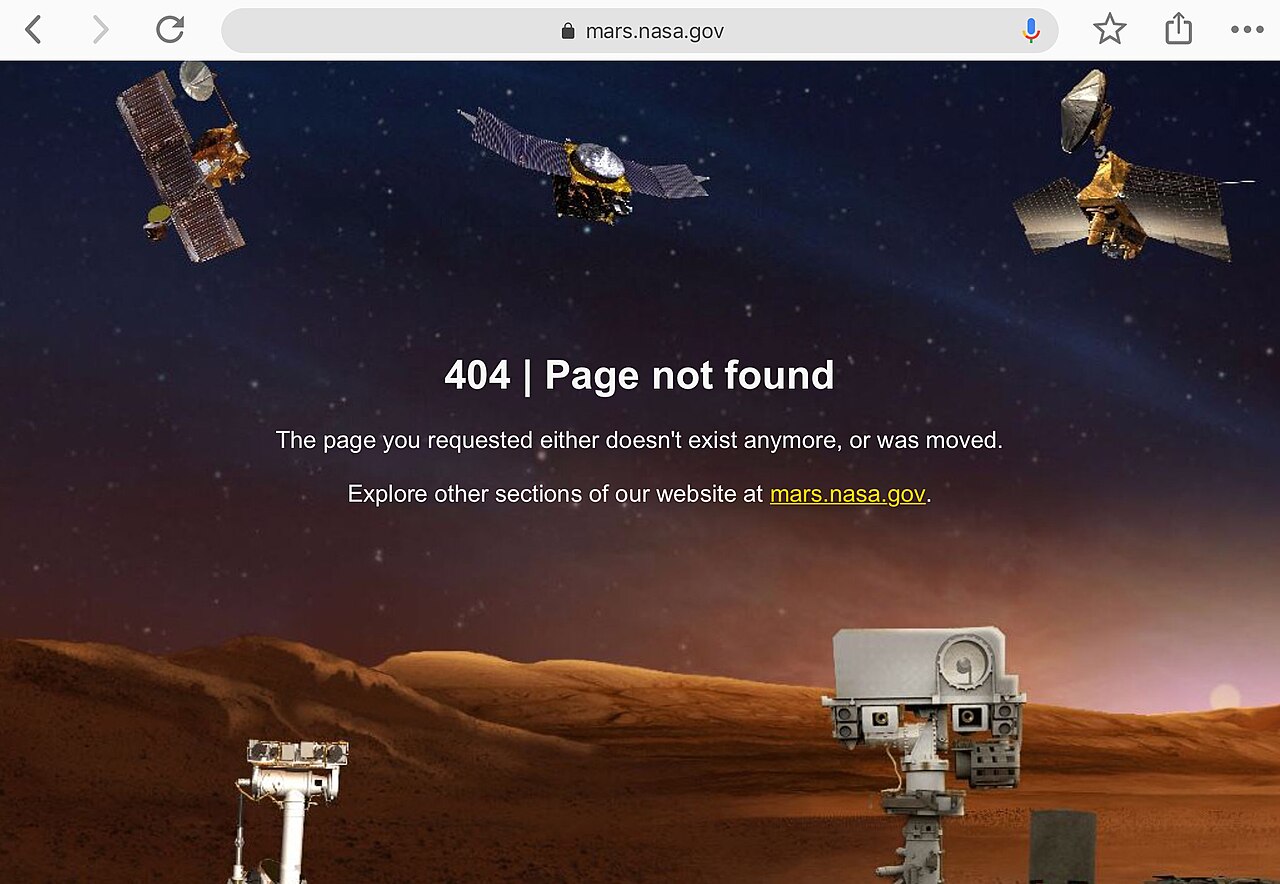
A broken link is a link that points to a page that no longer loads. When someone clicks it, they see an error page instead of the content they wanted. Most of the time, the error says “404 Not Found.”
There are four kinds of broken links, and each one needs a slightly different fix:
People also call broken links “dead links.” The two terms mean the same thing.
Broken links do not appear out of nowhere. They almost always come from a normal change that nobody finished:
Yes, but not in the way most people think. Google has said that a few 404 errors are normal and do not hurt your rankings on their own. Every big site has some. So do not panic if you find a handful.
The real damage comes in three ways:
So the goal is not zero broken links forever. The goal is to find them regularly and fix the ones that matter most: links on your busiest pages and links with other sites pointing to them.
You do not need a paid tool. The free methods below will find every broken link on a small or medium site. Start with method 1, then use method 2 or 3 to catch the rest.
Google Search Console is free, and Google has already found many of your broken links for you. If you have not set it up yet, do that first — it takes a few minutes and it is the single most useful free tool for any site owner.
One limit to know: Search Console only shows the broken links Google itself has found, and its data can lag by a few days. It will not catch a broken link on a page Google has never visited. That is why you should pair it with one of the methods below.
For a quick check with no install, use a free online checker such as Dead Link Checker. Paste your home page address, and it crawls your site and lists every dead link it finds, along with the page each one sits on.
Free online checkers have limits: they usually crawl only a set number of pages, they can be slow on big sites, and some stop after a certain depth. For a site with fewer than a few hundred pages, they are fine. For a bigger site, use method 3.
Screaming Frog SEO Spider is a free desktop program that crawls your site the way a search engine does. The free version covers up to 500 addresses, which is enough for most small business sites.
This is the most complete free method, because it also finds broken images and broken links in files like PDFs.
If your site runs on WordPress, the free Broken Link Checker plugin scans your posts and pages and lists the dead links in your dashboard. It is handy, but there is a warning worth hearing: the plugin runs on your own server, and on cheap shared hosting it can slow your site down.
A safer habit is to run the check with an outside tool instead, or to install the plugin, run one scan, fix the links, and then deactivate it. Do not leave a checker plugin running all the time unless your hosting can handle it.
If your site has fewer than 20 pages, you can simply click every link in your menu, footer, and main pages once a month. It is slow, but it catches things tools miss — like a link that goes to the wrong live page instead of an error page. A link that lands on the wrong page is not “broken” in a technical sense, but it is broken for the visitor.
| Free method | Best for | Limit to know |
|---|---|---|
| Google Search Console | Links Google already knows about | Data lags a few days; misses unvisited pages |
| Online checker | Quick one-time check | Page and depth limits on the free plan |
| Screaming Frog | A full check, including images | Free version stops at 500 URLs |
| WordPress plugin | Checks inside the dashboard | Can slow down shared hosting |
| By hand | Very small sites | Too slow past 20 pages |
Finding the links is the easy half. Fixing them well means picking the right fix for each one. Work through your list with this order in mind.

Use this fix when the content still exists, but the link is wrong — a typo, an old address, or a page that moved to a new address.
Open the page that holds the link, click the link text, and change the address to the correct one. In the WordPress block editor, click the link, click the pencil icon, paste the right address, and save. This is the cleanest fix there is, because it leaves no redirect behind to maintain.
Use this fix when a page on your site has moved or been deleted, and other pages — or other websites — still link to its old address. A 301 redirect tells visitors and Google, “this page has permanently moved here,” and sends them to the closest matching live page.
On WordPress, the free Redirection plugin makes this a two-minute job:
Always redirect to the closest matching page — a renamed product page should go to the new product page, not to your home page. Sending every dead address to the home page is a common mistake: visitors land somewhere they did not ask for, and Google can treat it as a soft 404, which is a page that says “not found” while returning a normal success code.
Use this fix when the content is gone for good and there is no good replacement. Delete the link and tidy the sentence around it. A clean sentence with no link is better than a link to nothing.
This is the right call for old blog posts that linked to a tool that shut down, an event that ended, or a page you deleted on purpose.
Sometimes the simplest fix is to restore the page. If a page was deleted by mistake, or it still gets traffic and links from other sites, put it back — either the original content or a short updated version at the same address. Check your backup or your trash folder first; most WordPress deletions sit in the trash for 30 days.
A broken image is usually a file that was renamed, moved, or deleted from the Media Library. Open the page, find the broken image, and check the file address. If the file still exists under a new name, update the image. If it is gone, upload it again or replace it with a different image. A page with a broken image looks unfinished, so treat these the same as broken links.
You cannot edit someone else’s site, but you have two good options. The first is the 301 redirect above: point the dead address on your site to the closest live page, and the other site’s link starts working again. The second is a short email to the site owner:
Hi, I noticed a link on your page [page title] points to [old address], which no longer exists. The content now lives at [new address]. Would you be able to update the link? Thanks for your time.
Site owners often fix it, because a broken link makes their page look bad too. If they never reply, the redirect still covers you.
When a page is gone for good and there is no replacement, you have two choices. A 404 means “not found.” A 410 means “gone on purpose, for good.” Google treats them almost the same, but it drops 410 pages from its index a little faster. For a retired product or an expired campaign, 410 is the honest answer. For most small sites, a plain 404 page is fine — just make sure the 404 page itself is helpful, with a search box and links to your main pages.
A link checker report is full of numbers. Here is what the common ones mean in plain English:
| Code | Meaning | What to do |
|---|---|---|
| 404 | Not found — the page does not exist at that address | Redirect, update, or remove the link |
| 410 | Gone — the page was removed on purpose | Same as 404; Google drops it faster |
| 403 | Forbidden — the server refuses to show the page | Check file permissions or login rules |
| 500 | Server error — something broke on the website | Wait and retry; if it stays, contact the host |
| 503 | Service unavailable — the server is down or busy | Usually temporary; check again later |
| 301 | Moved permanently — the page has a new address | Not broken; update the link to the new address when you can |
| 302 | Moved temporarily | Not broken; check whether the move should be permanent |
Only the 4xx and 5xx codes are real problems. A 301 or 302 is a working redirect, not a broken link — though a chain of several redirects in a row should be shortened so each link points straight to the final page.
Do not assume a fix worked. Check it:
Give Google a few days. Search Console data always lags behind the live site.
Broken links are a maintenance job, not a one-time fix. A small routine keeps them under control:
So far this guide has been for site owners. But if you are the visitor and a link will not open, try these quick checks before giving up:
Find them with Google Search Console or a free crawler, then fix each one: update the link if the page moved, set up a 301 redirect if the old address still gets traffic or links, or remove the link if the content is gone for good.
The visitor lands on an error page, usually a 404, instead of the content they wanted. Most visitors leave right away. A few broken links will not hurt your rankings, but a site full of them looks neglected to visitors and wastes Google’s crawl time.
It means the same thing as a broken link: a link that points to a page that no longer loads. “Dead link” is the older term, and you will still see it in help pages and forums.
Usually the link text was never turned into a real link, the address is missing its “https://” start, or a plugin or theme is breaking the formatting. In the editor, remove the link and add it again with the full address. If it only happens in one browser, clear the cache or turn off browser extensions and try again.
Run a free check: Google Search Console lists the 404 addresses Google found, an online checker like Dead Link Checker scans your site in a few minutes, and Screaming Frog’s free version crawls up to 500 addresses and shows every broken one with the pages that link to it.
A few will not hurt you — Google has said 404 errors are a normal part of the web. But many broken links do hurt: they waste crawl time, lose the value of backlinks pointing at dead pages, and push visitors away. Fix the ones on busy pages and the ones with backlinks first.
Once a month is enough for most small sites. Check more often — every week or two — right after a redesign, a move to a new host, or a big clean-up of old posts, because those are the moments when links break in bulk.
Last updated: November 2026

Taylor Orlando is a content writer at Meregate covering websites, SEO, and AI. Taylor breaks down complex topics into simple, practical guides that help small businesses build better websites, rank higher on Google, and get real value from AI tools — no jargon, no fluff.
Semrush is the bigger all-in-one suite; Moz Pro is cheaper to start. Here is how their prices, limits and tools compare — and which one fits your budget.
A subdomain like blog.example.com is a separate section of your website. Here is what it is, how it differs from a subdirectory, and when to use one.

JPEG, PNG, WebP, AVIF, GIF, SVG — each image file format has a job it does best. Here is a plain guide to picking the right one.