SEO
How to Request Indexing in Google Search Console (2026)
Requesting indexing asks Google to crawl a page sooner. This guide walks through the steps, realistic timelines, and what each status message means.

 By Taylor Orlando
·November 21, 2026
Last updated: November 2026
A robots.txt error means Google cannot read your robots.txt file the way you expect, or a rule in the file is blocking pages it should not block. The fix depends on the error: a 5xx server error is a hosting problem, a missing file is a different problem, and a rule that blocks your whole site by accident is a third one. Google Search Console shows all of them in one place, under Settings, then the robots.txt report.
This guide maps each error in that report to its fix, with before-and-after examples. It builds on the cluster’s earlier guides: what robots.txt is, how to create a robots.txt file, and how to test robots.txt. Read those first if you have not set up the file yet; this article is for when something is already wrong.
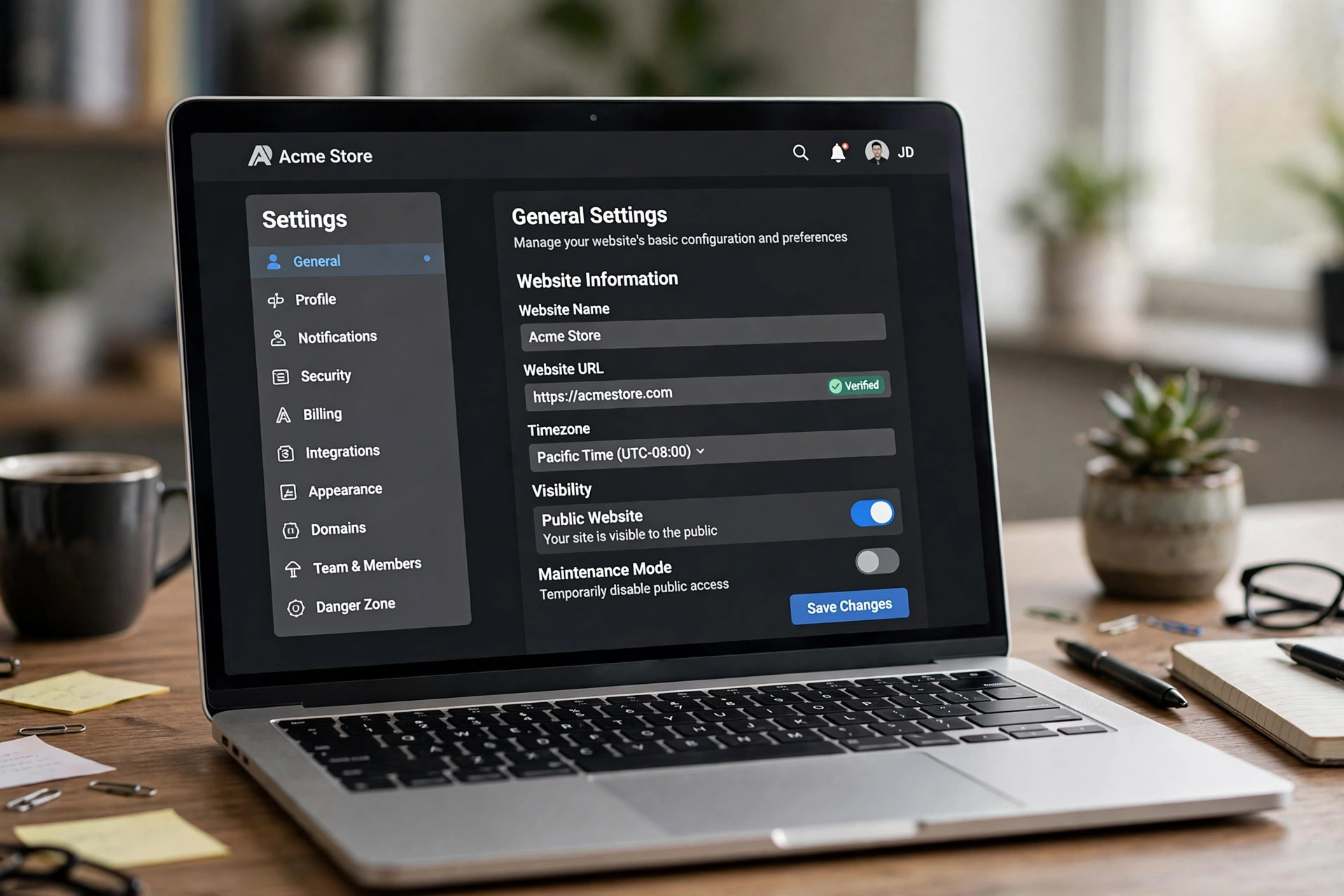
Open Google Search Console, go to Settings, and scroll to the robots.txt section. The report shows the fetch status for your file, the last time Google fetched it, and a history of the last 30 days. Click into it to see the hosts Google checked and any errors or warnings for each one.
Search Console splits problems into errors and warnings. An error means Google could not use the file, or a rule is blocking something important. A warning means the file works but has a line Google ignores or finds odd. Fix errors first. Warnings can wait, but clean them up when you get a chance, because a file full of warnings is easy to misread later.
You can also check a single page with the URL Inspection tool. Paste the page URL, and the tool will tell you if robots.txt blocks it. That is the fastest way to confirm a suspected block before you change anything.
| Error in Search Console | What it means | Fix |
|---|---|---|
| 5xx server error | Your server failed when Google asked for robots.txt | Fix the server or hosting problem; Google retries on its own |
| Robots.txt not found (404) | No file at the root of the site | Create the file, or accept that Google will crawl freely |
| File larger than 500KB | Google only reads the first 500KB | Shorten the file; remove old or duplicate rules |
| Blocked by robots.txt | A rule blocks a page Google wants to crawl | Narrow or remove the rule; test the page after |
| Blocked CSS or JavaScript | Google cannot render the page properly | Allow the CSS and JS folders |
| Unsupported rule (noindex, crawl-delay) | Google ignores these rules in robots.txt | Move noindex to a meta tag; drop crawl-delay |
| Invalid sitemap URL | The sitemap line points nowhere valid | Use a full, working sitemap URL |
| Cached file | Google is using an old copy, up to 24 hours old | Wait; changes take 24 to 36 hours to apply |

A 5xx error means your server failed when Google asked for the robots.txt file. This is the most serious error in the report. When Google gets a 5xx response for robots.txt, it may stop crawling the whole site until the file comes back, because it cannot tell what is allowed.
The fix is on the server side, not in the file. Check whether your site is up at all: open it in a browser, check your hosting status page, and look at your server error logs for the time Google tried to fetch the file. Common causes are a crashed PHP process, a server out of memory, a firewall rule that blocks Googlebot, or a hosting outage. Fix the cause, then check the file loads in a browser at yoursite.com/robots.txt. Google will retry the file on its own; you do not need to ask it to.
If the 5xx only happens sometimes, it may be a server under load. A site that falls over during traffic spikes will show this error now and then. Talk to your host about the load limit, and check whether a caching plugin or a CDN is putting extra strain on the server.
A 404 means there is no robots.txt file at the root of your site. This is not always a problem. If you have no file, Google assumes everything is allowed and crawls freely. Many small sites run fine with no robots.txt at all.
It becomes a problem when you meant to have a file and it is missing, or when your server returns a soft 404, a page that says “not found” but returns a 200 status. Google may then try to read your error page as a robots.txt file, which causes odd warnings. Check that yoursite.com/robots.txt returns a real 404 status, or create the file properly. Our guide to how to create a robots.txt file covers the steps.
Google only reads the first 500KB of a robots.txt file. Anything past that line is ignored. A file that big usually grew by accident: years of added rules, long lists of blocked URLs, or a plugin that writes a rule for every tag and category.
Open the file and look for what can go. Rules for URLs that no longer exist, duplicate rules for the same folder, and long lists of individual pages can usually be replaced by one wildcard rule. If the file is still over the limit after that, split the problem: keep the robots.txt file for the main rules, and handle the long block lists with noindex meta tags or server rules instead.
The most common robots.txt mistake is blocking something you need. The classic case is a single line that blocks the whole site:
Before (blocks everything):
User-agent: *
Disallow: /
That rule is fine on a development site you do not want indexed. On a live site it tells Google to crawl nothing, and your pages will start dropping out of search results. The fix is to remove the rule or narrow it to the folder you actually want to block:
After (blocks only the admin area):
User-agent: *
Disallow: /wp-admin/
Allow: /wp-admin/admin-ajax.php
Another common accident is blocking CSS and JavaScript files. Google needs those files to render the page the way a visitor sees it. If they are blocked, Google may think the page is broken or empty. Allow them:
User-agent: *
Allow: /*.css$
Allow: /*.js$
After any fix, test the affected pages with the URL Inspection tool. It will tell you straight away if the block is gone. Then use the Validate Fix option in Search Console if the error appears in a report. Validation can take up to two weeks, so do not expect it to clear the same day.
Some rules that used to work in robots.txt no longer do. Google stopped supporting the noindex rule in robots.txt on September 1, 2019. If your file still has a noindex line, Google ignores it, and the page will stay indexed. To keep a page out of search results, use a noindex meta tag on the page itself instead.
Crawl-delay is also unsupported by Google. It was never part of the official standard, and Google ignores it. If a crawler is hitting your site too hard, use Google Search Console’s crawl rate settings or your server’s rate limits instead.
Other lines Google flags as warnings: a sitemap URL that is not a full absolute URL, a $ sign anywhere except the end of a pattern, a pattern that does not start with / or *, and a rule that appears before any User-agent line. None of these break the file on their own, but each one means part of the file is not doing what you think it is doing. Fix them when you are already editing the file.
Google caches your robots.txt file for about 24 hours. When you fix a rule, Google keeps using the old copy until the cache refreshes. In practice, changes take 24 to 36 hours to apply fully. This catches many people out: they fix the file, test it five minutes later, and conclude the fix did not work.
There is no button to clear the cache. Wait a day, then test again with the URL Inspection tool. If the old rule is still showing after 48 hours, check that the file you edited is the one Google fetches: a CDN, a caching plugin, or a second robots.txt file on a subdomain can all serve a stale copy. Fetch yoursite.com/robots.txt in a private browser window and compare it with the file you edited.
On WordPress, the file usually lives in one of two places. If your site has a physical robots.txt file in its root folder, edit that file through your hosting file manager or FTP. If there is no physical file, WordPress generates a virtual one, and your SEO plugin controls it. Rank Math and Yoast both have a robots.txt editor under their settings; edit the rules there and save.
After saving, open yoursite.com/robots.txt in a private window to confirm the change is live. Then test a blocked page in the URL Inspection tool. If the change does not show, clear your site cache and any CDN cache first, then check again. Remember the 24-hour Google cache on top of that.
For Shopify, Wix, or Squarespace, the file is managed by the platform and you can only edit parts of it. The same error table above still applies, but the fix may be a platform setting rather than a file edit. Check the platform’s help pages for where robots.txt rules live.
Find the error in Search Console under Settings, then the robots.txt report. Match it to the fix in the table above: server errors need a hosting fix, missing files need the file created, and bad rules need editing. Test with the URL Inspection tool after each fix.
Google caches the file for about 24 hours, so changes take 24 to 36 hours to apply. Validation in Search Console can take up to two weeks. Do not re-edit the file every hour; wait a day and test again.
Yes. Robots.txt still controls which pages Googlebot crawls. What changed is that some old rules, like noindex and crawl-delay inside robots.txt, are no longer supported. Use meta tags and server settings for those jobs instead.
Google stops crawling new pages, and existing pages slowly drop out of search results. The fix is to remove the broad Disallow rule, then request indexing for your important pages so Google recrawls them. Traffic can take weeks to recover after a long block.
Yes, if it blocks pages Google should crawl, or blocks the CSS and JavaScript Google needs to render a page. A 5xx error can pause crawling across the whole site. A missing file on its own does not hurt anything, because Google then crawls freely.

Taylor Orlando is a content writer at Meregate covering websites, SEO, and AI. Taylor breaks down complex topics into simple, practical guides that help small businesses build better websites, rank higher on Google, and get real value from AI tools — no jargon, no fluff.
Requesting indexing asks Google to crawl a page sooner. This guide walks through the steps, realistic timelines, and what each status message means.
A website speed test shows how fast your pages load and what slows them down. Here is how to run one for free, read the results, and fix the problems.

Anchor text is the clickable text in a link. Learn what it is, the 9 types, good and bad examples, and how to check your own anchor text profile.