Ai
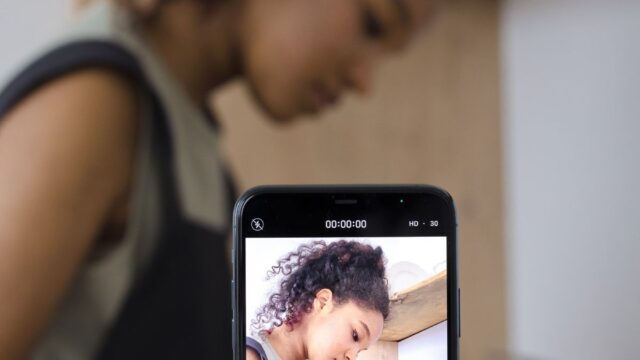
Best AI Tools for TikTok Creators: 10 Tools That Save Hours (2026)
The right AI tools cut TikTok production time in half. These 10 cover editing, captions, scripts, voiceovers, and scheduling.

 By Taylor Orlando
·November 4, 2026

Gemini not responding is frustrating: you type a prompt, hit send, and nothing comes back — or the app opens and just sits there. The good news is that most cases have a simple cause, and the fixes below are ordered from quickest to most involved. If you are dealing with a wider outage, our guide on how to fix Gemini not working covers the full picture, including the cases where Gemini will not load at all.
Before you change anything on your device, check Google’s Workspace Status Dashboard, which has a row for Gemini. If Google reports an incident, no fix on your side will help — you just have to wait. A quick search for recent user reports can confirm it too, since the dashboard does not catch every short outage. If there is no outage, work through the fixes below in order.
Long chats with lots of history, images, or files can get stuck. Open a new chat and send a short test prompt like “hello.” If the new chat answers, the old chat was the problem — copy anything you need out of it and keep going in the new one.
On the web, refresh the page and resend the prompt. In the app, close it fully (swipe it away from recent apps) and reopen it. A stuck session often clears with a plain restart.
Gemini needs a steady connection, especially for long answers or image generation. Open another website or app to confirm your connection works. If you are on Wi-Fi, try mobile data, or the other way around — a weak or filtered network is a common silent cause.
Open Gemini in a private or incognito window. This runs without your extensions and without your stored session. If Gemini answers there, the problem is an extension or stored site data, not your account.
VPNs can trip Google’s systems, especially if the exit node is in a region where Gemini is limited or if your account region does not match. Turn the VPN off and try again. School or office networks can block Gemini too — try a personal connection to rule that out.
Sign out of your Google account in Gemini, then sign back in with the same account. This refreshes your session tokens, which matters a lot after plan changes — for example, if you recently started a free trial of a paid Gemini plan, your old session may still be trying to use the old tier. This is one of the most reliable fixes for a suddenly unresponsive account.
Corrupted stored data can stop Gemini from answering. On the web, clear cache and cookies for gemini.google.com specifically, then restart the browser. On Android, go to Settings, then Apps, then Gemini, then Storage, and tap Clear cache. Clearing cache does not delete your chats or your Google account.
An old version of the Gemini app can stop working after Google changes something on its side. Open the Play Store, search for Gemini, and update if available. If you use Gemini inside the Google app, update that app instead. Restart your phone after updating.
Switch browsers — if Chrome fails, try Edge, Firefox, or Safari — or switch from the app to the web version at gemini.google.com. If Gemini works on one device but not another, the problem is local to the first device, and a reinstall of the app is worth trying. This is also the point where app crashes point to a different fix than a silent non-response.
Gemini has usage limits that refresh over time. If you have been sending lots of prompts, especially long or image-heavy ones, you may have hit a limit — the app may show a “too many requests” message, or just stop answering. Wait a few hours and try again, or switch to a lighter model if your plan offers one. If the problem started right after a plan upgrade, the upgrade may be stuck mid-provisioning, in which case reporting the problem to Google is the next step.
If you have tried everything above, use the Help or Send feedback option inside Gemini to report the problem, and include a screenshot if you can. Note whether the web version works while the app does not (or the reverse), and whether a new chat works while old chats do not — those details help Google’s team find the cause faster.
Why is Gemini not responding to my prompts? The most common causes are a Google outage, a stuck chat session, a bad network or VPN, or a usage limit. Work through the fixes above in order — most people find the answer in the first few.
Will clearing cache delete my Gemini chats? No. Clearing cache removes temporary files. Your chat history stays tied to your Google account.
Is Gemini down right now? Check Google’s Workspace Status Dashboard for the Gemini row, and look at recent user reports. If both are quiet, the problem is almost certainly on your side.
Does reinstalling the Gemini app help? Sometimes, when the app itself is corrupted or badly out of date. Try the quicker fixes first, and reinstall as a later step.

Taylor Orlando is a content writer at Meregate covering websites, SEO, and AI. Taylor breaks down complex topics into simple, practical guides that help small businesses build better websites, rank higher on Google, and get real value from AI tools — no jargon, no fluff.
The right AI tools cut TikTok production time in half. These 10 cover editing, captions, scripts, voiceovers, and scheduling.

Learn how to use Meta AI on WhatsApp, Instagram, Facebook, and the Meta AI app, with voice, images, group chats, and privacy tips.

The 12 best AI note taking tools for meetings, notes and research, with honest free-plan limits and privacy rules, so you can pick the right one.