Computers
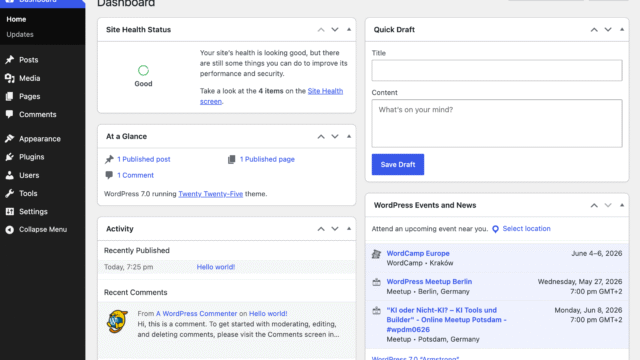
WordPress for Beginners: A Simple Guide to Getting Started (2026)
New to WordPress? This simple beginner's guide explains what WordPress is, how the dashboard works, and how to publish your first page — no coding needed.

 By Taylor Orlando
·November 26, 2026
Canva is best known for making social media posts and flyers, but it can also build you a simple website — no code, no hosting setup, and no cost to start. If you already use Canva for design work, making a website on Canva feels familiar: you pick a template, swap in your own words and photos, and press publish. This guide walks you through each step, and it also covers the limits you should know before you build your whole business site on it.
A Canva website is a design you publish as a live web page. You build it in the same editor you use for posters and presentations, using drag-and-drop tools. Canva hosts the site for you, so you do not need to buy hosting or install anything.
Canva pitches it for simple pages: a one-page site for your business, a portfolio, an event page, a menu, a resume, or a digital brochure. It also supports multi-page sites now — up to 45 pages per website — but it is still a design tool first and a website builder second. That matters, because some things a normal website does well (like a blog or an online shop) are weak or missing here. We cover those limits later in this guide.
Get these ready first and the build will take under an hour:
Go to Canva’s website builder and click “Create a Canva website.” You get two starting points:
Take your time picking a template. The titles can look very similar, so search with words that match your use, like “portfolio website” or “bakery website,” instead of just “website.”
Everything in a Canva template is editable. Work through the page from top to bottom:
A Canva site is built from sections stacked down one long page. To add a new block — for example, a services section or a testimonials section — click “Add section” at the bottom of the editor.
You can also add separate pages. Click “Add page” and the new page becomes its own scrollable page on the site. Canva allows up to 45 pages per website, and up to 20 sections per page while you design. But note the free-plan limit: on Canva Free you can only publish 10 sections per page, even if you designed 20. If your page has more than 10 sections, you will have to cut some or move to a paid plan before it will publish.
Keep the structure simple. Most small business sites only need five or six sections: a headline, what you offer, a few examples of your work, reviews, and how to contact you.
A website needs a way for visitors to act — call you, email you, or see your work. Add a button by drawing a rectangle from the Elements tab, putting a short text box inside it (like “Book a call” or “See my work”), then linking it:
Check every link before you publish. A button that goes nowhere is one of the most common mistakes on Canva sites.
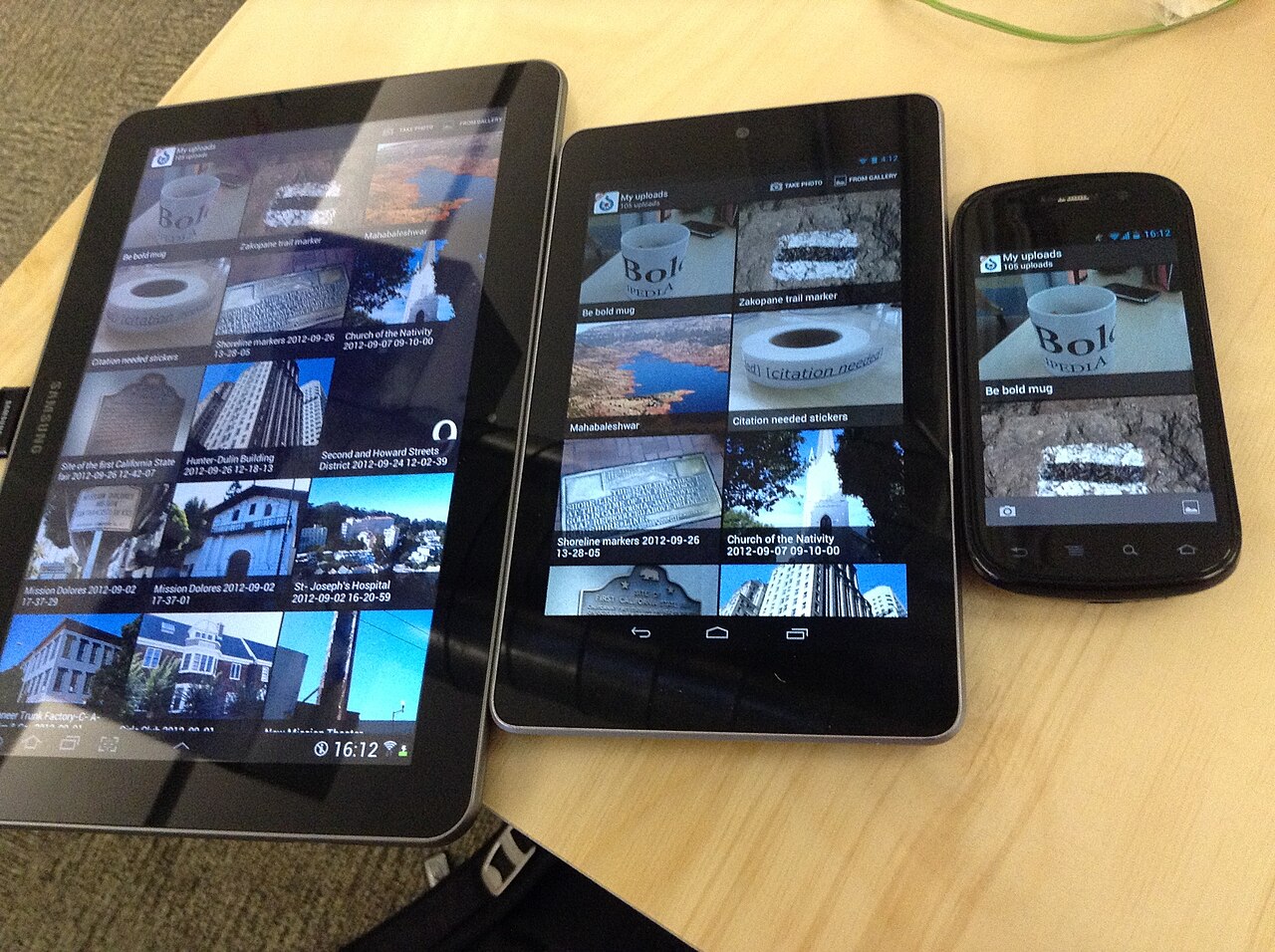
Most of your visitors will open your site on a phone, so do not skip this step. Click the Preview button at the top of the editor and switch between the desktop and mobile views.
Look for these problems:
Canva’s templates are made to resize for mobile, but wide elements do not always resize cleanly. Group items you want to stay together, and fix anything that looks off before you publish.
SEO settings decide how your site shows up in Google. Canva gives you the basics, and they are worth filling in:
Canva also makes a sitemap for your site automatically, and it has an AI tool called Magic SEO that can write titles and descriptions for all your pages at once. If you already wrote your own, copy them somewhere first — Magic SEO replaces what is there, with no undo.
One warning: if SEO matters a lot to you, read the limits section below before you commit to Canva. A site on Canva’s free domain cannot be added to Google Search Console, and Canva itself says a free-domain site will likely take longer to show up in Google. A custom domain is the better choice for search.
When the design looks right, click the Publish button at the top right. You get three choices for the web address:
Before you click “Publish website,” open Publish settings and add the site description. Then publish, click “View website,” and look at the live site on your phone and your computer. You can edit and republish any time — changes go live when you publish again.
| Feature | Canva Free | Canva Pro |
|---|---|---|
| Publish a website | Yes, up to 5 live sites | Yes |
| Free Canva domain (my.canva.site) | Yes | Yes |
| Sections per page at publish | Up to 10 | Up to 20 |
| Connect your own domain | No | Yes, up to 5 domains |
| “Designed with Canva” footer | Shown, cannot be removed | Removed |
| Google Search Console | Not available on free domain | Available with a custom domain |
| Google Analytics | No | Yes, with a custom domain |
| Canva’s own visitor stats | No | Yes |
| Price | Free | About $120 a year for one person |
Pro also unlocks premium photos, fonts, and graphics across all of Canva, not just websites. If you only need one simple page and you do not mind the free address and footer, the free plan is enough.
Canva is honest about being a design tool, not a full website platform. Know these limits before you build:
Canva is a good fit if: you need a one-page site fast, you already design in Canva, you want a portfolio, event page, menu, or simple landing page, or you need a temporary site for a launch or an event.
Look elsewhere if: your site needs to win customers from Google search, you need a blog, a shop, booking, or a contact form that collects names, you want a professional domain on a free plan, or you plan to grow the site for years. In those cases, WordPress, Wix, or Squarespace will serve you better, even though they take longer to learn.
Yes. A free Canva account lets you publish up to five websites on a free my.canva.site address. You only pay if you want a custom domain, more than 10 sections per page, or the footer removed — all of which need Canva Pro, about $120 a year.
Yes, but only on a paid plan (Pro, Teams, Business, or Education). You can connect a domain you already own or buy one through Canva. The design must be a “Website” design — Mobile Website and Link in Bio designs cannot use a custom domain.
It can, if the search engine visibility switch is on and you filled in the page title and description. But it will likely take weeks, and longer on a free Canva domain. Canva’s own advice is to use a custom domain if search matters to you, because free-domain sites cannot be added to Google Search Console.
Not really. Canva has no blogging system and no real shop with a cart and payments. You can add text sections that look like blog posts, and you can link product buttons to a checkout on another site, but for a blog or a shop you need a different platform.
Only by upgrading to Canva Pro or another paid plan. On the free plan the footer stays at the bottom of every published site.
Up to 45 pages, with up to 20 sections per page while designing. On the free plan you can only publish 10 sections per page, so long pages need to be split or trimmed.
Last updated: November 2026

Taylor Orlando is a content writer at Meregate covering websites, SEO, and AI. Taylor breaks down complex topics into simple, practical guides that help small businesses build better websites, rank higher on Google, and get real value from AI tools — no jargon, no fluff.
New to WordPress? This simple beginner's guide explains what WordPress is, how the dashboard works, and how to publish your first page — no coding needed.

Make a portfolio website from scratch — pick 3 to 6 strong projects, choose a builder, design clean pages, and publish. Free and paid routes compared with 2026 prices.
Start a website from scratch in 2026 — domain, hosting, builder, design, launch, full cost breakdown, timeline, and the mistakes to avoid.