How to Create a Website for Beginners: A Step-by-Step Guide (2026)
Learning how to create a website for beginners is easier than it looks. You don’t need to know how to code, and you don’t need a big budget. With the right platform, most people can get a basic site online in a single weekend.
This guide walks you through every step: picking a platform, choosing a domain name, designing your pages, writing content, and launching. Each step uses plain language and realistic cost numbers, so you know exactly what you’re getting into before you start.
What you need before you start
Every website, from a one-page portfolio to a small store, needs three things:
- A domain name — your address on the web, like yourbusiness.com.
- A platform or hosting — the software (or service) that holds your site’s files and shows them to visitors.
- Content — your text, photos, and anything else people will see on the pages.
That’s it. You don’t need a logo, a business plan, or twenty pages of content before you begin. Start with the basics and add more later.
First: decide what kind of site you’re building
Before you compare tools, answer one question: what is this site for? The right setup depends on the answer.
- A business site (services, local company) — you need a homepage, services, about, and contact. A simple builder works great.
- A blog — you need easy article publishing. WordPress is the natural fit.
- A portfolio — you need a visual layout that shows your work. Squarespace or a builder template is ideal.
- An online store — you need payments, products, and shipping. Shopify or a builder’s commerce plan fits best.
Picking the site type first stops you from choosing a tool that fights you later.
Step 1: Pick how you’ll build the site
Beginners have three realistic options. Pick one based on how much control you want.
Option A: A website builder (easiest)
Tools like Wix, Squarespace, and Shopify give you a drag-and-drop editor and handle hosting for you. You answer a few questions, pick a template, and edit everything visually. Most charge a monthly fee — entry plans run about $10–$25 a month (prices change often, so check the official pricing page before you sign up).
Wix even has a free plan (with Wix ads on your site), and Squarespace gives you a 14-day trial. These are the fastest way to get online if you just want something that works.
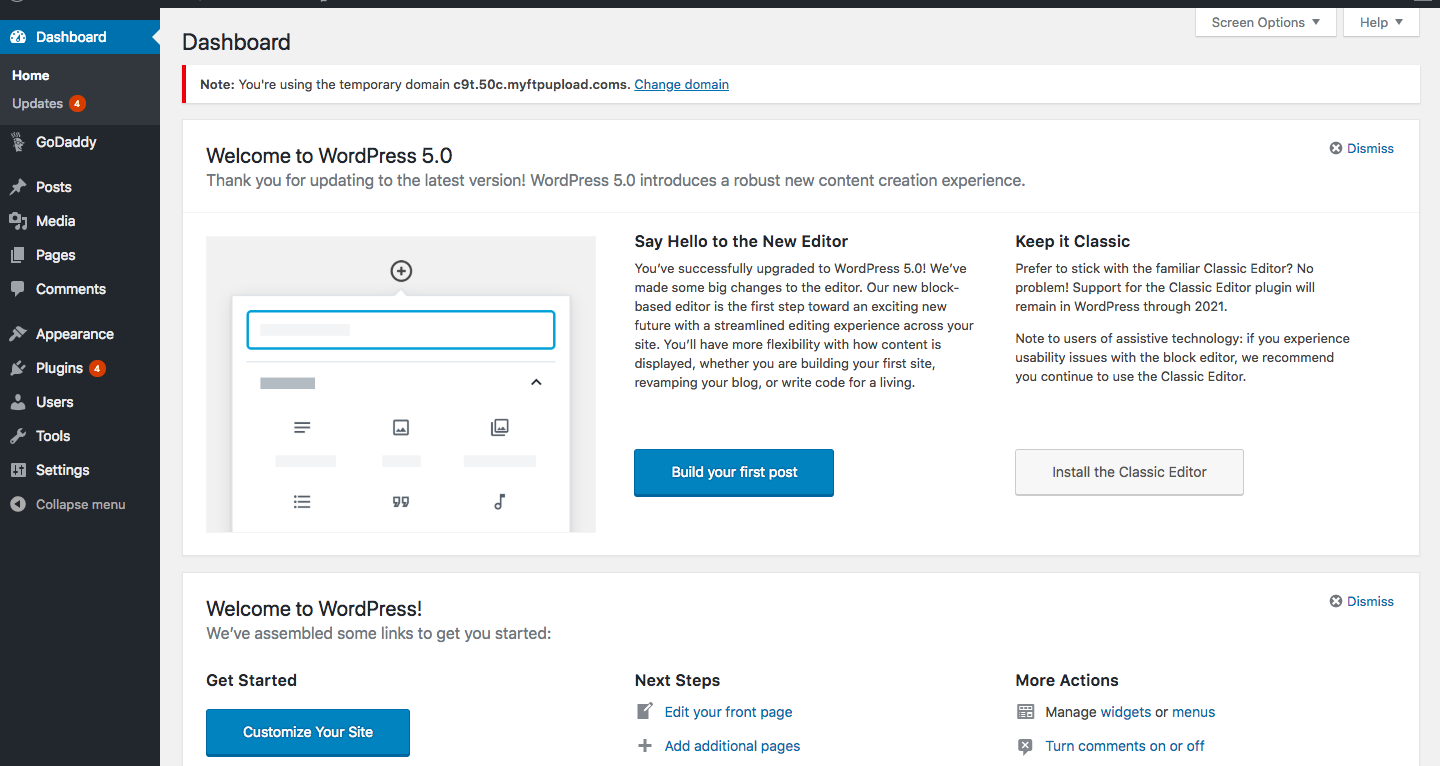
Option B: WordPress (most popular)
WordPress powers a huge share of the web — W3Techs data has long shown it running roughly two in five websites. The free software from WordPress.org plus a hosting plan (typically $3–$10 a month to start) gives you the most flexibility and thousands of free themes and plugins.
The trade-off: you manage updates, backups, and security yourself. Some hosts handle this for you with “managed WordPress” plans.
Option C: An AI website builder
Many builders now offer an AI option that creates a starter site from a short description of your business. Wix’s AI builder and several competitors do this well. The result still needs your edits, but it cuts the blank-page problem down to minutes.
Step 2: Choose and register a domain name
Your domain name is how people find and remember you. Keep it short, easy to spell, and free of hyphens if you can. A .com is still the safest default for a US audience.
Quick checklist:
- Say it out loud — if you have to spell it every time, pick something simpler.
- Avoid numbers and hyphens; people forget them.
- Check that the name isn’t already a trademarked business.
You can register a domain at a registrar like Namecheap or Cloudflare for roughly $10–$15 a year for a .com. Many website builders and hosting plans include a free domain for the first year when you pay annually — after that, it renews at the regular price, so budget for the renewal, not just the intro deal.
Step 3: Pick a template and make it yours
Every platform offers templates (themes) — pre-designed layouts you customize with your own text and images. Pick one that looks close to what you want, then change three things first:
- Colors and fonts — match your brand, or just pick two colors you like.
- The logo/heading area — put your business name at the top.
- The homepage hero — the first thing visitors see should say what you do in one sentence.
Resist the urge to customize everything at once. A clean template with your real content beats a heavily-tweaked template with placeholder text.
Step 4: Create the pages every site needs
Start with these five pages. You can add more later.
- Home — what you do, who it’s for, and one clear next step (call, book, buy).
- About — who you are and why someone should trust you. A real photo helps more than a stock photo.
- Services or Products — what you offer, with prices or a way to ask.
- Contact — a form, your email, your phone number, and your address or service area.
- Privacy Policy — required if you collect any info (a contact form counts). Most builders generate one for you.
Step 5: Write content people can actually read
Most beginner sites fail here, not in design. A few rules that fix 90% of bad website copy:
- One idea per paragraph, two to three sentences each.
- Write like you talk — “we fix leaky roofs fast” beats “we provide comprehensive roofing solutions.”
- Put the important words first. People skim; lead with the point.
- Every page needs one clear action: call us, book a slot, buy now.

Step 6: Make it work on phones
More than half of web traffic comes from phones, so check every page on your own phone before you launch. Text should be readable without zooming, buttons big enough to tap, and menus easy to open.
Then run Google’s free PageSpeed Insights test on your homepage. It scores your site and tells you exactly what slows it down — usually oversized images. Compress photos before uploading (under 200 KB each is a good target) and your site will load noticeably faster.
Step 7: Set up the basics of SEO
You don’t need to become an SEO expert on day one. Three things matter most at launch:
- Give every page a descriptive title (what the page is about, in plain words).
- Write a one-sentence description for each page — this often shows up in Google results.
- Submit your site to Google Search Console (free). It tells you when Google finds your site and flags problems.
Step 8: Launch checklist
Before you tell anyone about the site, run through this:
- Test every link and button — including the contact form (submit it yourself).
- Read every page out loud to catch typos.
- Check the site on a phone and a desktop.
- Make sure your contact details are correct everywhere.
- Remove any “lorem ipsum” or placeholder text you missed.
- Connect your domain (no more yoursite.wixsite.com).
- Set up a free Google Business Profile if you’re a local business — it helps nearby customers find you.
How much does it really cost?
Here’s what a typical small beginner site costs in the first year, using realistic numbers as of late 2026 (prices change — always check the official pricing pages):
- Website builder route: $10–$25/month = roughly $120–$300/year, often with a free domain the first year.
- WordPress route: hosting $3–$10/month + domain ~$12/year = roughly $50–$130/year, plus your time for maintenance.
- Free route: $0 with a free plan (Wix free, WordPress.com free) — but your address has the platform’s name in it and shows their ads. Fine for practice, not for a real business.
The biggest cost is your time. Budget a weekend for the first version, and expect to keep tweaking it for a few weeks after launch.
Mistakes beginners should avoid
- Waiting until it’s “perfect.” Launch with five good pages. A live site you improve beats a perfect site that never launches.
- Skipping the mobile check. If it looks bad on a phone, most of your visitors will leave.
- No clear contact info. If someone can’t figure out how to reach you in ten seconds, you’ve lost them.
- Buying add-ons you don’t need. Start with the basics. You can add email marketing, booking tools, and stores later.
- Forgetting backups. If you use WordPress, set up automatic backups before you need them.
Frequently asked questions
How long does it take to create a website?
A simple site on a website builder can be live in a day or two. A WordPress site usually takes a weekend of focused work the first time. Content — writing your pages — takes longer than the technical setup for most people.
Do I need to learn coding to create a website?
No. Website builders and WordPress let you build a complete site without writing any code. Knowing a little HTML or CSS helps with fine-tuning, but it’s optional.
Can I create a website for free?
Yes — Wix and WordPress.com both offer free plans. The catch: your address will include the platform’s name (like yoursite.wixsite.com) and they’ll show their branding on your pages. For a business, a paid plan with your own domain is worth it.
What’s the difference between WordPress.com and WordPress.org?
WordPress.com is a hosted service — they handle the technical side, and you pay a monthly fee. WordPress.org is free software you install on your own hosting, which gives you full control but also full responsibility for updates and security.
How do I get my website on Google?
Google finds most new sites on its own within days or weeks, especially once you link to it from somewhere (a social profile, a directory). To speed things up, submit your site in Google Search Console — it’s free and takes five minutes.
Last updated: October 2026


