AI Tools for Data Analysis: 12 Tools That Turn Numbers Into Answers (2026)
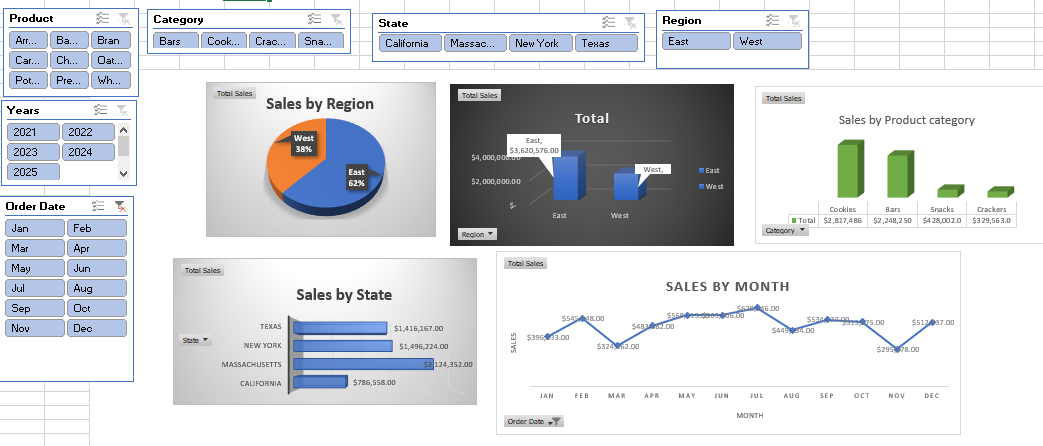
AI tools for data analysis can turn a messy spreadsheet into a clear answer in minutes. You upload a sales file, ask a plain question like “which product sold best last month,” and get back a chart, a table, and a short explanation. No code, no formulas, no waiting for an analyst.
But not every tool does the same job. Some work best on a single spreadsheet. Some live inside Excel or Google Sheets. Others build dashboards your whole team can check every morning. Picking the wrong type wastes money and time, so this guide starts with how to choose, then compares 12 tools with honest free limits and starting prices.
Last updated: October 2026
How to Pick the Right Tool: Start With Where Your Data Lives
Most people shop by features. It works better to shop by where your data already sits:
- Your data is in spreadsheets or CSV files. You want a chat-first tool. Upload the file, ask questions, get charts back. Julius AI and ChatGPT fit here.
- Your data lives in Excel or Google Sheets all day. You want an assistant built into the spreadsheet itself, like Copilot in Excel or Gemini in Google Sheets.
- Your data comes from many places and needs a dashboard. You want a business intelligence tool like Power BI, Tableau, or Looker Studio, where reports update on their own.
- Your data lives in a database and your team writes SQL. You want a notebook-style tool like Hex, where the AI writes and explains queries against live data.
Small businesses usually fall in the first two groups. Start there, and only move to a dashboard tool when you find yourself rebuilding the same report every week.
AI Tools for Data Analysis at a Glance
| Tool | Best for | Free option | Starting paid price |
|---|---|---|---|
| Julius AI | Chat-first spreadsheet analysis | Yes, daily credits | $20/month |
| ChatGPT | One-off file analysis | Yes | $20/month (Plus) |
| Claude | Clear written explanations | Yes | Paid plans available |
| Copilot in Excel | Microsoft 365 users | No | Part of Microsoft 365 Copilot |
| Power BI Copilot | Microsoft reporting teams | Trial | $14/user/month (Pro) |
| Tableau Pulse | Daily KPI briefings | Trial | Paid plans available |
| Gemini in Google Sheets | Google Workspace users | No | Part of Workspace AI plans |
| Polymer | No-code dashboards from spreadsheets | Yes | About $25/month |
| Rows AI | Spreadsheet work without formulas | Yes | $8/user/month |
| ThoughtSpot | Search-style questions on clean data | Trial | Paid plans available |
| Hex | Technical teams with databases | Free tier | Paid plans available |
| Looker Studio | Free dashboards | Yes, free | Free |
Prices change, so check the official pricing page before you pay. The notes below reflect prices listed by vendors and reviewers in 2026.
The 12 Tools in Detail

1. Julius AI
Julius AI is the simplest starting point if your work begins with a file. Upload a CSV or Excel sheet, ask a question in plain English, and it runs the analysis and shows the code it used, so you can check its work. It also builds charts, slides, and short reports from the same file.
Free limits: The free plan gives a small daily credit allowance, enough to test one or two small analyses. Paid plans: Plus starts at $20 per month ($16 per month billed yearly), Pro at $45 per month ($37 yearly). Live database connections sit on the much pricier Business plan, so most small teams will use file uploads instead.
Watch out: Usage is measured in credits, so heavy months cost more than the headline price suggests. If you plan to use it daily, budget for Pro from the start.
2. ChatGPT
ChatGPT is the honest default for occasional analysis, especially if you already pay for it. Upload a file and it writes and runs real Python code against it, then explains the result in plain words. It handles cleaning messy data, finding trends, spotting outliers, and making charts.
Free limits: The free tier covers light, occasional file work. Paid plans: Plus costs $20 per month and raises usage limits. Watch out: It has no live connection to your databases or dashboards, so it works best as a side tool rather than your only analyst.
3. Claude
Claude is the pick when the written explanation matters more than the chart. It reasons through a dataset step by step and writes clear summaries of what changed and why it might matter. Researchers and knowledge workers tend to like it for reports and memos built on top of numbers.
Free limits: A free tier covers light use. Watch out: It is not a code-running analyst by default in the way Julius or ChatGPT are, so for heavy chart work you may need to run the code yourself.
4. Microsoft Copilot in Excel
If your data already lives in Excel and your team uses Microsoft 365, Copilot in Excel is the lowest-friction option. It writes formulas from plain-English requests, builds charts, and explains what a formula does. You never leave the workbook.
Watch out: Full Copilot features need a Microsoft 365 Copilot license, which costs around $30 per user per month on enterprise plans. That only makes sense if your team already lives in Microsoft tools.
5. Power BI Copilot
Power BI Copilot writes DAX measures, drafts report pages, and summarizes reports in plain language. It is a real time-saver for teams that already report in Power BI.
Starting price: Power BI Pro starts at $14 per user per month. Watch out: Copilot itself needs extra Fabric capacity, which adds cost on top of Pro. Price the whole setup, not just the Pro license, before you commit.
6. Tableau Pulse
Tableau Pulse watches your key numbers and sends short, plain-language briefings when something moves. Instead of opening a dashboard and hunting for changes, the insight comes to you. It suits teams that track the same few metrics every day, like sales, sign-ups, or support volume.
Watch out: Pulse works best on clean, well-organized data. If your data is messy, fix that first or the briefings will only repeat the mess.
7. Gemini in Google Sheets
Gemini built into Google Sheets works like Copilot does for Excel: ask questions about your sheet, get formulas, summaries, and charts without leaving the tab. It is the natural choice for teams already on Google Workspace.
Watch out: AI features in Sheets sit on paid Workspace AI plans, so check what your current plan already includes before you upgrade.
8. Polymer
Polymer turns an uploaded spreadsheet into a dashboard almost instantly, with AI-suggested charts and a drag-and-drop builder. No formulas, no BI training. It connects to Google Sheets, Airtable, HubSpot, and Shopify, which makes it handy for small online stores.
Free limits: A free plan covers basic use. Paid plans: Start at around $25 to $49 per month per user. Watch out: It is built for spreadsheet-sized data, not for huge company databases.
9. Rows AI
Rows is a spreadsheet with AI built in. You describe what you want in plain words, and it analyzes data, pulls in information from connected sources, and builds reports, all without formulas or SQL. It can also refresh reports on a schedule, which saves the weekly copy-paste routine.
Free limits: A free plan covers basic use. Paid plans: Plus starts at $8 per user per month ($6 billed yearly), one of the cheapest paid rungs on this list.
10. ThoughtSpot
ThoughtSpot lets you type a question the way you would type a search, like “sales by region last quarter,” and get a chart back. It suits teams whose data is already clean and who want many people to answer their own questions without asking an analyst each time.
Watch out: Search-style tools punish messy data. If two departments define “revenue” differently, the tool will give confident answers built on that confusion.
11. Hex
Hex is a notebook-style workspace for teams that work with SQL and Python. Its AI agent writes queries against a live warehouse, keeps the work reproducible, and explains each step. If someone on your team reads SQL, Hex is the most powerful pick on this list.
Watch out: It is built for technical teams. Non-technical owners will get more value from Julius or Polymer for day-to-day questions.
12. Looker Studio
Looker Studio is Google’s free dashboard tool. Connect Google Sheets, Analytics, or Ads, build a report once, and share a live link with your team. For a small business that just needs a weekly sales or traffic dashboard, it is hard to beat free.
Watch out: The AI help here is lighter than in the paid tools. You do more of the setup yourself, but you pay nothing for it.
A Free-First Starter Stack
If you want to spend nothing this month, try this combination:
- ChatGPT free tier for one-off questions about a spreadsheet.
- Looker Studio for a dashboard you check every week.
- Rows free plan for spreadsheet work where formulas slow you down.
Use them for two or three weeks on real work. The tool you open most often is the one worth paying for. Most small teams find that one paid tool, usually Julius AI or a spreadsheet assistant, covers almost everything.
Privacy Rules Before You Upload Business Data
AI analysis means sending your data to someone else’s servers. A few rules keep that safe:
- Remove customer names, emails, and payment details before uploading a file, unless you have checked the tool’s privacy terms and your own obligations. Most questions about sales or trends work fine on anonymized data.
- Check how long files are kept. Some free plans delete files within hours, others keep them for days. If a file holds sensitive data, prefer a tool with short retention or a paid plan with clear controls.
- Do not upload unpublished financials, contracts, or employee data to a free tool without reading its terms. When in doubt, use a small sample of the data instead of the full file.
- Read the security page, not just the marketing page. Look for SOC 2 certification and clear statements about whether your data trains their models.
How to Check the AI’s Numbers
AI tools sometimes give confident answers built on a wrong reading of your data. A wrong total in a report to your boss or a client is worse than no report at all. Check every important result:
- Ask it to show its work. Tools like Julius show the code they ran. Even if you cannot read code, you can see which columns it used.
- Spot-check one total by hand. Pick one number, add it up in your spreadsheet, and compare. If it matches, the rest is more likely right.
- Watch for silent filters. A chart can look right while quietly dropping blank rows or a whole region. Ask “how many rows did you include” and compare with your file’s row count.
- Re-ask the question a different way. If “sales by region” and “total sales split by region” give different totals, something is off. Dig in before you share the result.
- Never publish an AI-only number. Treat the tool as a fast junior analyst: useful, quick, and always in need of a review.
Common Mistakes to Avoid
- Buying a dashboard tool for a spreadsheet problem. If you only analyze one file a week, a chat tool beats a BI platform.
- Skipping the data cleaning. Duplicate rows, mixed date formats, and blank cells cause more bad answers than any tool choice.
- Paying for a yearly plan on day one. Monthly billing for the first month lets you find out whether the tool fits your real work.
- Sharing AI charts without labels. Every chart needs a title, a date range, and a source note, or readers will misread it.
- Expecting the tool to know your business. It sees numbers, not context. A sales spike might be a promotion, a holiday, or a data error. You supply the meaning.
Your First Analysis in 10 Minutes
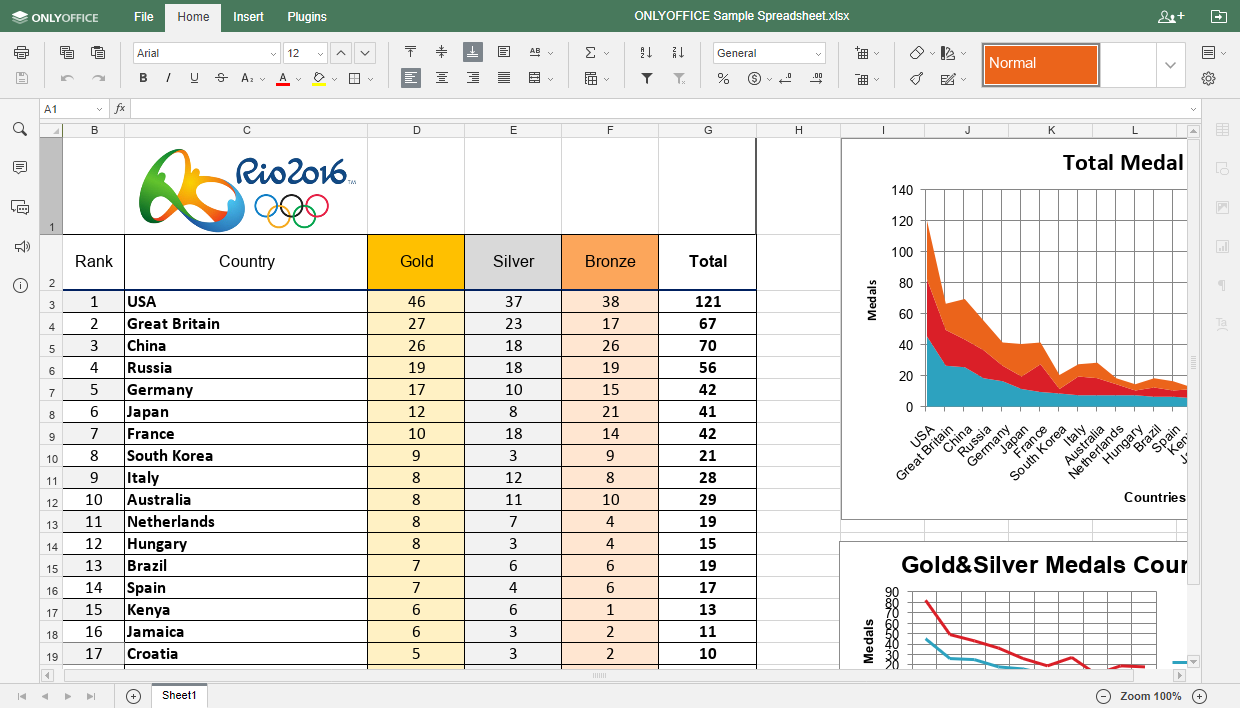
If you have never done this before, try it on a real file this week:
- Export one month of sales from your store, accounting tool, or payment app as a CSV file.
- Clean it quickly: delete customer emails and payment details, fix obvious duplicate rows, and make sure dates all look the same.
- Upload it to a free tool like Julius AI or ChatGPT and ask three questions: “What were total sales this month?”, “Which product sold the most units?”, and “Show sales by week as a bar chart.”
- Test on a few rows first. Before you trust a big result, ask the tool about a small slice you can check by hand, like one single day. If that matches, run the full file.
- Check the totals against the number your store or accounting tool already shows. If they disagree, find out why before you share the chart with anyone.
Ten minutes of this tells you more about a tool than an hour of reading feature lists.
Frequently Asked Questions
What is the best free AI tool for data analysis?
For one-off spreadsheet questions, the free tiers of ChatGPT and Julius AI are the best starting points. For a free dashboard you check every week, Looker Studio wins. Pick based on the job, not on a single “best” label.
Can AI replace a data analyst?
For routine questions, mostly yes. For decisions that carry real money or risk, no. AI speeds up the first 80 percent of analysis, but a human still needs to check the numbers, understand the context, and own the decision.
Is it safe to upload company data to an AI tool?
It depends on the data and the tool. Remove personal and payment details first, check file retention and model-training terms, and use samples instead of full files for sensitive work. For regulated or highly sensitive data, prefer tools with enterprise security controls.
Do I need to know SQL or Python?
No, not for the chat-first and spreadsheet tools on this list. SQL or Python only becomes useful with notebook tools like Hex, or when you want to check the code behind an answer.
Is ChatGPT or Claude better for data analysis?
It depends on what you need back. ChatGPT is better when you want code, calculations, and charts from an uploaded file. Claude is better when you want a clear written explanation of what the numbers mean. Many owners use ChatGPT for the chart and Claude for the summary that goes with it.
How can I start using AI for data analysis?
Start with one spreadsheet you already have, like last month’s sales. Remove personal details, upload it to a free tool, and ask one simple question. Check the answer by hand, then ask a follow-up question. That first checked answer is the whole skill. Everything after it is just bigger files and better questions.
Which AI tool is best for Excel files?
If you live in Excel, Copilot in Excel is the smoothest fit. If you just need answers from an Excel file now and then, upload it to Julius AI or ChatGPT instead and pay nothing extra.
The Bottom Line
Start with where your data lives, not with the longest feature list. A spreadsheet owner needs a chat tool. An Excel team needs a spreadsheet assistant. A team that repeats the same report weekly needs a dashboard. Try the free options first, check every important number by hand, and pay only for the tool you actually open every week.