How to Use an AI Image Generator: A Beginner’s Guide (2026)

An AI image generator turns a few typed words into a finished picture in seconds. You describe what you want — “a cozy cabin in the mountains at sunset, oil painting style” — and the tool creates it. No drawing skills needed. This guide shows you how to use an AI image generator step by step, how to write prompts that actually work, and how to fix results you don’t like.
What is an AI image generator?
An AI image generator is a tool that creates pictures from text descriptions (called prompts). You type what you want to see, and the AI builds an image to match. Popular options include the image tools inside ChatGPT, Google Gemini, and Microsoft Copilot — all of which have free plans. If you want more free AI tools to experiment with, see our list of free AI tools like ChatGPT.
People use them for blog graphics, social media posts, presentation slides, product mockups, birthday cards, and just for fun. The images are original every time — type the same prompt twice and you’ll get two different pictures.
How to use an AI image generator: step-by-step
The exact buttons differ from tool to tool, but the process is the same everywhere:
- Open the tool and find the image feature. In ChatGPT, it’s built into the chat box (ask it to “create an image”). In Gemini and Copilot, you can simply describe the image you want in the chat. Standalone tools like Adobe Firefly or Ideogram have a dedicated prompt box on their home page.
- Type a clear description of the image. This is your prompt. Start with the main subject, then add details: setting, colors, style, and mood. (More on writing good prompts below.)
- Pick a style and size if the tool offers it. Many generators let you choose “photo,” “illustration,” “cartoon,” or an aspect ratio like square (1:1) for social posts or wide (16:9) for banners.
- Generate and review. Most tools make 1–4 versions at once. This takes 10–60 seconds.
- Keep the best one, or ask for changes. Didn’t like it? Describe what to change — “make the sky darker,” “add snow on the mountains” — and generate again. The first try is rarely the final one.
How to write a prompt that actually works
The prompt is everything. Vague prompts give vague pictures. A simple formula that works well:
Subject + details + style + lighting/mood
Compare these two:
- Weak: “a dog”
- Strong: “a golden retriever puppy sitting in a field of sunflowers, warm afternoon light, shallow depth of field, photorealistic”
The strong prompt tells the AI what (golden retriever puppy), where (field of sunflowers), how it looks (warm light, photorealistic). Each extra detail narrows down the guesswork. Aim for one or two sentences — you don’t need a paragraph.
A few prompt tricks that help:
- Name the style: “watercolor painting,” “3D render,” “vintage poster,” “anime.” Without a style, the AI picks one for you.
- Set the camera view: “close-up,” “aerial view,” “wide shot.”
- Add mood words: “cozy,” “dramatic,” “calm,” “cheerful.”
- Be specific about text: AI still struggles with words inside images. If you need a sign or label, keep it to a few short words and check the spelling in the result.
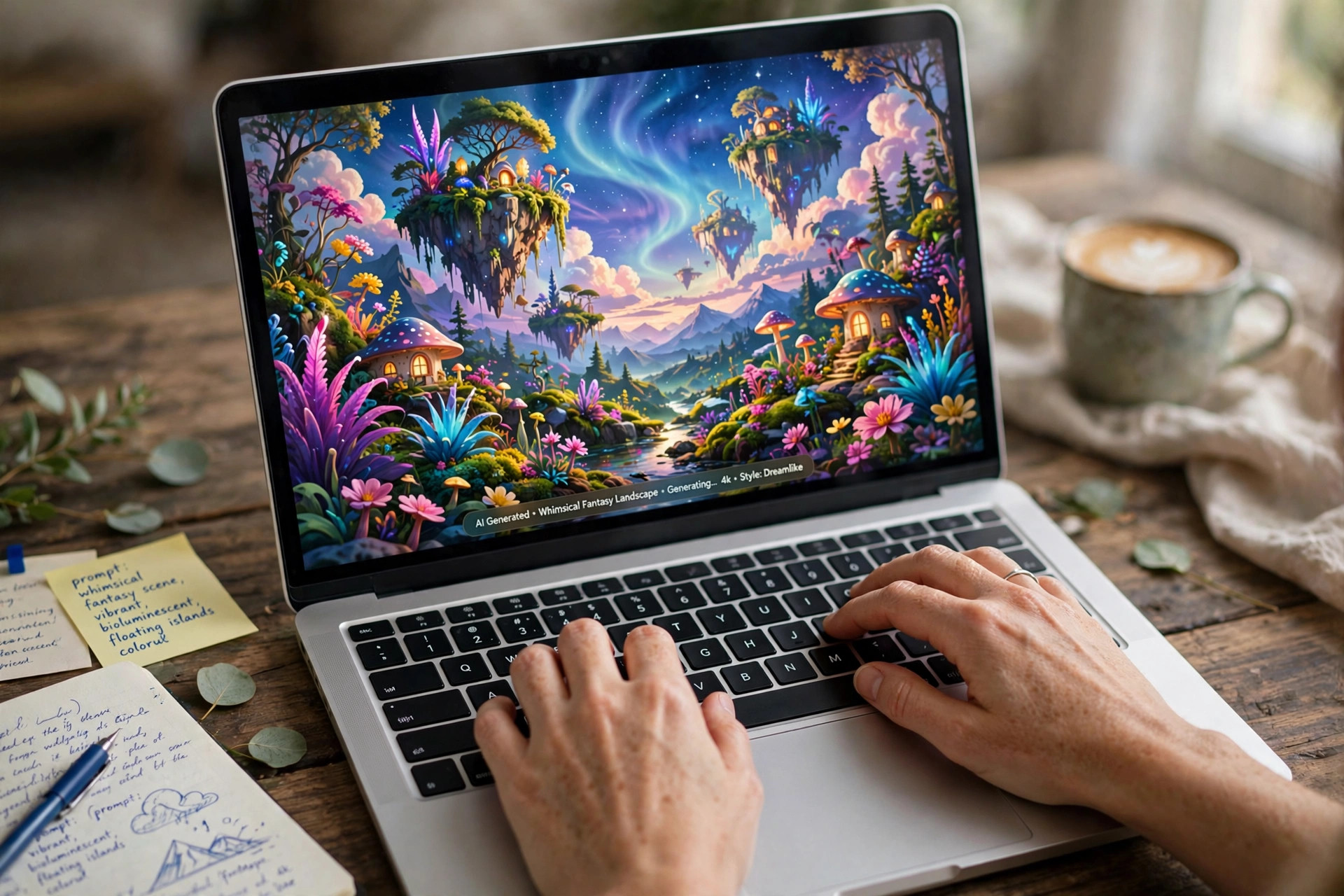
How to fix images you don’t like
Almost nobody loves the first result. Here’s how to fix the common problems:
- It ignored part of your prompt: move the important detail to the front of the prompt and repeat it once. “A red bicycle leaning against a brick wall, the bicycle is bright red” works better than burying “red” at the end.
- Weird hands, faces, or extra limbs: regenerate — these glitches are random, so a new try often fixes them. Adding “anatomically correct” or “natural hands” can help too.
- Wrong style: name the style explicitly instead of hoping. “Flat vector illustration” beats “modern looking.”
- Too plain or boring: add richer detail words — textures (“weathered wood”), light (“golden hour”), atmosphere (“morning mist”).
- Everything looks the same: change one big thing (style, setting, or color palette) rather than tweaking tiny words.
Think of it as a conversation: generate, look closely, describe the fix, generate again. Three to five rounds is normal for a result you’re happy with.

How to create an AI image from a photo
You don’t always have to start from a blank page. Most image generators also let you upload an existing photo and change it — this is sometimes called image-to-image or AI photo editing. It’s useful for things like:
- Removing an unwanted object or person from a photo
- Changing the background (a messy room becomes a beach)
- Restyling a photo (“turn this into a watercolor painting”)
- Extending a photo’s edges to fit a wider frame
How it works: upload your photo in the tool (look for an image-upload or “edit” button), then describe the change in plain words — “remove the trash can on the left” or “make the sky a dramatic sunset.” The AI keeps the rest of the photo and redraws only what you asked for. ChatGPT, Gemini, Canva’s Magic Edit, and Adobe Firefly all support this. Small tip: describe the change, not the whole photo — the tool can already see it.
One caution: editing photos of real people (including yourself) can look convincing, which is exactly why you should never use edited photos to mislead anyone — fake IDs, fake evidence, or fake “photos” of events that never happened. Most tools also block face-swapping onto other people’s bodies.
Free vs. paid: what you actually get
Most AI image generators have a free tier, but free usually means limited — a set number of images per day or slower generation during busy hours. Paid plans raise or remove those limits and sometimes add higher resolution or faster models.
For casual use — a few images a week for a blog or social posts — the free tiers of ChatGPT, Gemini, or Copilot are plenty. Pay only if you’re generating images daily for work and keep hitting the free caps. Limits change often, so check the tool’s official pricing page before you decide.
Can you use AI-generated images commercially?
It depends on the tool. Most major generators allow commercial use of images you create on paid plans, and many allow it on free plans too — but the terms differ by service, so read the terms of use for the tool you picked before using an image in ads, products, or client work.
One more thing to know: in the US, purely AI-generated images (with no meaningful human creative input) generally cannot be copyrighted, according to the U.S. Copyright Office’s guidance on AI-generated works. That means you can use them, but so can anyone else. If copyright protection matters for a project, add significant human editing or use traditionally created art.
Last updated: October 2026. This is general information, not legal advice.
Quick tips for better results
- Save prompts that worked — keep a notes file so you can reuse and tweak them.
- Generate at the size you need. Upscaling a small image later looks worse than generating big from the start.
- Don’t ask for real people’s faces, logos, or trademarked characters — most tools block or garble these, and using them can cause legal trouble.
- Check hands, text, and small details at full size before publishing an image.
- For a consistent look across many images (like a blog series), reuse the same style words in every prompt.
Frequently asked questions
Do I need to download software to use an AI image generator?
No. The most popular generators run in your web browser or phone app. You just sign in (many are free) and start typing prompts.
How long does it take to generate an image?
Usually 10 to 60 seconds per image, depending on the tool and how busy it is. Free tiers can be slower at peak times.
Why does my image look different from what I described?
The AI interprets your words, it doesn’t read your mind. Add the missing details to your prompt — style, colors, setting, lighting — and generate again. Iteration is part of the process.
How do I use AI on an existing photo?
Upload the photo to a tool that supports AI editing — ChatGPT, Gemini, Canva, or Adobe Firefly — and describe the change you want (“remove the person in the background,” “turn this into a watercolor”). The AI edits the photo instead of starting from scratch.
Can I make AI photos of myself?
Yes, in a limited way: you can upload your own photo and ask the AI to restyle it or change the background. Most tools won’t generate realistic new photos of real people from text alone, and face-swapping is blocked. Never use edited photos to mislead anyone.
Are AI image generators free?
Many have free plans with daily limits, including the image tools in ChatGPT, Gemini, and Copilot. Heavy users may need a paid plan; check each tool’s pricing page for current limits.
Can I sell images I make with an AI generator?
Often yes, but it depends on the tool’s terms of service — some free tiers restrict commercial use. Also note that purely AI-made images generally can’t be copyrighted in the US. Check the terms before selling.